22
Macintosh
Wired Network
For wired network interface users
(Mac OS X 10.4.11, 10.5.x, 10.6.x)
16
Before you install
Make sure your machine is connected to the power
and your Macintosh is ON. You must be logged on
with Administrator rights.
17
Connect the network
cable
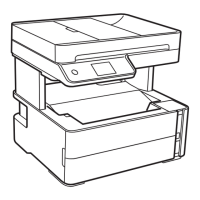
a Lift the scanner cover until it locks securely into
the open position.
b You will find the Ethernet port marked with a
symbol inside the machine on the left as
shown below. Remove the protective cap and
connect the network cable to the Ethernet port.
• For Mac OS X 10.4.0 to 10.4.10 users, upgrade
to Mac OS X 10.4.11 - 10.6.x.
• If you have previously set up your machine for
a wireless network and then want to set it up on
a wired network, you should check that the
machine’s Network I/F is set to
Wired LAN. The wireless network interface
will become inactive with this setting.
On your machine, press Menu.
Press s or t to display Network, and then
press Network.
Press s or t to display Network I/F, and
then press Network I/F.
Press Wired LAN.
Press Stop/Exit.
USB






 To Next Page