63
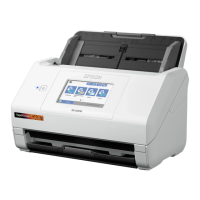
Selecting Wireless Network Settings from the Control Panel
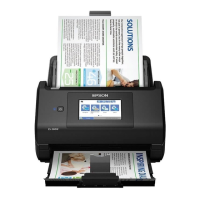
You can select or change wireless network settings using your product control panel.
To install your product on a wireless network, follow the instructions on the Start Here sheet and install
the necessary software by downloading it from the Epson website. The installer program guides you
through network setup.
1. Select home, if necessary.
2. Press the icon.
3. Select Router.
4. Select Start Setup or Change Settings.
5. Select Wi-Fi Setup Wizard.
6. Select the name of your wireless network or select Enter Manually to enter the name manually. Use
the displayed keypad to enter your network name.
7. Select the Password field and enter your wireless password using the displayed keypad.
Note: The network name and password are case sensitive. Be sure to correctly enter uppercase and
lowercase letters, and numeric or special characters.
• To move the cursor, press the left or right arrows.
• To change the case of letters, press .


 To Next Page