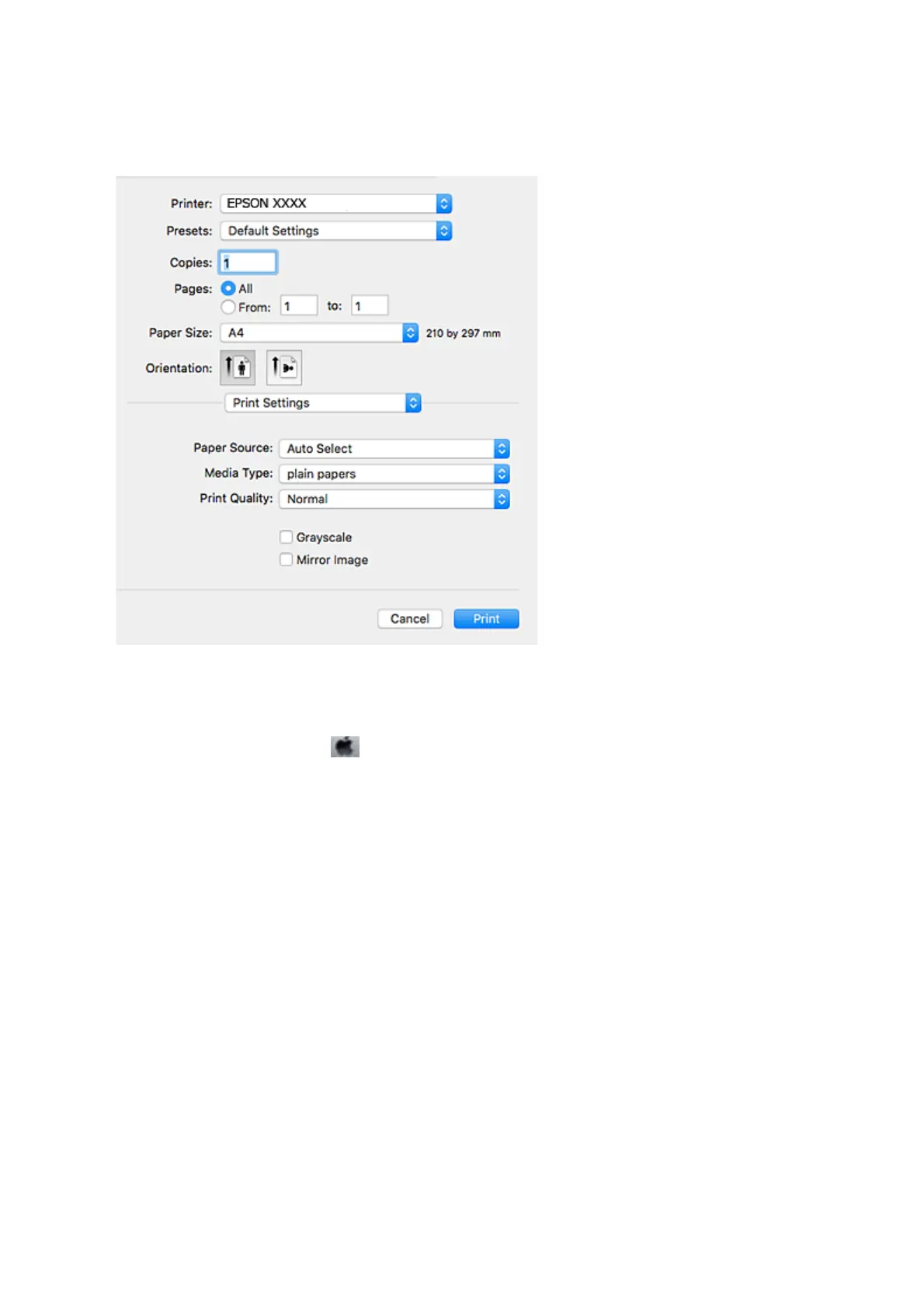
4. Select Print Settings from the pop-up menu.
Note:
On OS X Mountain Lion or later, if the Print Settings menu is not displayed, the Epson printer driver has not been
installed correctly.
Select System Preferences from the
menu > Printers & Scanners (or Print & Scan, Print & Fax), remove the
printer, and then add the printer again. See the following to add a printer.
http://epson.sn
5. Change the settings as necessary.
See the menu options for the printer driver for details.
6. Click Print.
Related Information
&
“Available Paper and Capacities” on page 21
&
“Loading Paper in the Paper Cassette” on page 26
&
“Loading Paper in the Rear Paper Feed” on page 28
&
“List of Paper Type” on page 32
&
“Menu Options for Print Settings” on page 65
User's Guide
Printing
60








 To Next Page