20
Setting Up Fax Features
Entering Your Phone Number
1. From the Header screen, press u or d to select
Your Phone Number
, then
press
OK
. You see the phone number input screen.
2. Use the numeric keypad to enter your phone number (up to 20 digits).
3. When you’re done, press
OK
.
4. Press x
Menu
to exit the Fax Menu.
Using the Keypad to Enter Numbers and Characters
When entering phone numbers and text in Fax mode, follow these guidelines:
■ To enter a fax number, use the numeric keypad. Press the
#
button to insert
the
+
symbol for international phone numbers. Press r to enter a space or
l to delete a character.
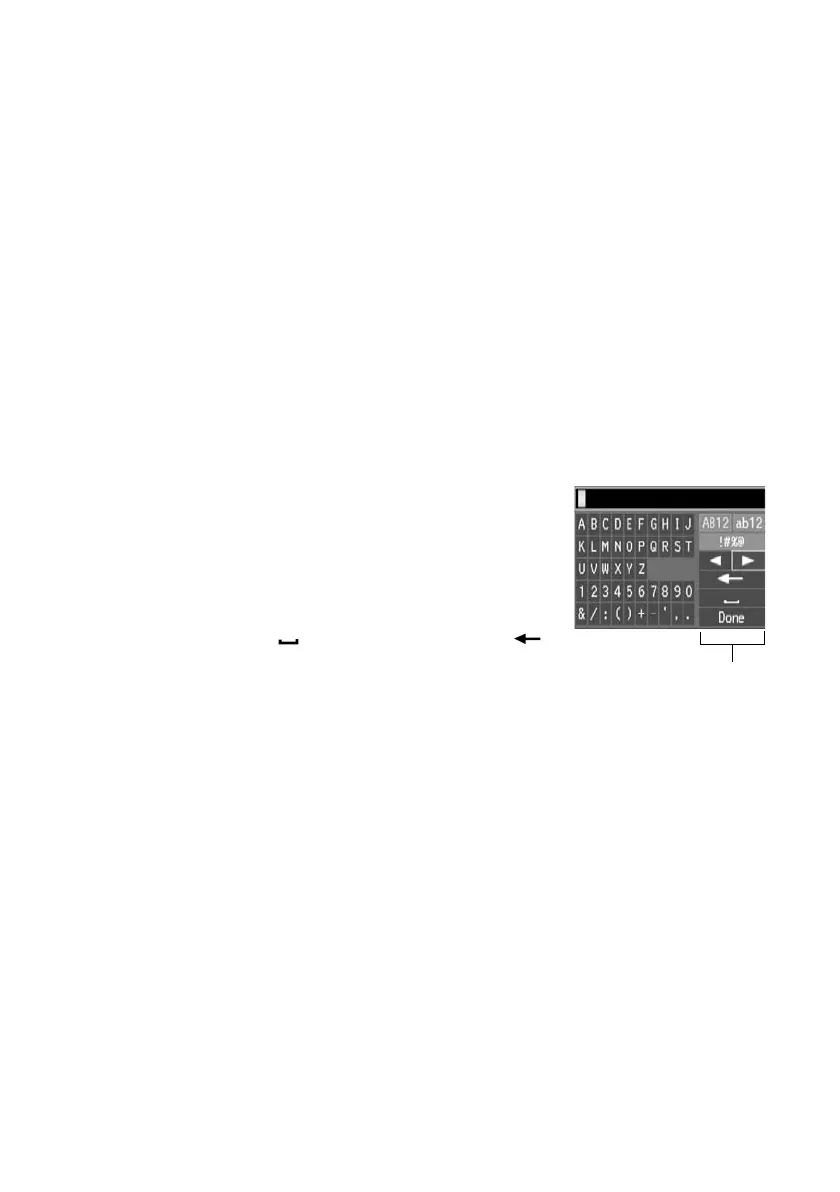
■ To enter characters, use the l, r, u, or d arrow
buttons to highlight a letter on the screen. Press
OK
to select it.
Use the on-screen function buttons to select
uppercase (
AB12
), lowercase (
ab12
), symbols
(
!#%@
), or spaces ( ), or to delete characters ( ).
When you’re finished, highlight
Done
and press
OK
.
Selecting the Number of Rings to Answer
If you connected an answering machine and it is set to pick up on the fourth ring,
you should set the WorkForce 630/632/633/635 Series to pick up on the fifth ring
or later:
1. Press the
Fax
button, then press x
Menu
.
2. Press u or d to select
Communication
, then press
OK
.
3. Press u or d to select
Rings to Answer
, then press
OK
.
4. Press u or d or use the numeric keypad to select the number of rings, then
press
OK
. Select more rings than you use for the answering machine.
5. Press x
Menu
to exit the Fax Menu.
Function buttons








 To Next Page