Problems and Solutions
51
Printing and Copying Problems
■ Make sure the size of paper you loaded matches the paper size selected on the
control panel or in your printer software.
■ Letter-size paper is automatically selected for copying. If your legal-size
document is cropped, press
Reduce/Enlarge
and select
Legal->Letter
.
■ Position your original against the back left corner of the scanner glass. If the
edges are cropped, move your original away from the edges slightly. Place the
document flat against the scanner glass.
■ Printing stops when an ink cartridge is expended. If a color cartridge is
expended, you may be able to continue printing temporarily with black ink;
see the online User’s Guide for more information. If the black cartridge is
expended, you must replace it to continue printing.
Paper Feeding Problems
If paper doesn’t feed correctly, remove the paper and fan the sheets, then reload
them as shown on page 4. Don’t load paper above the tabs on the edge guides.
If paper has jammed, follow the steps on the LCD screen. If necessary, check the
following areas:
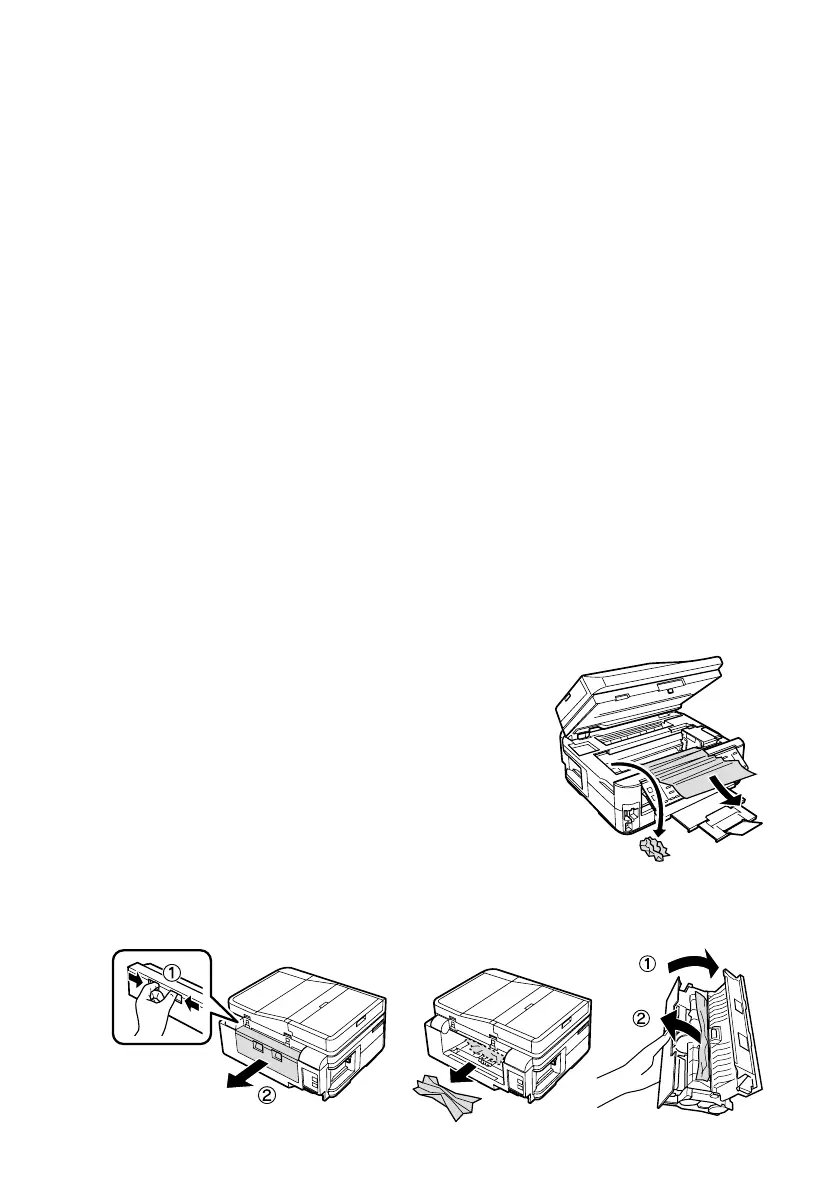
1. Lift the scanner and carefully remove any paper
trapped inside.
2. Remove the duplexer from the back of the printer and check for jammed
paper. Open the cover on the duplexer to remove any paper, if necessary.








 To Next Page