11
3.4. Enter Test mode and ON mode
There are three mode for the switch, OFF, TEST and ON mode.
OFF
:When the switch to the OFF position, the camera will be power off automatically.
TEST
:When the switch to the TEST position, the camera enters the preview test status, you can
manually start taking pictures, record videos, view photos and videos, set the parameters and so on.
With this mode, you can also test the induction area of the PIR: When fix the camera into this mode,
the user can walk slowly right in front of the camera from 3 to 20 meters. When the blue LED indicator
light flashes, means this location can be inducted by the main PIR. When red LED flashes, means this
position can be inducted by the side PIR.
There are three status under test mode: Preview status (on the LCD screen or TV screen, you can
see the current camera image in front of the lens), Setting status (enter the parameter setting menu)
and Playback status (In the LCD screen or TV, you can see the images from the SD card). After turned
on with test mode, the camera automatically enters into preview status.
ON: also called automatic infrared shooting mode. When the switch to the ON position, the camera
enters On mode. When entering this mode, the system will wait about 10 seconds, at the same time
the red LED flashes, then goes out after that and goes into induction shooting state. After entering this
mode, the system will automatically shooting based on your setup parameters, when the person or
animal enters the monitoring area.
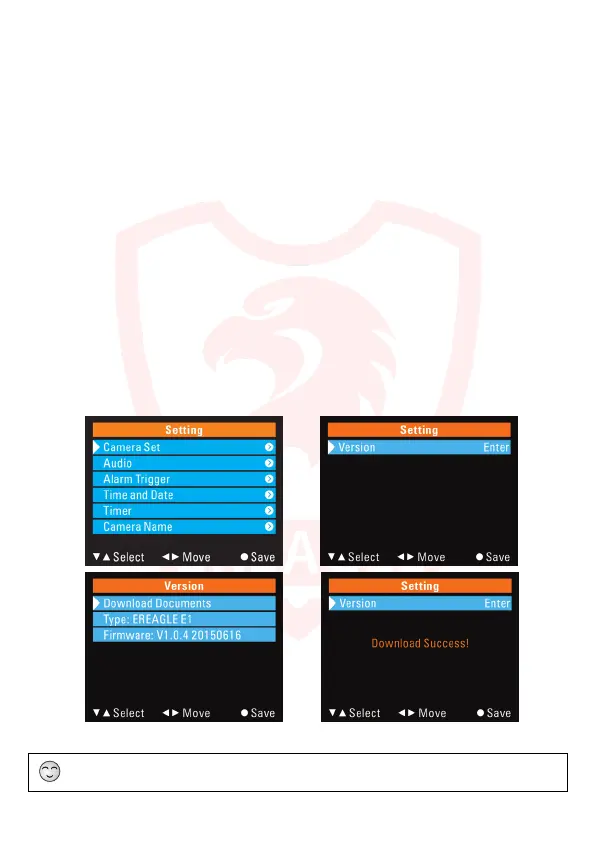
3.5. Download the Camera manual and Setup APP
Press“MENU” to set enter the setting menu.
Press “UP” and “DOWN” to move to Version setting, and press“MENU”to enter the sub-menu.
Press “UP” and “DOWN” to move to the Download Documents options, press“MENU”to start
downloading .
"Download success" will appear on the screen. Files will be automatically saved in SD card.
The above is a simple operation. For more detailed instruction, Please refer to the instruction at the later
Advanced Settings.



 To Next Page