5. Printing
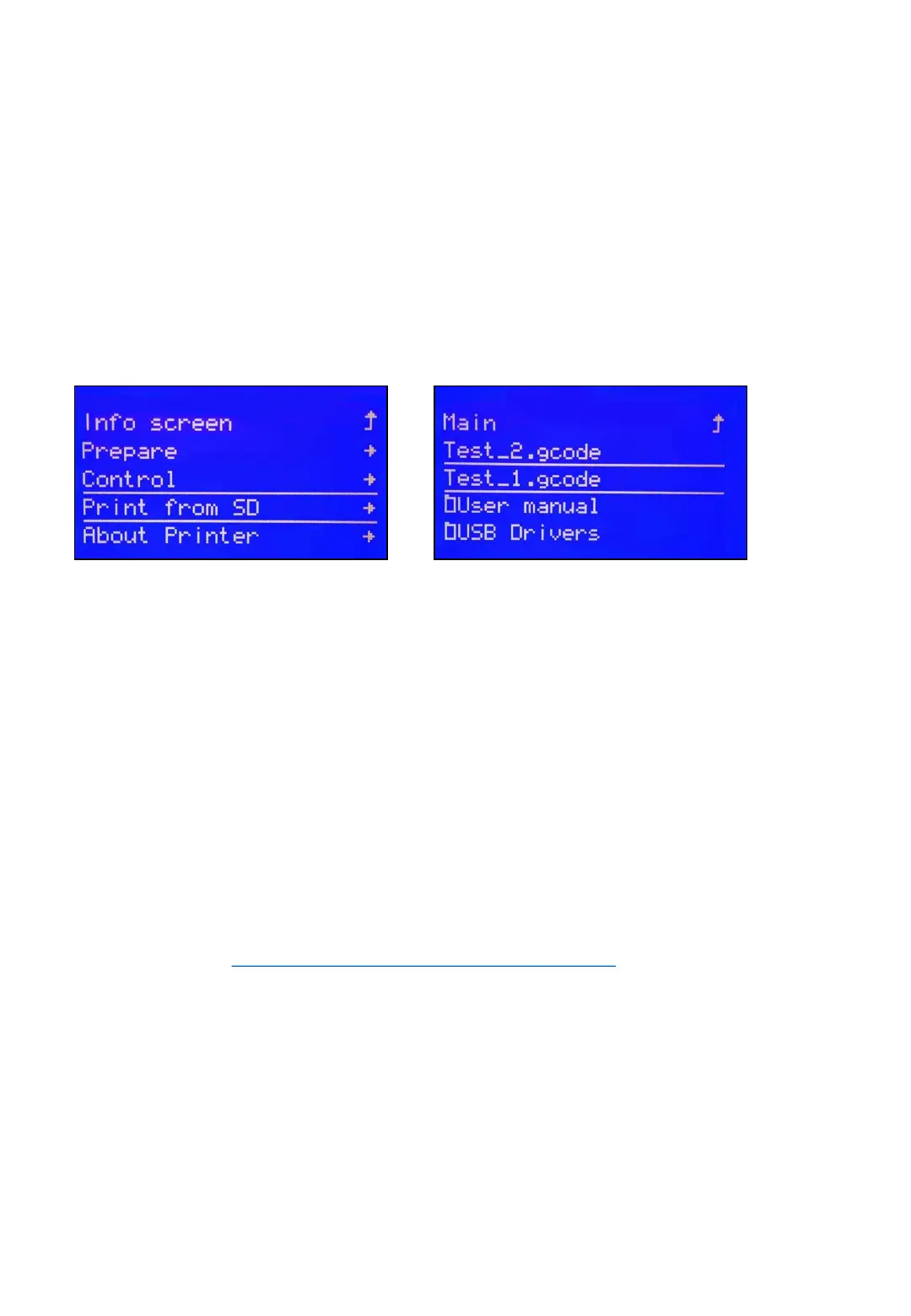
The printer is now ready to print, we can print the test gcode at first.
1) You need to insert the SD card to printer.
2) Then click LCD button→Print from SD card→Select “Test_1.gcode”
After test model is complete. You need to learn how to slice till files to
be able to print your own model.
5.1 Install the driver
Connect Eryone Thinker S to your PC/laptop via USB cable. Normally
the driver will be installed automatically, the same way as you use your
keyboard. If your PC can’t get the driver automatically, please insert
the SD card to your PC with SD card reader(Package included it).
Copy the drivers to your PC and install it.
(Refer to link: https://sparks.gogo.co.nz/ch340.html)
After downloading and installation, you will find the corresponding serial
port in windows “Device manager”
12



 To Next Page