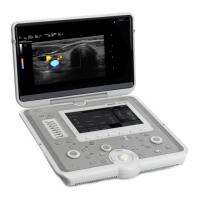
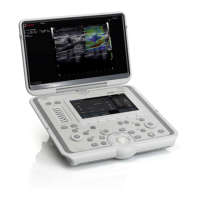
The MyLab™ SIGMA is a portable ultrasound system designed for a wide range of clinical applications, offering advanced imaging capabilities in a compact and user-friendly design. This quick reference guide provides an overview of the system's components, operational flow, and essential functions, making it suitable for quick consultation during examinations.
System Overview
The MyLab™ SIGMA features a comprehensive control panel and a high-resolution monitor, providing an intuitive interface for medical professionals. Key components include:
- Monitor: Displays real-time ultrasound images and system information.
- Loudspeaker: Provides audio feedback for various system functions.
- Touchscreen: Allows for interactive control and selection of various parameters and settings.
- Toggles: Buttons for quick activation or deactivation of specific functions.
- Printer configurable button: A customizable button for initiating print functions, allowing for quick documentation of images.
- Mode buttons and gain controls: Dedicated buttons for selecting different imaging modes (e.g., B-Mode, CFM, PW) and adjusting the gain for optimal image brightness and contrast.
- WiFi/Power/Battery Status LED: Indicators for network connectivity, power status, and battery charge level.
- Status LEDs: Provide visual feedback on the operational status of various system components.
- Measure button: Activates measurement tools for quantifying anatomical structures.
- Pointer: A control for navigating the on-screen interface.
- eKnob: An electronic knob for fine-tuning parameters.
- Trackball and related controls: A central trackball for precise cursor movement and associated buttons for selection and confirmation.
- Freeze button: Pauses the real-time imaging to capture a still image.
- Dual button: Activates dual-screen display for comparative imaging.
- Menu button: Accesses the main system menu for comprehensive settings and configurations.
- ON/OFF button: Controls the power status of the system.
- TGC (Time Gain Compensation) sliders: Allow for depth-specific gain adjustments to ensure uniform image brightness across the entire field of view.
- eTouch: A customizable button that can be programmed for frequently used functions, enhancing workflow efficiency.
The system's connectivity options are designed for versatility and ease of integration into clinical environments:
- Kensington lock: Provides physical security for the device.
- Headset port: For private audio output.
- LAN port: For wired network connectivity, enabling data transfer and system updates.
- USB ports: Multiple USB ports for connecting external devices such as printers, storage drives, and other peripherals.
- Microphone input: For voice annotations during examinations.
- Video output: Allows connection to external displays for larger viewing or presentation purposes.
- Power AC/DC connector: For connecting the system to a power source for operation and battery charging.
- ECG connector: For integrating electrocardiogram signals, useful in cardiac applications.
- Probe connector: A dedicated port for connecting various ultrasound probes.
- Probe lock: Secures the connected probe to prevent accidental disconnection.
- Folding handle: Enhances portability and ease of transport.
The MyLab™ SIGMA is designed to be highly portable, with options for a trolley or a compact carrying case, making it suitable for various clinical settings, including point-of-care, emergency, and mobile examinations.
ON/OFF - Standby
To power on the MyLab™ SIGMA:
- Connect the system to the mains: Ensure the power supply is securely connected to the device and a power outlet.
- Press the ON/OFF button: This initiates the system startup sequence.
The system is designed for quick boot-up, allowing medical professionals to begin examinations promptly.
Exam Flow
The operational workflow of the MyLab™ SIGMA is structured to guide users through the examination process efficiently:
-
Start Exam:
- Insert patient data and operator ID or resume previously inserted data: Users can input new patient information, including last name, first name, middle name, identification, birth date, age, gender, height, and weight. Additionally, operator ID can be entered. The system also allows for resuming exams with previously entered data, streamlining the process for follow-up appointments.
- Selecting probe, application, and preset: The system presents a selection of available probes (e.g., L4-15, P1-5, mC3-11, C1-8) and applications (e.g., Abdo, Breast, Musc-Skel, Pediatric, Vascular, Small Organ, Thyroid). Users choose the appropriate probe and application based on the clinical need. Presets (e.g., General) are available to quickly configure the system with optimized settings for the selected application, reducing setup time.
-
Scan:
- Two levels menu: The system offers a two-level menu structure, providing quick access to frequently used parameters and advanced settings. This allows for efficient navigation and adjustment of imaging parameters during real-time scanning.
- Real-time scanning: Once the probe, application, and preset are selected, the system enters real-time imaging mode. Users can adjust various parameters such as Power, Needle enhance, PWR D, XView C1, microV, Biopsy, MView 1, TPView, Freq Gen-M, Dynamic Range, Size, Focus Pos, Depth, Fundamental, Dyn Compr, and B-Steer to optimize image quality. The interface also includes options for SmartTouch, Probe selection, Patient ID, Bodymarks, Annotations, Report, Tools, and Full screen view.
-
Exam Review:
- Review saved images and clips: After scanning, users can review the acquired images and video clips. The review interface allows for attaching images, going back to acquisition, closing the exam, deleting images, opening exams, exporting data, following up on exams, and selecting all images. Tools for reporting and annotations are also available. The system displays detailed information about the acquired images, including patient data, imaging parameters, and measurements.
-
Report:
- Visualizing all the measurements: The report function compiles all relevant patient data, examination details, and measurements into a structured report. Users can review the report, which includes sections for patient data, admission diagnosis, and observations.
- Report Preview: A preview of the generated report is available, allowing users to verify the content before finalization. The report can include details such as patient name, birth date, gender, exam date, referring physician, performing physician, and specific measurements (e.g., R Carotid Stenosis, R ECA True Diam, R ECA Residual Diam, R % Stenosis).
-
End Exam:
- Saving in Native, DICOM or Multimedia formats on Local Archive, USB, CD/DVD or Network: Upon completion of the exam, users can save the data in various formats (Native, Multimedia, DICOM) to different destinations:
- Local Archive: For internal storage on the device.
- USB: For external storage on a USB drive.
- CD/DVD: For burning data to optical media.
- Network: For transferring data to a network server, often using DICOM for seamless integration with PACS (Picture Archiving and Communication System).
- Options for anonymizing data and exporting specific setups (e.g., Export Desk Setup, Only Multimedia Report) are also available.
-
Archive Review:
- Arch Manager Select Archive: The archive manager allows users to query, view, and manage past examinations. Functions include querying by date (Today, Yesterday), importing DICOM databases, opening exams, resetting filters, exporting data, and deleting exams.
- Back up reminder: The system may provide reminders for data backup to ensure data integrity and prevent loss.
- Latest DICOM DB: Provides access to the most recent DICOM database entries.
- Select All Exams, Select Page, Select Interval, No Selection: These options facilitate efficient management and selection of archived exams.
- The archive review displays a list of exams with details such as patient name, patient ID, application, exam date, exam time, and modality.
Usage Features
The MyLab™ SIGMA is designed with several features to enhance usability and workflow:
- Intuitive User Interface: The combination of a touchscreen, trackball, and dedicated buttons provides multiple ways to interact with the system, catering to different user preferences.
- Customizable eTouch: The eTouch button can be programmed with frequently used functions, allowing for personalized workflows and faster access to critical tools.
- Quick Presets: Pre-configured settings for various applications help optimize image quality and reduce setup time, especially in fast-paced clinical environments.
- Portable Design: The compact size and optional trolley or carrying case make the MyLab™ SIGMA highly portable, suitable for bedside examinations, mobile clinics, and emergency situations.
- Comprehensive Connectivity: Multiple USB ports, LAN, and video output ensure seamless integration with external devices and hospital networks.
- Multi-format Data Saving: The ability to save data in Native, DICOM, and Multimedia formats provides flexibility for archiving, sharing, and reporting.
- Structured Exam Flow: The guided exam flow from patient data entry to report generation ensures a systematic and efficient examination process.
- Real-time Image Optimization: Features like TGC, gain controls, and various imaging parameters allow for real-time adjustment of image quality to suit different anatomical structures and patient conditions.
- Advanced Imaging Modes: Support for various imaging modes (e.g., B-Mode, CFM, PW) enables comprehensive diagnostic capabilities for a wide range of clinical applications.
Maintenance Features
While detailed maintenance procedures are typically found in a separate service manual, the quick reference guide highlights aspects that contribute to the system's longevity and ease of care:
- Robust Design: The physical construction of the MyLab™ SIGMA is designed to withstand the rigors of daily clinical use, including portability and frequent handling.
- Kensington Lock: This security feature not only protects against theft but also implies a design that allows for secure placement, reducing the risk of accidental damage.
- Probe Lock: The mechanism to secure probes ensures that they remain firmly connected during examinations, preventing wear and tear on the connectors due to loose connections.
- Data Backup Options: The ability to save data to local archives, USB drives, CD/DVDs, and network servers is crucial for data integrity and recovery, which is a key aspect of system maintenance.
- System Updates: Although not explicitly detailed in the quick reference guide, the LAN connectivity suggests that the system supports software updates, which are essential for maintaining optimal performance, security, and access to new features.
- Cleaning and Disinfection: As with all medical devices, regular cleaning and disinfection of the system, especially the probes and control panel, are critical for infection control and maintaining hygiene standards. The smooth surfaces and design likely facilitate easy cleaning.
The MyLab™ SIGMA is engineered to be a reliable and versatile ultrasound solution, supporting medical professionals in delivering high-quality patient care across diverse clinical scenarios.

 Need help?
 General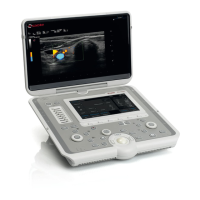



 To Next Page