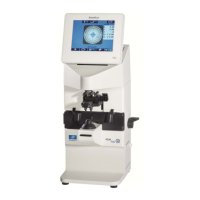
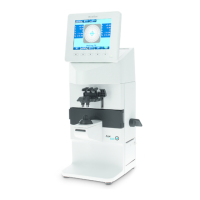
The Essilor Visioffice is an advanced optical measurement and patient education system designed to personalize lens dispensing and enhance the patient experience. It integrates various functions, from precise measurements for lens customization to frame styling and patient education, all within a user-friendly interface.
Function Description:
The primary function of the Visioffice system is to capture highly accurate measurements required for the dispensing of personalized ophthalmic lenses, particularly progressive and complex designs. It aims to provide the best possible vision for patients by taking into account individual physiological and behavioral parameters that standard measurements might miss.
The system performs a range of measurements, including:
- Far Vision Measurement: This includes PD (Pupillary Distance), Height, ERC (Eye Rotation Center) Distance, Pantoscopic Tilt, and Wrap Angle. These measurements are crucial for ensuring the optical center of the lens aligns perfectly with the patient's eye, considering the frame's geometry on their face.
- Visual Behavior Measurement: This section focuses on how a patient uses their eyes and head. It includes:
- Leading, Dominant Eye: Identifies which eye the patient naturally favors, which can influence lens design for optimal visual comfort.
- Dynamic Head/Eye Ratio: This unique measurement assesses the patient's natural head and eye movements during vision tasks. It determines whether a patient is primarily an "Eye Mover" (moving their eyes more than their head) or a "Head Mover" (moving their head more than their eyes). This information is vital for customizing progressive lenses to match the patient's natural visual behavior, reducing adaptation time and improving comfort.
- Posture Measurement:
- Reading Distance: Measures the patient's natural reading distance, which is critical for presbyopic lens designs to ensure the near vision zone is correctly positioned.
- Head Rotation and Head Inclination: These values are captured and verified to ensure a consistent and natural posture during measurements, contributing to the accuracy of the final lens design.
Beyond measurements, the Visioffice also serves as a powerful tool for:
- Frame Styling: It allows for capturing still images and video clips of patients wearing different frames, enabling them to compare options side-by-side or in a split-screen view. This visual aid helps patients make informed decisions about their frame choice.
- Patient Education: The system includes product demo tools that customize presentations based on the patient's prescription and selected category (e.g., Adults, Presbyopes). These demos help explain the benefits of personalized lenses, different lens designs (like Varilux IPSEO), and how various measurements contribute to their unique vision solution. This enhances patient understanding and confidence in their purchase.
- Data Management: All captured patient data and measurements are stored in a Patient Record, which can be exported for PMS (Practice Management System) or web integration, or printed for physical records.
Usage Features:
The Visioffice is designed for intuitive operation, guiding the user through each step of the process.
- Power On: The device is turned on by a Master Power Toggle located in the rear access panel.
- Patient Category Selection: The process begins by selecting the appropriate patient category (Adults or Presbyopes) from the home screen, which tailors the subsequent measurement and education modules.
- Patient File Entry: A "File" button allows for entering patient demographic and prescription data, which is then stored in the Patient Record.
- Patient Preparation: Before measurements, the patient's chosen frame is fitted with a Visioffice Tracking Clip. Demo lenses and any stickers are removed from the frame to ensure accurate tracking. The frame clip is carefully positioned and aligned with the frame bridge.
- Patient Positioning: The patient is positioned approximately 30 inches from the Visioffice mirror, facing the unit squarely. The camera height is adjusted to eye level.
- Tracking Detector: A tracking detector helps adjust the patient's distance from the Visioffice, indicating when an acceptable distance is achieved (green indicator).
- Frame Clip Marker Alignment: The Upper Frame Clip Marker is aligned horizontally with LE (Left Eye) and RE (Right Eye) references, ensuring all green trackers are detected.
- Lighting Adjustment: Luminosity settings can be adjusted via a slider if the image is too dark or too bright, ensuring optimal video capture conditions.
- Video Capture: Camera icons initiate video recordings for various measurements (e.g., Static Front View, Rotational Three-Quarter View, Leading Dominant Eye, Reading Distance, Dynamic Head/Eye Ratio).
- Image Verification: After video capture, the system automatically selects the most acceptable image. The user then verifies corneal reflections, marker alignment, and head posture values (Head Rotation, Head Inclination). If needed, alternative images can be selected, or the capture can be restarted.
- Lens Boxing: This feature allows the user to adjust frame boundaries on the screen, ensuring accurate measurement of the lens shape for ordering. It also includes options for selecting frame material (e.g., Metal, Rimless, Plastic, Nylon).
- Measurement Results Screen: Once all measurements are complete, results are displayed across four personalization levels: Eye/Lens Position, Frame, Posture, and Visual Behavior. For Essilor personalized designs, the Head Cape (head rotation) can be manually adjusted to fine-tune the results.
- Handheld Measuring Device: For specific measurements like Leading Dominant Eye and Reading Distance, a handheld measuring device is given to the patient. The patient holds this device at arm's length, focusing through an alignment zone onto a decal on the Visioffice.
- Dynamic Head/Eye Ratio Tracking: For this measurement, the Visioffice arms are lowered, and the patient is positioned approximately 24 inches away. The patient is instructed to follow moving lights with their eyes, allowing the system to track their natural head and eye movements.
- Stability Coefficient: The system calculates a Stability Coefficient for Dynamic Visual Behavior, indicating the consistency of the patient's movements. A value below 0.15 is recommended for viable measurement results.
- Frame Styling Interface: The frame styling tab allows for capturing still images or video clips of the patient wearing frames. Numbered buttons enable full-screen or split-view display, and a trash can icon allows for deleting and retaking images. A print button facilitates printing selected images.
- Product Demo Interface: The Guide Tab provides access to personalized product demos. Tabs on the left allow navigation through different demo sections, which can be customized based on patient needs.
- Navigation: A "Back" button returns to the previous screen, and a "Home" button returns to the Visioffice Home Screen.
Maintenance Features:
While the manual primarily focuses on operational procedures, some aspects touch upon maintenance implicitly through best practices for ensuring accurate measurements and device longevity.
- Cleanliness: Although not explicitly detailed as a maintenance step, the importance of removing stickers or markings from lenses and ensuring clear visibility for tracking implies the need to keep the device's camera and the patient's frames clean to avoid interference with measurements.
- Software Updates: As an advanced digital system, it is implied that the Visioffice would benefit from periodic software updates to maintain optimal performance, introduce new features, and ensure compatibility. However, the manual does not detail the process for these updates.
- Technical Assistance: The provision of a dedicated support group contact number and email (1-877-457-3760 ext. 3, or visioffice@essilorusa.com) indicates that professional technical support is available for troubleshooting, repairs, and potentially software or hardware maintenance. This is a crucial maintenance feature, as complex devices often require expert intervention.
- Calibration/Verification: The process of verifying corneal reflections, marker alignment, and head posture after each measurement serves as a continuous self-check or verification step. This ensures the accuracy of the data being collected, which is a form of ongoing operational maintenance to guarantee reliable results. If issues arise (e.g., markers not aligned, head rotation exceeding limits), the system prompts the user to retake measurements, preventing the use of inaccurate data.
- Proper Positioning and Handling: Instructions for positioning the patient, adjusting the camera, and handling the frame clip and handheld device correctly contribute to the longevity and proper functioning of the equipment by preventing misuse or damage. For example, ensuring the frame rests against the back of the supports prevents undue stress on the frame or the clip.
- Environmental Considerations: The advice to use a rotating stool without a seatback or arms and to block it during measurement recording suggests an awareness of the environment's impact on measurement accuracy and the need to maintain a stable setup.
In summary, the Essilor Visioffice is a comprehensive, technologically advanced system designed to revolutionize the optical dispensing process by offering unparalleled precision in measurements, effective patient engagement through styling and education, and robust data management, all supported by readily available technical assistance.

 Need help?
 General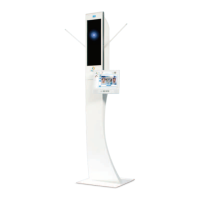

 To Next Page