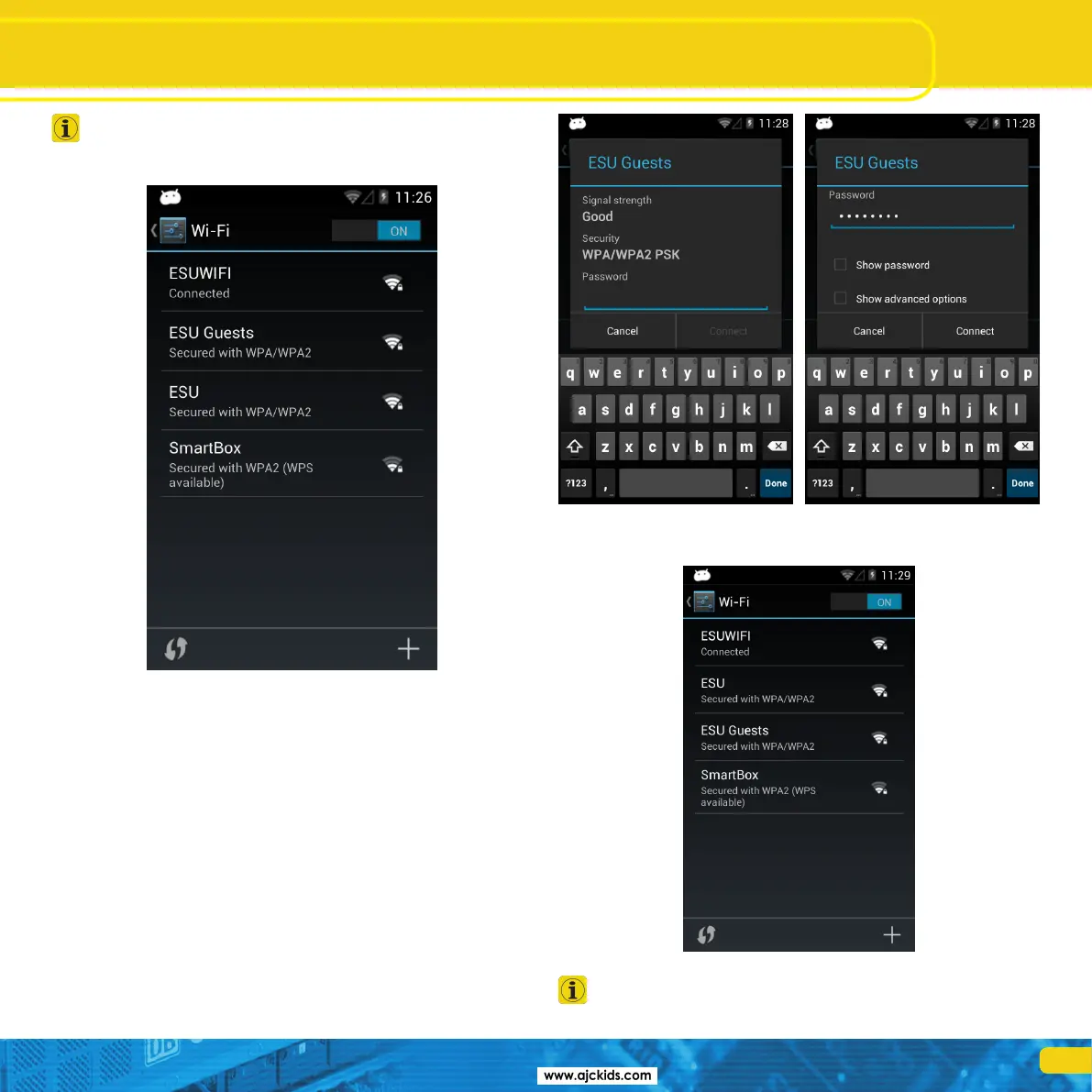
Ex works, the ESU Mini Access Point responds to the name “ESU-
WIFI” with the password “123456789”. If the Mobile Control
finds this network, it will automatically attempt to establish a con-
nection. In this case you may skip the following steps.
•Selecttherstmenuitem“Wi-Fi”intheAndroidset-up.Makesurethat
the slide control is set to “On”.
•Select the desired network fromthe list of available Wi-Fi networks by
touching its name.
•Enterthepasswordexactlylikeyouhavedeneditinchapter8.2.2.Note:
You may display the characters of the password, if so desired. Scroll down
until the option “Show password” appears. Thus any erroneous entries are
avoided.
•Press“Connect”.Ifthepasswordhasbeenenteredcorrectly,theconnec-
tion will be established after a short while.
The quality of the signal link is permanently displayed in the status
bar at the top. The longer the bar, the stronger and more reliable
is the connection.
Connecting to WLAN



 To Next Page