12. Accessories & routes
With the Mobile Control you can also control accessories and routes. The
handling is quite similar to that on the ECoS. Therefore it is advisable to first
read up the chapter 13 in your ECoS manual.
You may set up as many signal-boxes on your Mobile Control, which are
independent of the ones on your ECoS and set up accessories or route icons.
The signal-box will always display the current status of all accessories.
12.1. Signal-box mode (Route control)
•Firstselectthesignal-boxmodeinordertobeabletoswitchaccessories
and to work with the signal-boxes.
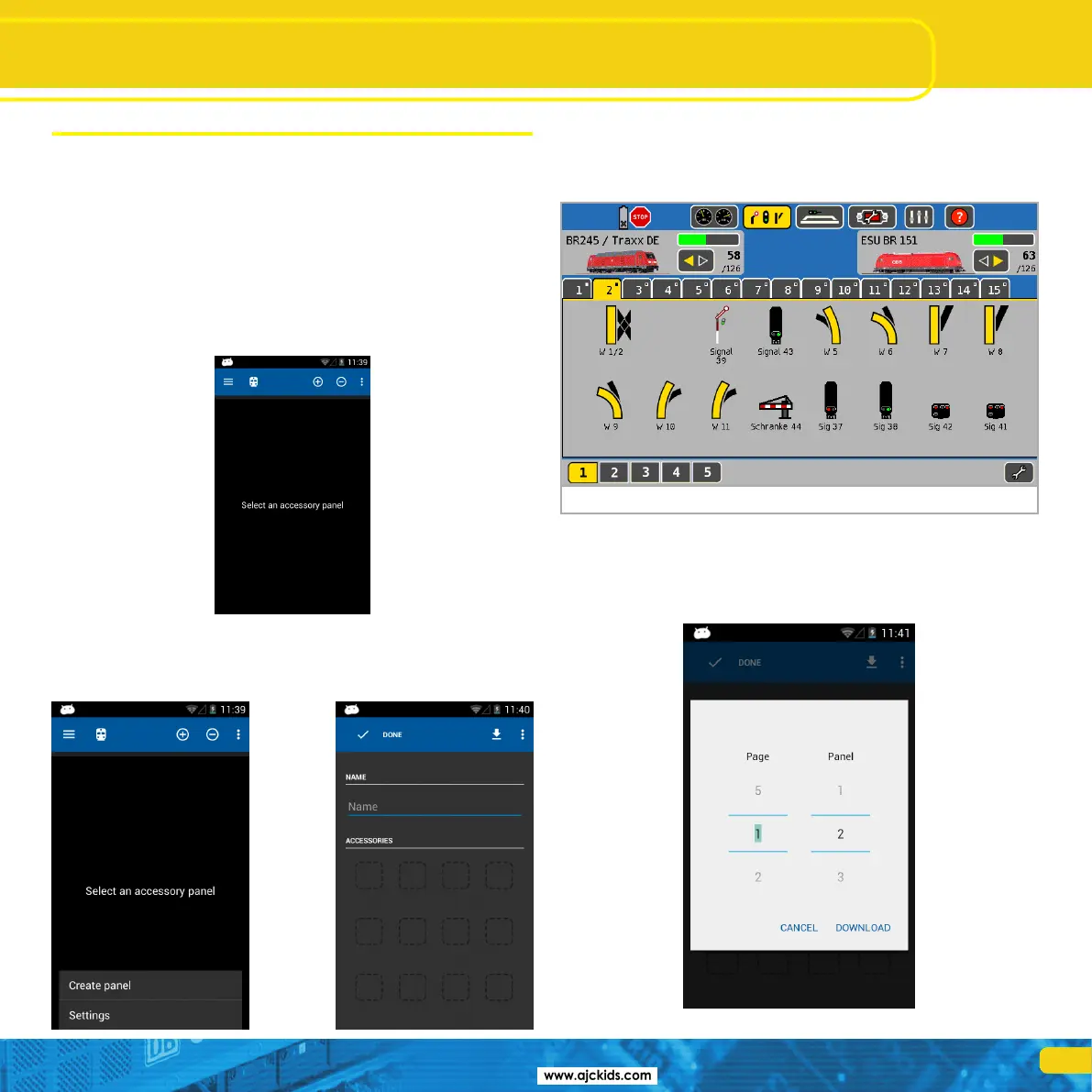
At the beginning there will only be an empty screen. You must set up at least
on signal-box to start with and link some accessories to it.
12.2. New signal-box
•Select“Createpanel”fromthecontextmenu
•Enteranameforthepanel
Accessoires and routes
12.2.1. Downloading from the ECoS
If so desired, you may copy a signal box directly from the ECoS to the Mobile
Control handset. This is useful whenever you want to have exactly the same
arrangement of signal-boxes. Let us assume you want to copy the following
signal-box, page No: 1 (please take note of the tabs marked in yellow).
•Selectthe“Download”button
•Thenselectpage“1”andsignal-boxNo:“2”
•Press“Download”
Figure 16



 To Next Page