Settings
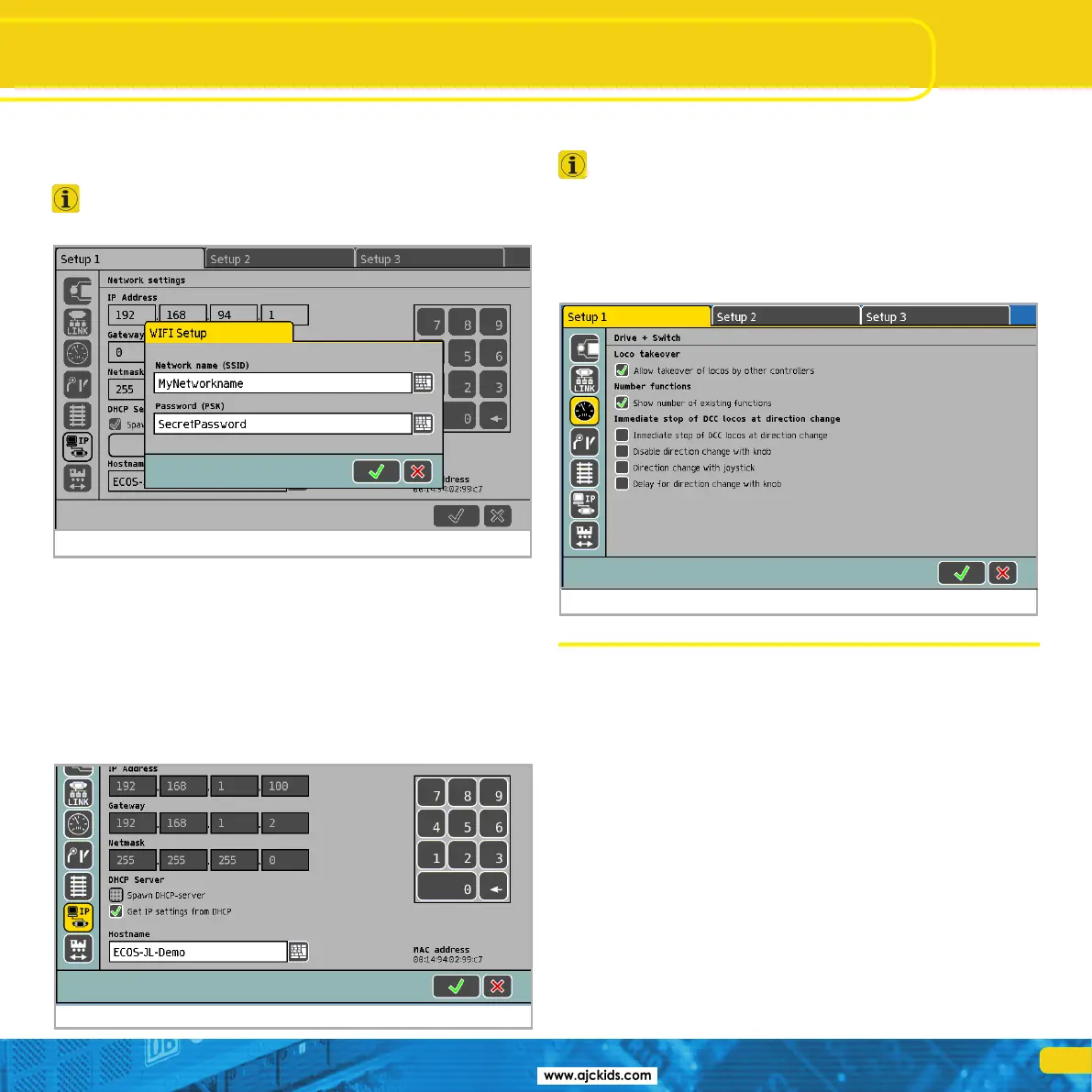
•Enterthenewnetworkname.
•Enteryourpreferredpassword.
•Conrmby
If the password is either too long or too short, or if it contains
invalid characters, then the “Ok” button appears grey. Please cor-
rect your entry in this case.
In order to establish a link to your Mobile Control, you will need the newly
established network name and password later on.
8.3. Settings for the home network
If you wish to link your ECoS with your Mobile Control via your home net-
work,thenyoumustrstconnectyourECoSwithasocalledRJ45patchcab-
le to your WLAN router. How to do this is described in chapter 7.4.2. Usually
you will find available network sockets marked with “LAN”. If the connection
is successful, then the “Link” LED on your ECoS will light up.
In this case the administration of the IP address is handled by the WLAN
router. You have to tell your ECoS this fact by setting the tick “Get IP settings
from DHCP”.
For your information the ECoS will display the data received from the WLAN
router after a few seconds. No change is possible or required.
Depending on the settings of your WLAN router, the settings
displayed on your ECoS may differ. This is quite normal and no
reason for concern.
8.4. Activating “locomotive take over”
If so desired, the ECoS system allows other throttles to take over and control
locomotives. This may be advantageous if you have several handsets but
operate your layout mainly on your own. If you want to activate the “Loco ta-
keover”, simply set a tick at “Allow takeover of locos by other controllers”.
9. Switching on the Mobile Control II
Press and hold the power button until an icon appears on the screen. The
very first switch-on may take up to two minutes until Android has started
and updated all system settings. Please consider the following when working
with the mobile Control:
•Inordertosaveenergythedisplayisturnedoffautomaticallyafterone
minute of inactivity just like a mobile phone .
•Inthiscasesimplypressthepowerbuttonforashorttime(lessthanone
second) in order to activate the device once again.
•Evenwhen thedisplay appearsdark, thethrottleis stillactive andcon-
sumes energy. The battery will probably be discharged after one day in
“Stand by” and the device will shut down automatically.
•AttheendofanoperatingsessionwerecommendtoshutdowntheMo-
bile Control by pressing and holding the power button (while the display is
active) until the switch-off menu appears. If you now select “Turning-off”
and confirm the query, then the device will shut down permanently.
9.1. Handling Android
Although handling Android has been designed very intuitively and since the
Mobile Control II is to be handled, by and large, like a mobile phone we think
a few basic tips are in order.
Figure 12
Figure 13
Figure 14



 To Next Page