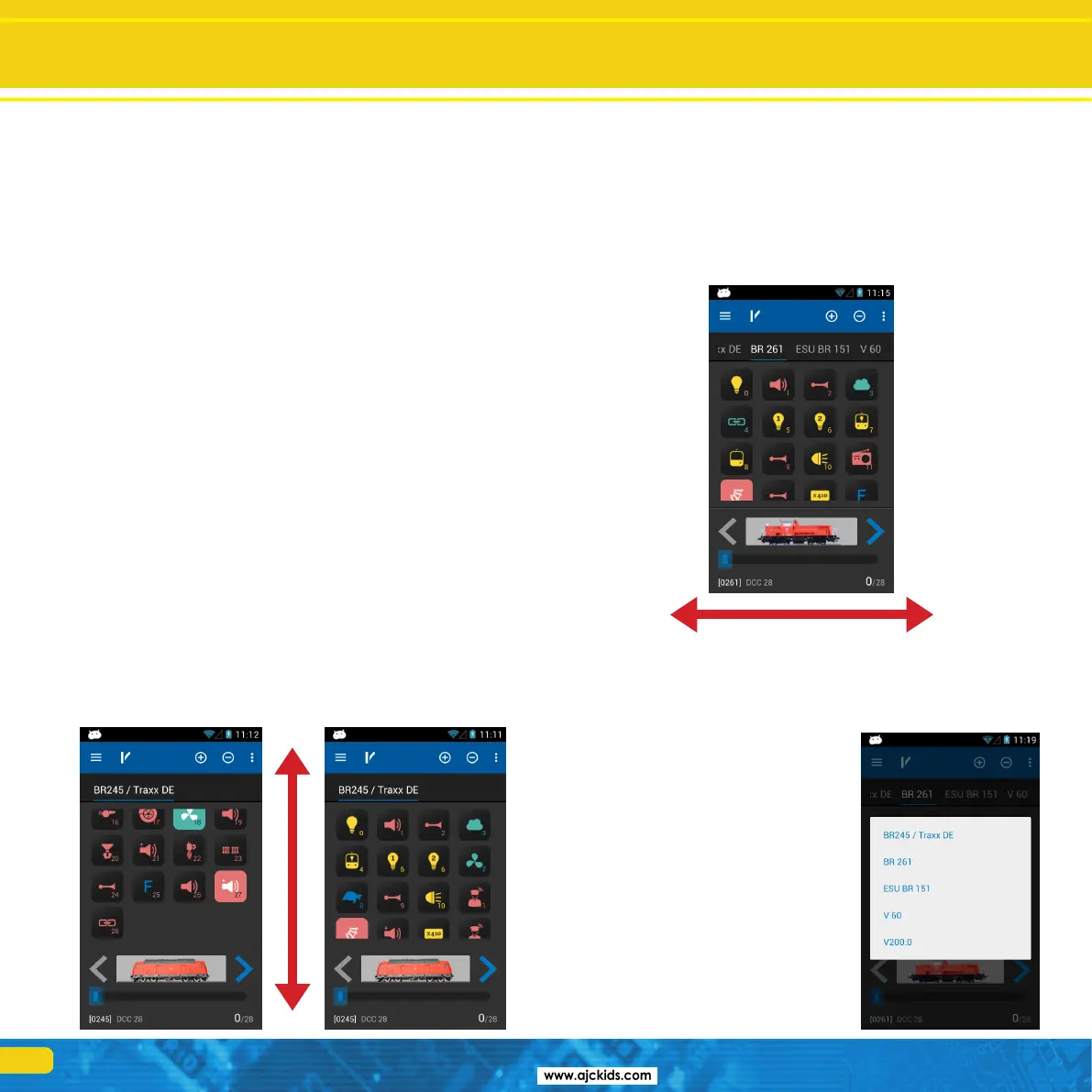
If a locomotive has more functions than can be displayed on the screen you
can scroll by wiping from the bottom upwards (directly in the block with the
function icons), giving you an overview over all 28 functions.
11.2.3. Changing locomotives
If you wish to control another (additional) locomotive simply press the “+”
button in order to access the locomotive choice list. Then select another lo-
comotive as described in chapter 11.1. All locomotives are now shown in the
quick access list. If you wish to call up the next locomotive and run it, then
simply wipe to the left or right within the field of the function buttons.
The currently controlled locomotive (class 261 in this example) is displayed
bright and underlined. Every time you change to another locomotive the
throttle knob will move to the appropriate position to match the locomotive
speed setting.
11.2.3.1. Quick selection
With the method described you may easily
select the next locomotive in the quick access
list by wiping left or right. However, you may
also select the desired locomotive directly.
•Touch and hold the name of the current
locomotive in the quick access list until the
quick selection menu appears.
•Choosethedesiredlocomotivedirectly.
Functions Edit locomotives
a) List of all locomotives already called up (“Quick access list”) with plain text
name of the locomotive.
b) Status of the functions of the currently controlled locomotive. The current
status is displayed for each function (On or Off).
c) Locomotive icon
d) Direction “Forward”
e) Direction “Back up”
f) Locomotive address
g) Speed step setting
h) Speed steps: the maximum number of speed steps of the locomotive (sub-
ject to data format and protocol)
i) Currently set speed step
j) Speed step indicator
11.2.1. Speed & Direction
•Turnthethrottleknobtotherightandthelocomotivewillstartmoving.
The speed step indicator will display the current speed immediately while
the speed step is shown for accurate control.
•TurnthethrottleknobtotheleftbeyondZerountilyouheara“Click”,
then the direction of travel will be changed. The throttle knob is moto-
rised.IfyouturnthethrottleknobbeyondZeroforchangingthedirection,
simplyletgoofitafterwards.ItwillautomaticallyreturntotheZeroposi-
tion.
11.2.2. Functions
There is an icon for each function button describing the function more close-
ly. In addition, a number located at the bottom right indicates the indenture
number; starting with 0 at the top left (for the lighting button F0). In order
to easier recognize the type of function, the icons of the individual function
groups (mainly physical functions, logical functions and sound functions) are
displayed in different colours.
•Presstheiconforturningonoroffafunction.
•Dependingonwhetherafunctionissetasacontinuousoramomentary
function, the function may remain only active as long as you touch the
icon with your finger.



 To Next Page