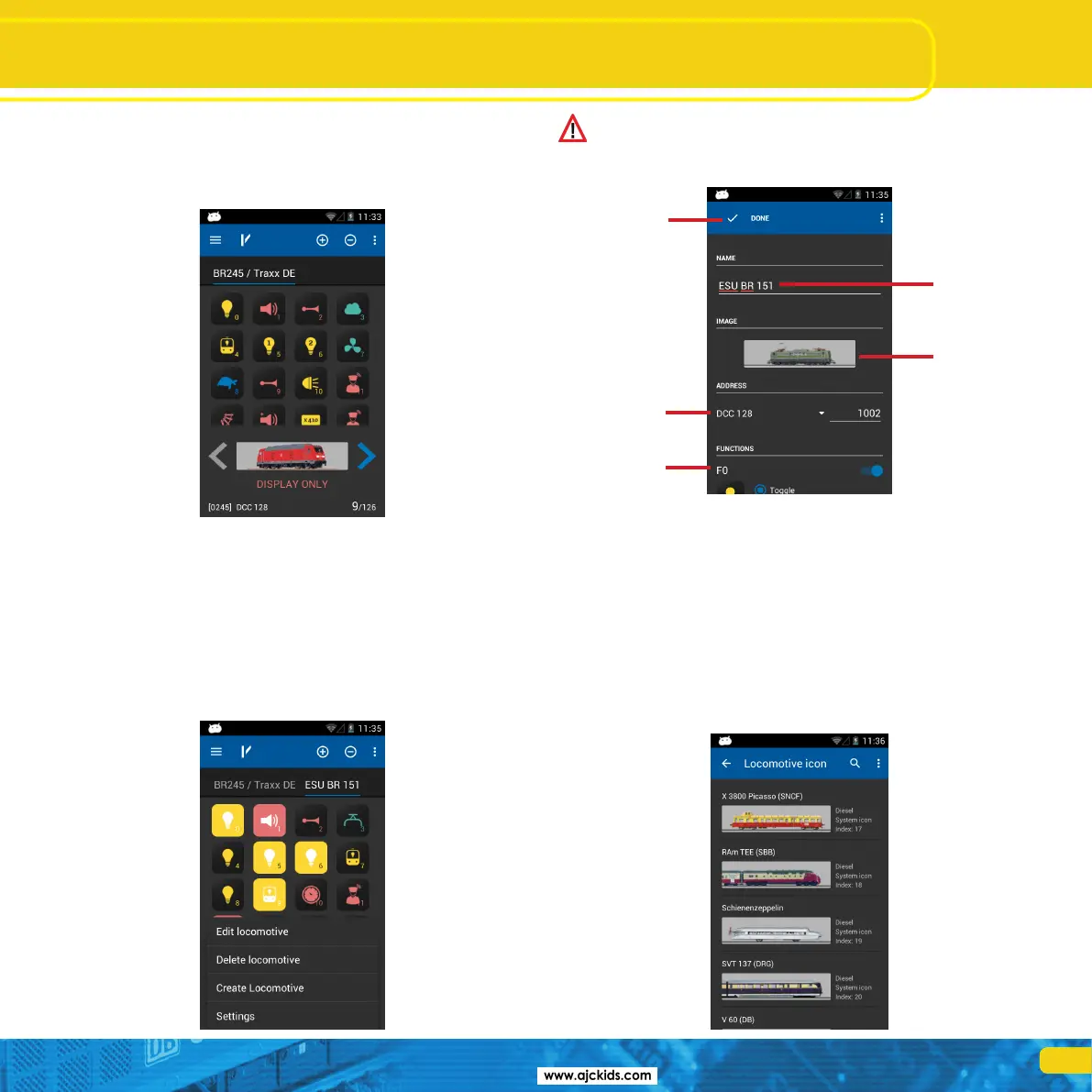
In case the locomotive is blocked, then the function is not
available.
After selecting the function, the “Edit locomotive” screen will open.
Once you have confirmed all changes press the “Finished” button. For sa-
ving all changes press the “Return” button at the bottom right of the touch
screen. If you do not wish to save any changes, press the menu button at the
bottom left and select “Disregard changes”.
11.4.1. Locomotive name
Choose a meaningful name for your locomotive. It helps to find it quicker.
11.4.2. Icon
Touching the locomotive icon opens the choice list of all available locomotive
images. The Mobile Control displays all images available on the ECoS. The
icon has no influence on operations; it only serves for a quick visual differen-
tiation of your locomotives. You have a choice between internal (ex works)
images on your ECoS and user defined images.
11.3. Blocked locomotive
When you call up a locomotive it may happen that it may be displayed, but
you cannot control it. In this case the text “Display only” will appear below
the locomotive picture instead of the speed indicator. This means that this
locomotive is currently controlled by another throttle.
Provided the ECoS has been configured as described in chapter 8.4., you may
take over control of this locomotive by pressing a function button or chan-
ging the speed setting. The Mobile Control handheld only attempts to take
control of the locomotive from the ECoS at the time of first access. If this is
possible (and permitted), the “Display only” text will disappear.
11.4. Edit locomotive
If you wish, you may edit the characteristics of a locomotive directly with your
Mobile Control. All changes will also be transferred to the ECoS and other
handsets. First press the menu button at the bottom left and select “Edit
locomotive” from the menu.
Edit locomotives
Locomotive
name
Locomotive
image
Address
Confirm
changes
Function
buttons


 To Next Page