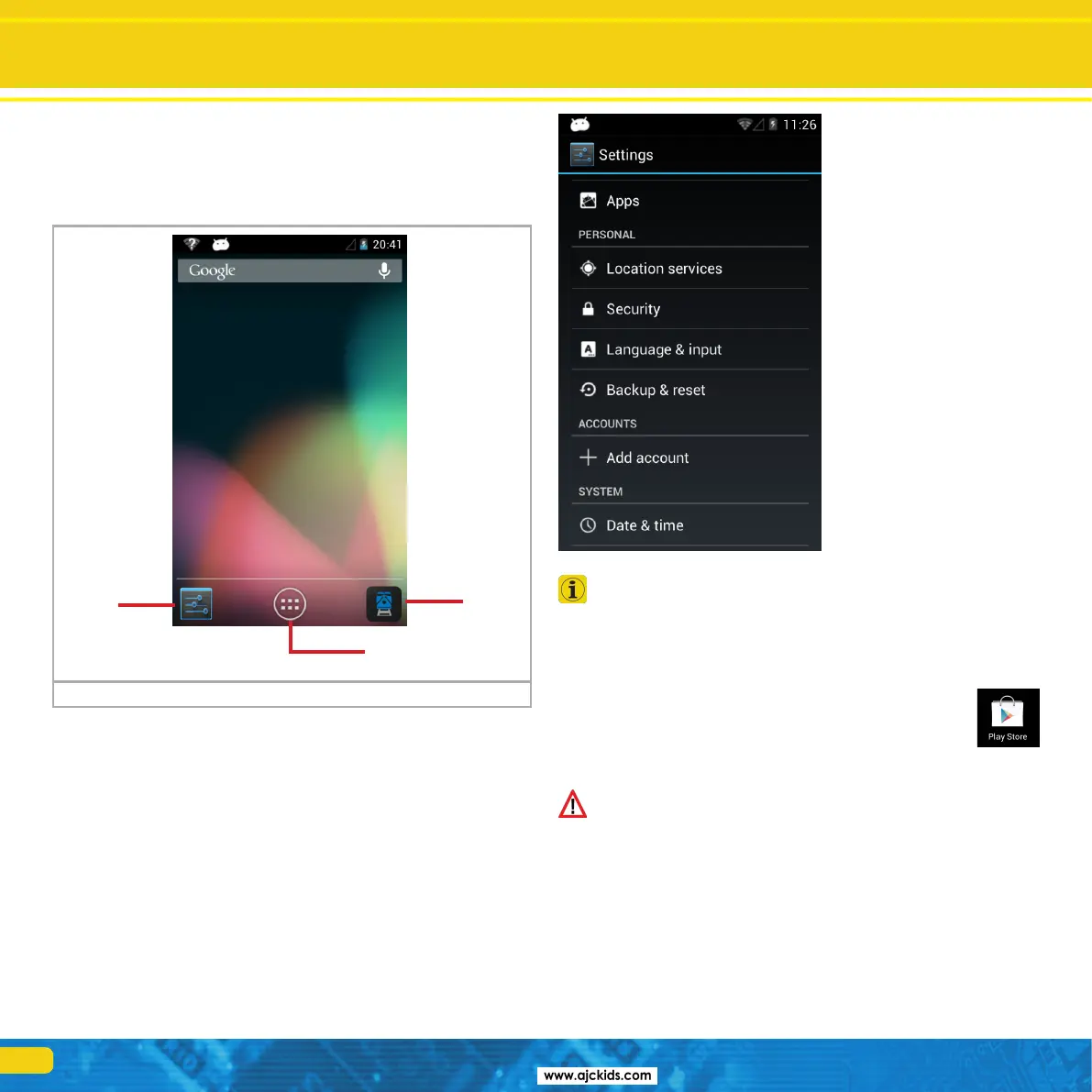
9.1.1. Main screen
You will see two pictograms on the start-up screen:
a) Symbol for starting the actual mobile control App
b) Icon for calling up the Android set-up menus
c) Icon for viewing all installed Apps
You may start the actual Mobile Control software by touching the icon a).
9.1.1.1. Home button
If you want to return to the start-up screen, simply press the home button in
any menu and at any time.
9.1.1.2. Return button
The return button always leads you back to the previous menu.
9.1.1.3. Menu button
In many programs there is an option to access extended properties by pres-
sing the menu button.
9.2. Set-up
It pays off to first have a look at the set-up menu. There you will find several
settings, which you may want to adjust right at the start.
9.2.1. Language
You may change the system lan-
guage at any time. Currently the
Mobile Control App developed
by ESU only supports German
and English.
9.2.2. Display
There are two important settings
within the display settings.
9.2.2.1. Passive state
Here you can adjust after how
many minutes of inactivity the
screen of the Mobile Control is
turned off. The higher this value,
the more energy is consumed.
9.2.2.1. Brightness
Here you can adjust the bright-
ness of the display. Preferably
choose a rather dark setting in
order to extend the operating
time before you have to rechar-
ge the batteries.
The brighter the display, the more heat is generated in the device.
This is quite normal and no reason for concern.
9.3. Programs
Here you can see which programs have been installed. However, what really
matters, is the Google Play Store.
9.3.1. Google Play Store
The Google Play Store is the place where you may obtain new
Apps and install them on your device. To make sure that this will
work as intended, you must link your device with your Google
account or, if you do not have an account yet, you must esta-
blish a new account.
Please note that we have no commercial or any other type of link
with Google at all. The data submitted when opening an account
are not sent to ESU and we are not in a position to obtain such
data.
All Apps and programs should be easily installed on the Mobile
Control unit. Of course, we cannot provide a guarantee for the
proper working of Apps not supplied by ESU.
The memory of the Mobile Control is limited. Please bear this in
mind when installing programs.
9.4. Connecting to WLAN
After setting up the device you must establish a link to WLAN. This may eit-
her be your home network or the WLAN signal generated by the Mini Access
Point; also refer to the relevant information in chapter 7.4.
Connecting to WLANSet-up
Figure 15
b)
a)
c)



 To Next Page