EasyManua.ls Logo

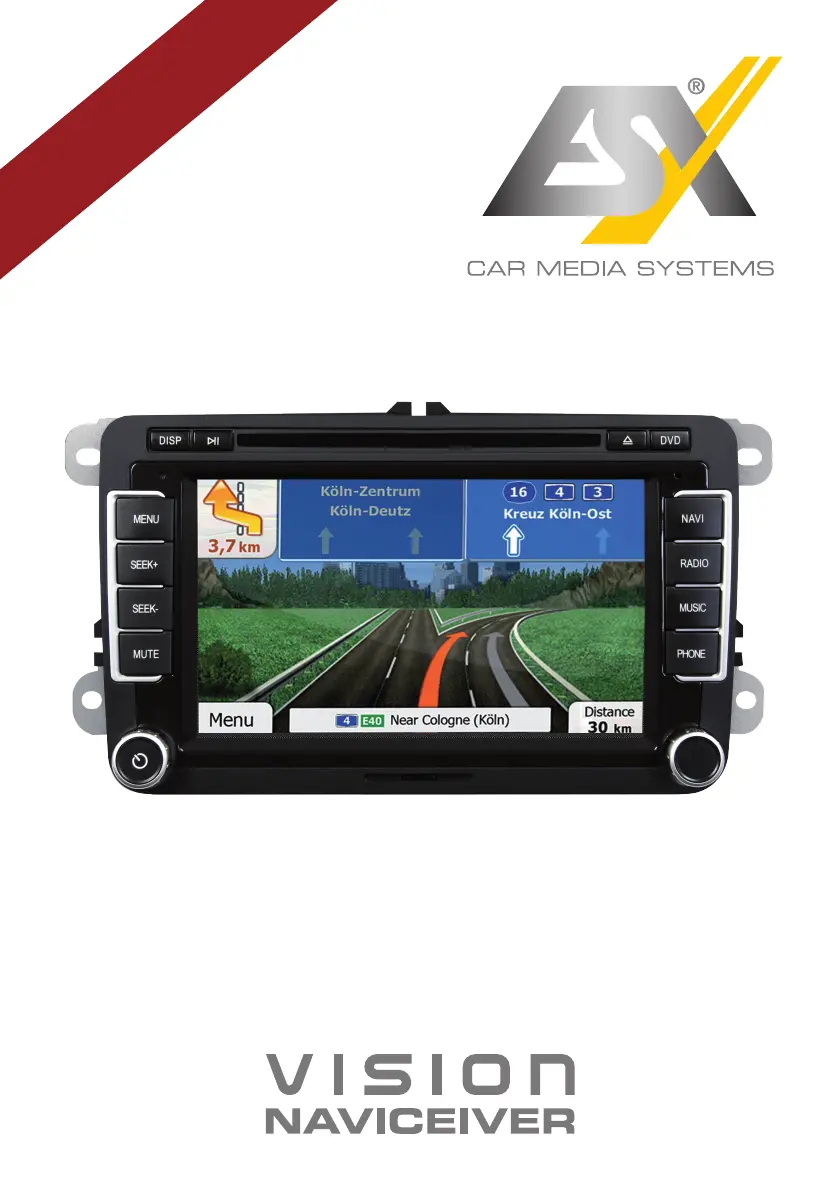
ESX VN720 VW-U1 - User Manual

ESX VN720 VW-U1
48 pages
Print Icon
To Next Page IconTo Next Page
Loading...
VN720 VW-U1
V1. 2
OWNER‘S
MANUAL

Other manuals for ESX VN720 VW-U1

Questions and Answers

  • J
    Justin BeardSep 3, 2025
    What format should I use for USB drive on ESX VN720 VW-U1 Car Receiver?
    • T
      Troy GreenSep 3, 2025
      If the ESX Car Receiver displays a message that a USB drive or microSD card is not recognized, the storage or data format may be incorrect. Format the storage with the MS-DOS file system (FAT32).
  • A
    Adam MirandaSep 1, 2025
    How to start the navigation application on ESX VN720 VW-U1 Car Receiver?
    • J
      Julie HallSep 1, 2025
      If the navigation application on your ESX Car Receiver isn't starting, check if the software is compatible with Windows CE 6, or get a compatible version. Also, verify the software was installed properly by checking the settings under Apps - Options - System and correct the navigation software path if necessary. If the license has expired, contact the software supplier.
  • T
    Troy CoxAug 31, 2025
    Why can't my ESX Car Receiver find my location or the route guidance is disturbed?
    • M
      Mario CollinsAug 31, 2025
      If your ESX Car Receiver isn't able to find your current location or the route guidance is disturbed, check the GPS antenna connection and replace it if defective. If the connection is fine, you may be in an area with a weak or no GPS signal, such as a tunnel or remote road. Continue driving until the GPS signal is available again.
  • S
    Sarah Powell DDSAug 29, 2025
    What to do if the ESX VN720 VW-U1 screen is black?
    • C
      Christy FergusonAug 29, 2025
      If the display on your ESX Car Receiver is black, tap the screen to see if the display is disabled. If that doesn't work, the device might be in standby mode; press the left knob on the device to exit standby mode.
  • K
    Kari BradleyAug 27, 2025
    How to calibrate the touchscreen on an ESX Car Receiver?
    • J
      John WilsonAug 27, 2025
      If your ESX Car Receiver's touchscreen isn't responding accurately or is delayed, it might not be properly calibrated. You can calibrate the touchscreen by going to Apps - Options - System. If the device is processing something, wait until it is completed.
  • J
    John NunezAug 26, 2025
    Why ESX Car Receiver does not find radio stations during automatic station search?
    • A
      allenfredAug 26, 2025
      If the ESX Car Receiver is not finding radio stations during an automatic search, first, go to PTY and select 'None' to disable the search for specific program types. If that doesn't work, disable the AF and TA functions and try the search again. Finally, inspect the plug connection of the original antenna to the radio or check the car antenna system for any issues.
  • J
    jmedinaAug 25, 2025
    What to do if my ESX VN720 VW-U1 has no connection or pairing of the devices?
    • A
      Ashley HallAug 25, 2025
      If the ESX Car Receiver is not connecting or pairing with your device, ensure that Bluetooth is enabled in your phone's settings and that your phone is set to 'visible'. If compatibility is an issue, try using a compatible phone. Also, if too many Bluetooth devices are registered, delete unused ones from the device's storage.
  • M
    Monica WilliamsAug 22, 2025
    How to fix an ESX Car Receiver that cannot be turned on?
    • M
      Michael BoydAug 22, 2025
      If your ESX Car Receiver isn't turning on, check if it's due to operator error. You can turn on the device with the ignition off by pressing and holding the power button for about 2 seconds, noting it will automatically switch off after 30 minutes. Also, inspect the fuse and the vehicle electronics for any defects. If a fuse is blown, replace it with a new one of the same type and value.

Summary

Safety Information

General Safety Guidelines

Crucial safety instructions for device operation and installation.

Device Handling and Precautions

Guidelines on device care, handling, and avoiding damage or hazards.

Main Menu Navigation

Navigation System Operation

Audio Player Functionality

Radio Operation Guide

Radio Settings and Presets

DVD and CD Player Usage

Bluetooth Connectivity Management

Pairing and Disconnecting Devices

Steps for pairing, connecting, and disconnecting mobile phones via Bluetooth.

iPod;iPhone Integration (LinkPod)

Basic Audio Settings

Advanced Audio Settings

E-Link for Android Devices

Date and Time Configuration

Display and Camera Settings

Voice Control Activation

Voice Control Features

System and Touchscreen Calibration

Touchscreen Recalibration

Steps to recalibrate the touchscreen for accurate input.

Vehicle Integration Features

Camera and Parking System Features

Troubleshooting: Startup and Display Issues

Starting Process Problems

Solutions for device not turning on or initial boot issues.

Display Functionality Issues

Troubleshooting for touchscreen input and black screen problems.

Audio System Problems

Solutions for no sound or distorted audio output.

Troubleshooting: Media and Connectivity

Troubleshooting: Navigation, Radio, and E-Link

Navigation System Issues

Solutions for navigation startup, GPS signal, and route calculation problems.

Troubleshooting: Bluetooth, Camera, and Control Systems

Bluetooth and Phone Connectivity

Solutions for Bluetooth pairing, audio, and phonebook connectivity.

ESX VN720 VW-U1 Specifications

General IconGeneral
Screen Size7 inch
RAM2GB
GPSYes
USBYes
RadioYes
Steering Wheel ControlYes
Rear View Camera InputYes
Backup Camera InputYes
Resolution1024x600
Operating SystemAndroid
ProcessorQuad Core
BluetoothYes
Wi-FiYes
SD Card SlotYes
Radio TunerFM/AM
Supported Audio FormatsMP3, WMA, AAC, FLAC

Related product manuals