ETC Setup Guide
Eos Rackmount Devices
Eos Rackmount Devices Page 6 of 12 ETC
Insert the locking power cord into the IEC power connector. Connect the mouse and keyboard to
USB ports, any monitors to the Display Ports, and any network cables to the Ethernet ports. Once
all accessories have been connected, you may activate the hard power switch above the power
connector.
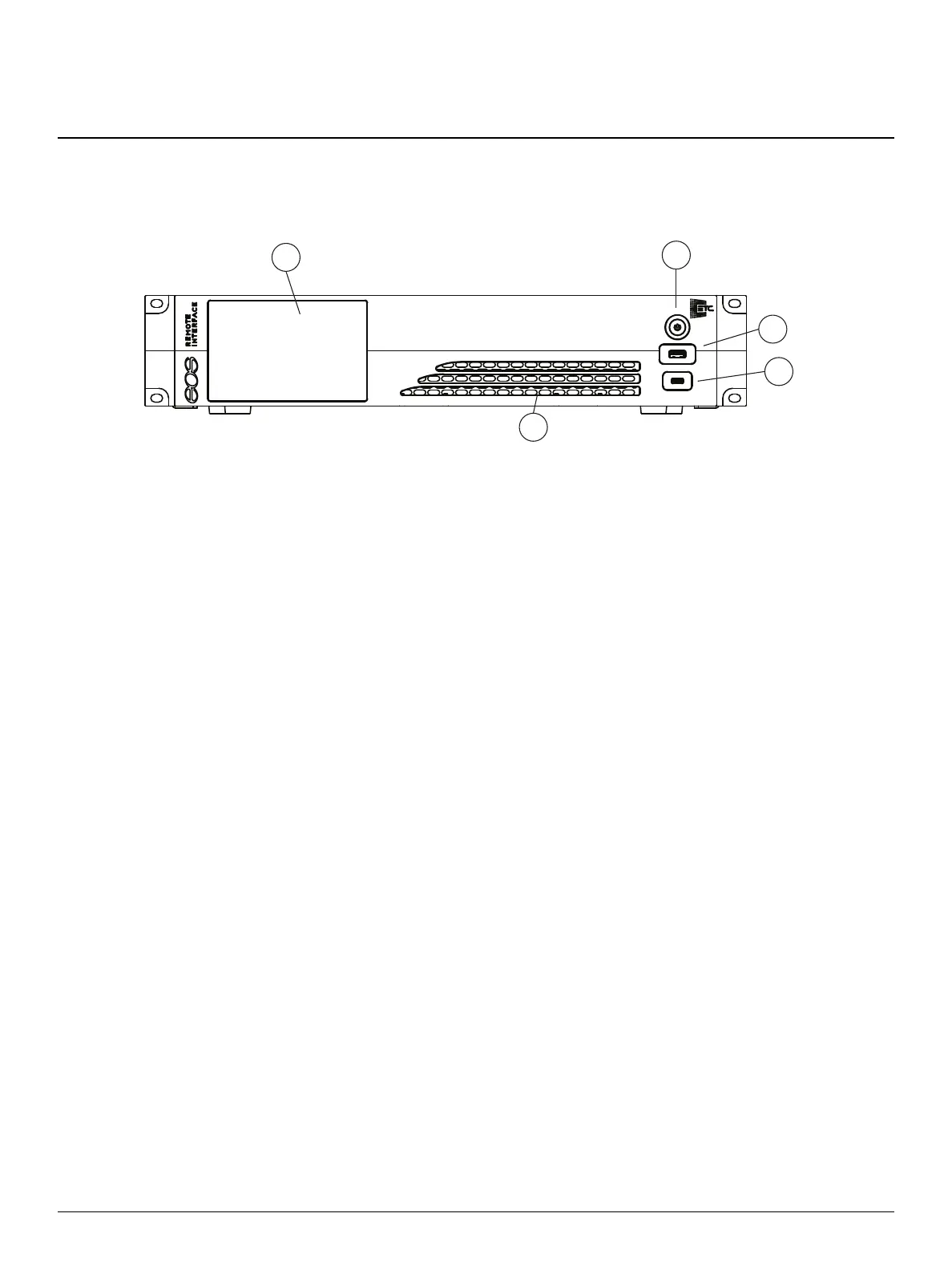
1. Haptic touchscreen
2. Soft power button
3. USB-Aport
4. USB-C port
5. Vent with highlight lamp
Press the soft power button on the front of the device. By default, it will boot into the Eos
environment in Client mode, but must be connected to a session before it can be used.
For more information about console modes and multi-console setups, please refer to the Multi-
Console and ECUchapters of the Eos Family Operations Manual.



 To Next Page