ETC Setup Guide
Eos Rackmount Devices
Eos Rackmount Devices Page 7 of 12 ETC
Touchscreen Overview
The Eos Apex Processor and Eos Remote Interface feature haptic touchscreen displays, allowing
you to interact with your system directly from the rack.
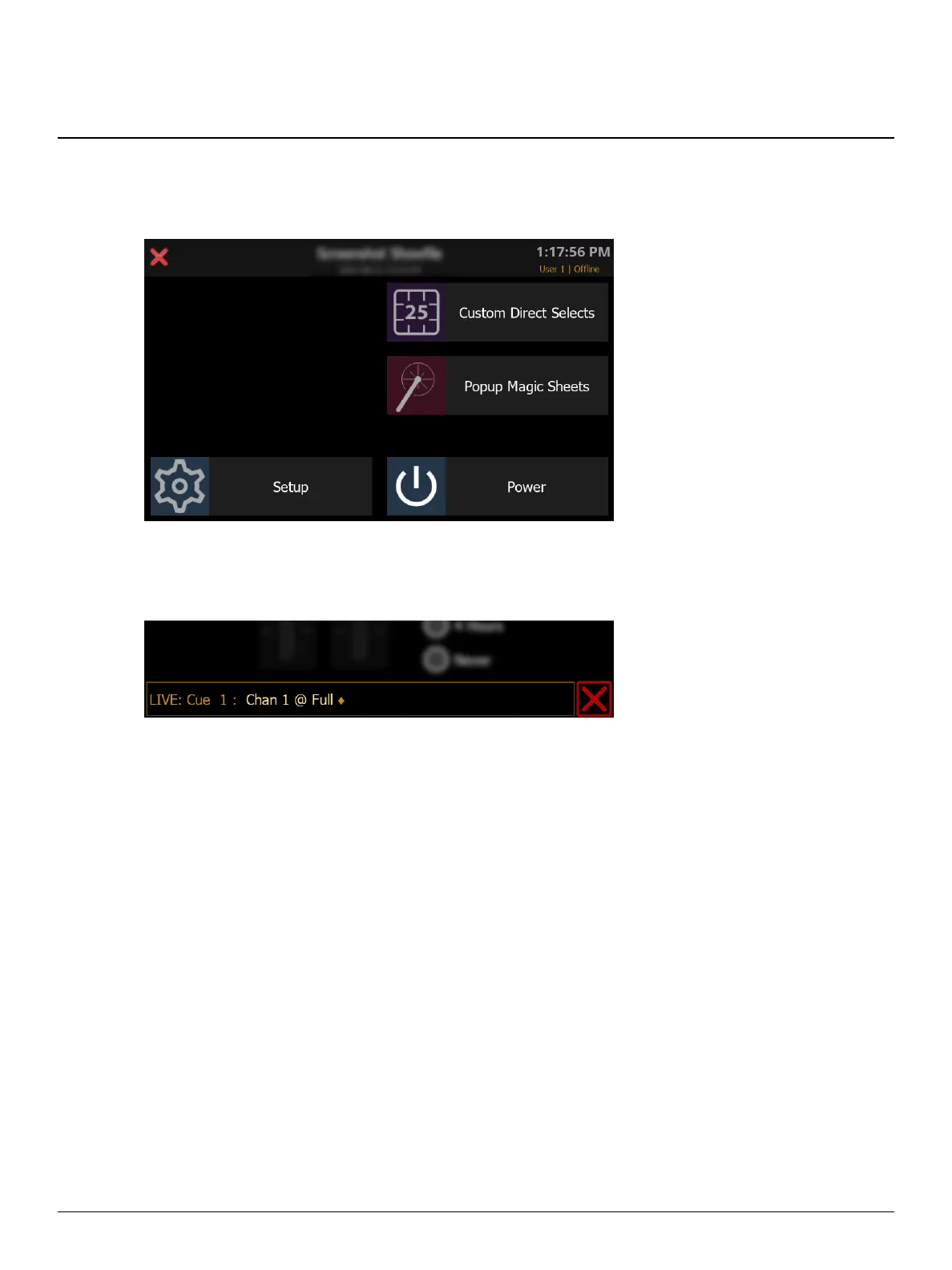
The main menu displays the name of the current show file, the time, and current userinformation.
Use the red X icon in the top left to return to the most recently used sub-menu.
The Live command line appears at the bottom of all sub-menu displays.
Use the red X button in the bottom right to clear the command line. At any time, use the menu
icon in the top left to return to the main menu.
The following sub-menus are available:
Custom Direct Selects
This menu gives you control of your system via your show file's direct selects. A settings menu can
be toggled with the gear icon, allowing you to choose which set of custom direct selects to
interact with.
For more information, refer to the following section(s) of the Eos Family User Manual:
System Basics
Direct Selects
Custom Direct Selects



 To Next Page