ETC Setup Guide
Eos Rackmount Devices
Eos Rackmount Devices Page 3 of 12 ETC
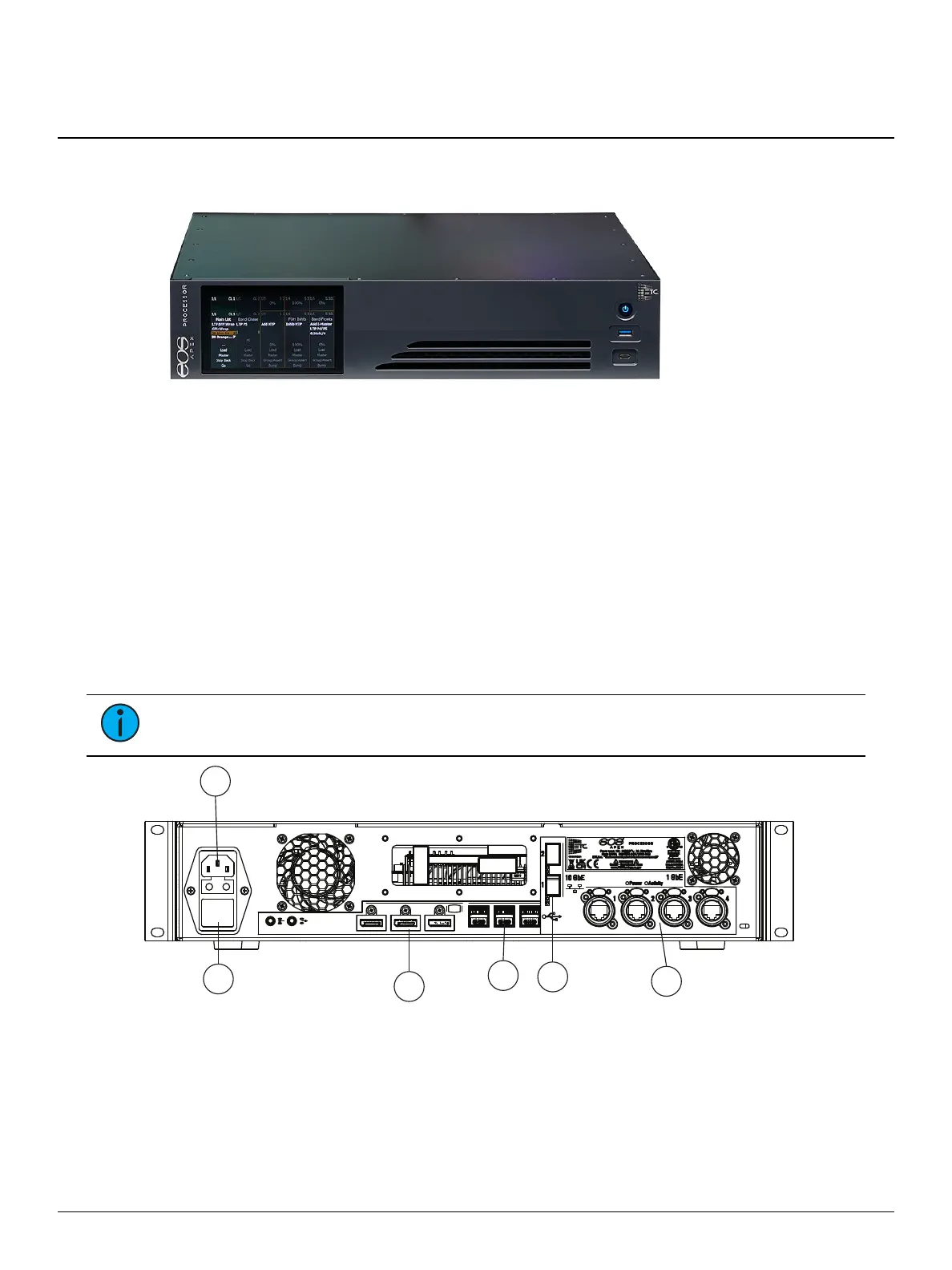
Eos Apex Processor
A fully-functional controller in a rackmount unit, ETC's Eos Apex Processor can provide primary
and backup control for Eos Apex systems, or be used as a stand-alone lighting playback unit. A 2U
device, it can be mounted into 19" equipment racks or road cases.
The Apex Processor ships with the following:
One three-button scroll mouse and mousepad
Alpha-numeric keyboard
Locking regionalized IEC power cord
Two 19-inch rack-mount ears and mounting hardware
Four rubberized feet (for desktop use)
Augment3d AR target kit
Hardware Setup
Note:
For information on mounting the Apex Processor in a rack, see Rack Mounting.
1. IECpower connector
2. Hard power switch
3. Display Port
4. USB-A &USB-C (data)
5. SFP+
6. Ethernet
Insert the locking power cord into the IEC power connector. Connect the mouse and keyboard to
USB ports, any monitors to the Display Ports, and any network cables to the Ethernet ports. Once
all accessories have been connected, you may activate the hard power switch above the power
connector.



 To Next Page