372 Hog 4 Operations Manual
20.4 Using Plots
Plots can be used to accomplish a variety of important programming tasks. In this section we
will review how to make simple and complex fixture selections using the plot window, how to
navigate the plot window, and how to use the plot window to quickly view feedback for
fixtures.
20.4.1 Fixture Selection
Fixture selections made in plots are sent to the current active editor and can be used in
conjunction with command line and group directory fixture selections as well. In this section
we review the selection tools available in the plot window and the plot window fixture
selection syntax.
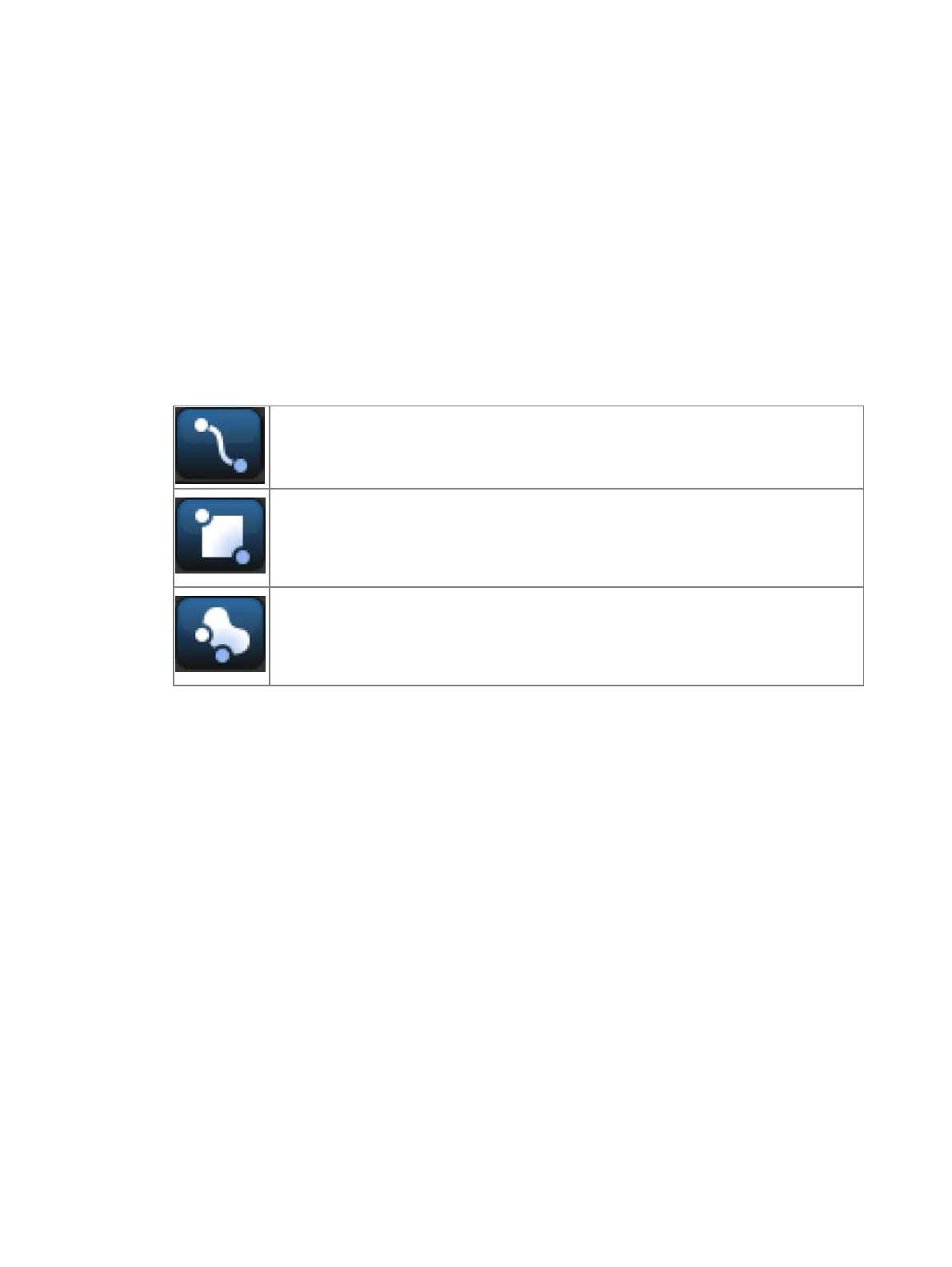
There are three selection tool buttons at the top of the plot window. These tools can be used
for selecting fixtures when programming looks and also for selecting fixtures, gangs, and
PixelMaps when editing plots:
Path Selection Tool: Selects fixtures by drawing a line through the fixtures
you wish to select. Based on the order in which fixtures are touched by the line
as you draw it.
Rectangle Selection Tool: Selects fixtures by drawing a rectangle around the
fixtures you wish to select. Any fixture that is entirely inside the rectangle will
be selected. If a fixture is only partially inside the rectangle it will not be
selected. Fixtures inside the selection rectangle are selected in the order in
which they are touched.
Lasso Encompassing Selection Tool: Selects fixtures by drawing a free
form circle around the fixtures you wish to select. Any fixture that is entirely
inside the lasso will be selected. If a fixture is only partially inside the lasso it
will not be selected. Fixtures inside the selection lasso are selected in order in
which they are touched.
Plot window fixture selections follow many of the same rules as the selections made using
the command line. The syntax for selecting fixtures in plots is as follows:
Fixture selections made in a plot are added to the current fixture selection until an edit
is made. Once an edit is made, such as adjusting pan / tilt, then a new fixture selection
is started.
Holding the + key while selecting fixtures in a plot adds those fixtures to the current
fixture selection.
Holding the - key while selecting fixtures in a plot removes those fixtures from the
current fixture selection.
Tapping on an a fixture that is already selected will deselect the fixture.
20.4.2 Navigation (zoom/scroll)
Plots are 2-dimensional layouts that can be zoomed and scrolled to ensure good visibility and
easy selection.
There are four main ways to zoom in and out of the plot window:
1. Use the zoom tool at the top left hand corner of the plot window.
2. Hold Open and turn the third encoder wheel on the front panel.
3. Hold Open and turn the trackball ring.
4. Use two fingers to pinch and zoom in the plot area










 To Next Page