9 / 36
Step 4: Connect to control panel’s AP
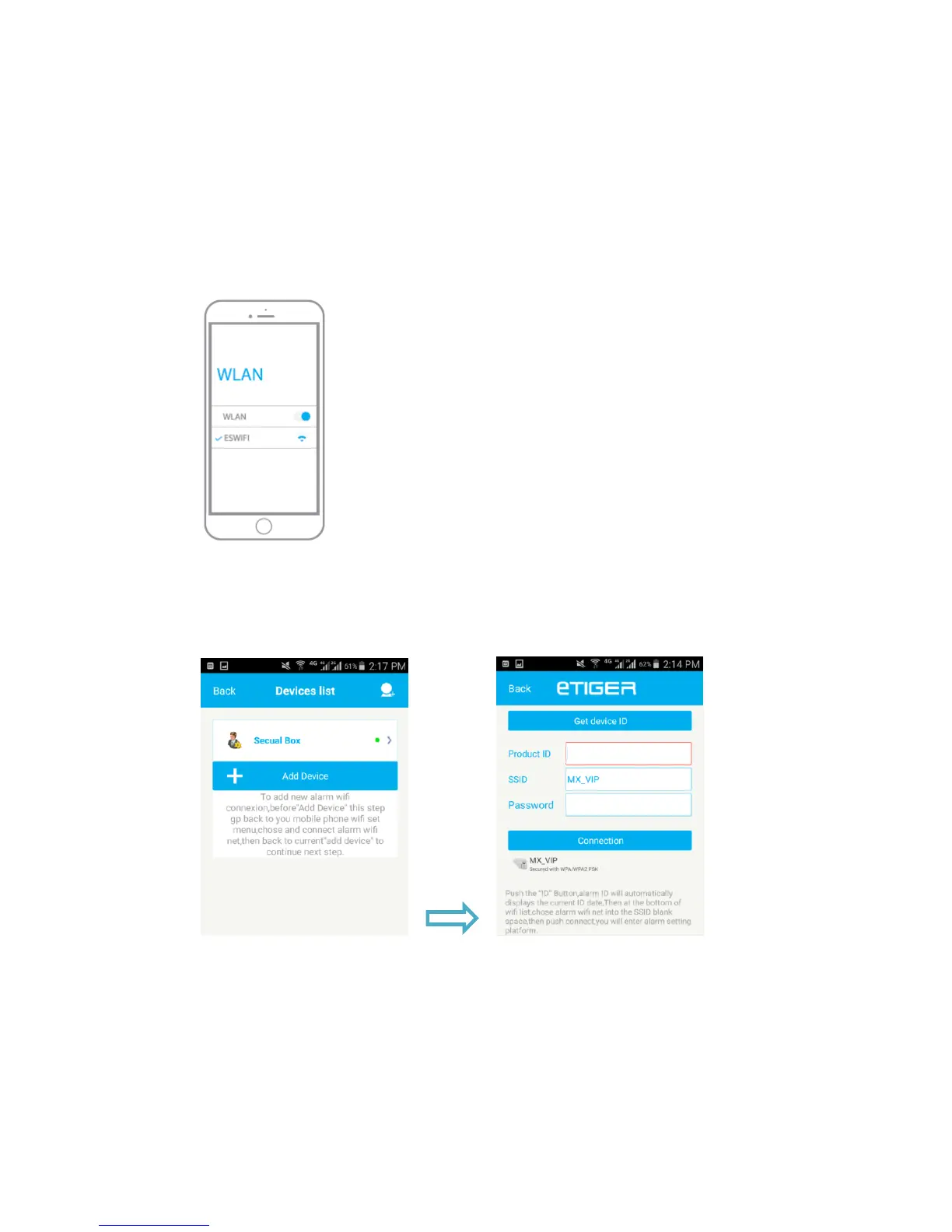
1. Before you setup the Wi-Fi connection of the alarm system please make sure you are
logged in in the APP.
2. Go to your Smartphone WiFi settings without closing the APP.
3. Connect the Smartphone to the alarm systems own Wi-Fi network(SSID: ESWIFI. If
the ESWIFI is secured, you can reset the WIFI to factory settings by long press the
connection button 5seconds until you hear 3beeps ).
4. Go back to the APP, wait for the notification WiFi now in use.
Step 5: Connect control panel to home’s WiFi
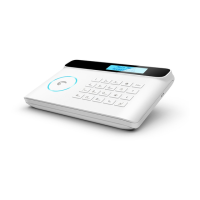
1. Now from the APP account select “ + Add device”.
2. “Product ID”: If your smartphone is connected to the Wi-Fi network of the alarm
system the APP will detect the Product ID of the alarm, if this is not the case please
press “Get device ID” to request the Product ID.
3. “SSID”: After APP detect the Product ID, select the WiFi connection you wish to
connect the alarm system to from the list of available WiFi networks.
4. “Password”: Enter the password of the WiFi networks(Your router’s password that
the alarm will connected to).
5. Press “Connection” and wait for 20 seconds to get a response.


 To Next Page