Manual EKS Electronic-Key Adapter USB
Page 22/44 Subject to technical modifications 094485-04-11/13
7 Setup
Perform setup in the following sequence:
1. Set the DIP switches on the Electronic-Key adapter
(see section 4.4 DIP switch settings).
2. Check whether mounting and electrical connection are correct
(see section 5 Installation and section 6 Electrical connection).
3. After connecting the USB connection cable and installation of the EKS USB drivers, the LED on the front of
the Electronic-Key adapter illuminates green. This indicates that the power supply is present.
4. Insert Electronic-Key in the Electronic-Key adapter. The LED changes to yellow.
5. Important: for the version EKS FSA, all safety functions must also be thoroughly tested.
7.1 Installation of the EKS USB drivers under Windows
®
XP
To start the installation, have the driver software order no. 094376 at hand in a folder or on a data carrier.
For installation from CD, insert the CD now.
In the routine described in the following, first a driver for the EUCHNER Electronic-Key-System USB is installed
and then a driver for the virtual serial COM port.
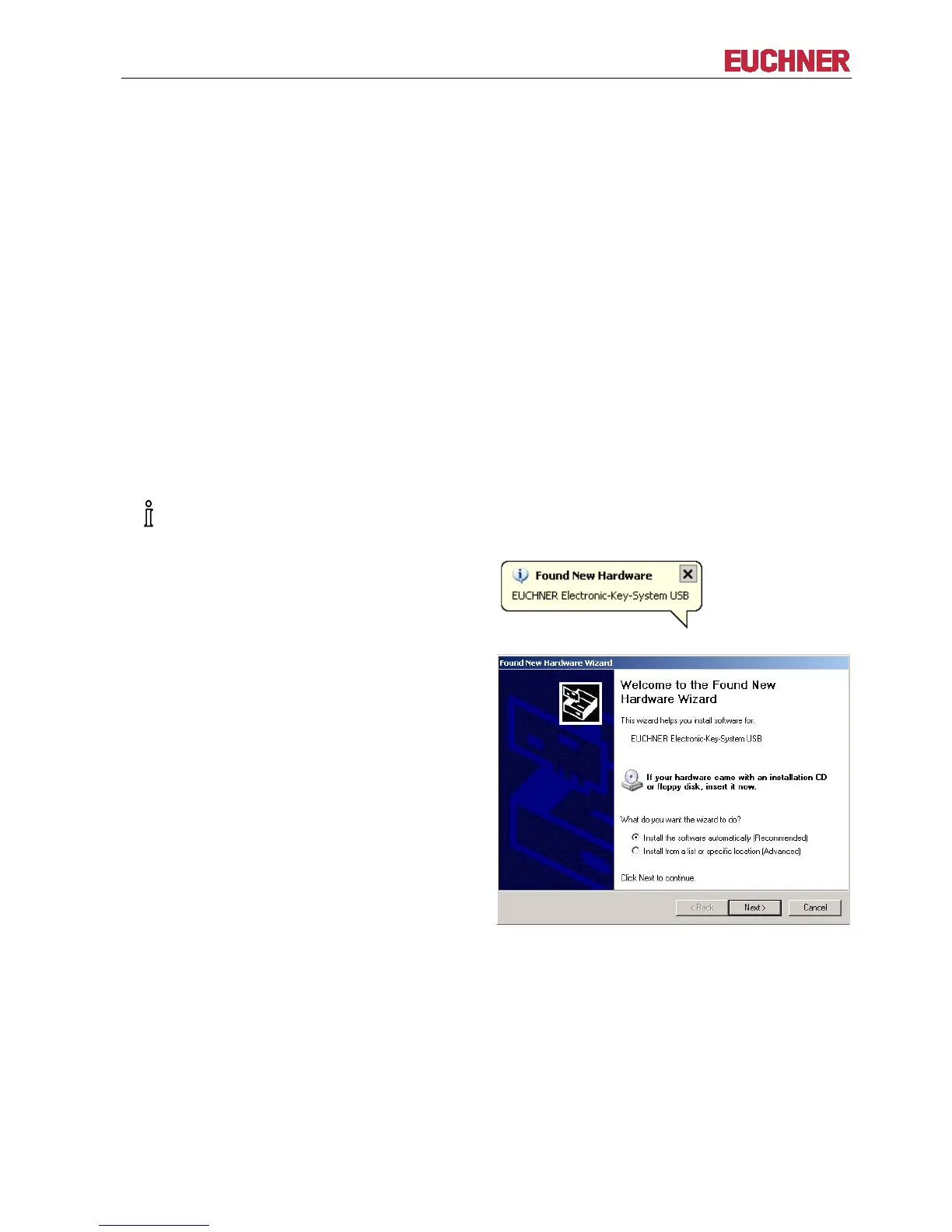
After the Electronic-Key adapter is plugged into a
spare USB port, the following message appears:
The Found New Hardware Wizard is started
automatically:


 To Next Page