EVCO S.p.A. EVlink Wi-Fi | Installer manual ver. 1.1 | Code 144IF25TWXE114
page 15 of 18
7 RESETTING THE FACTORY SETTINGS
N.B.
Resetting the factory settings deletes the settings on the Plant and Network screens but does not cancel the data recorded by the EVlink Wi-Fi data logger.
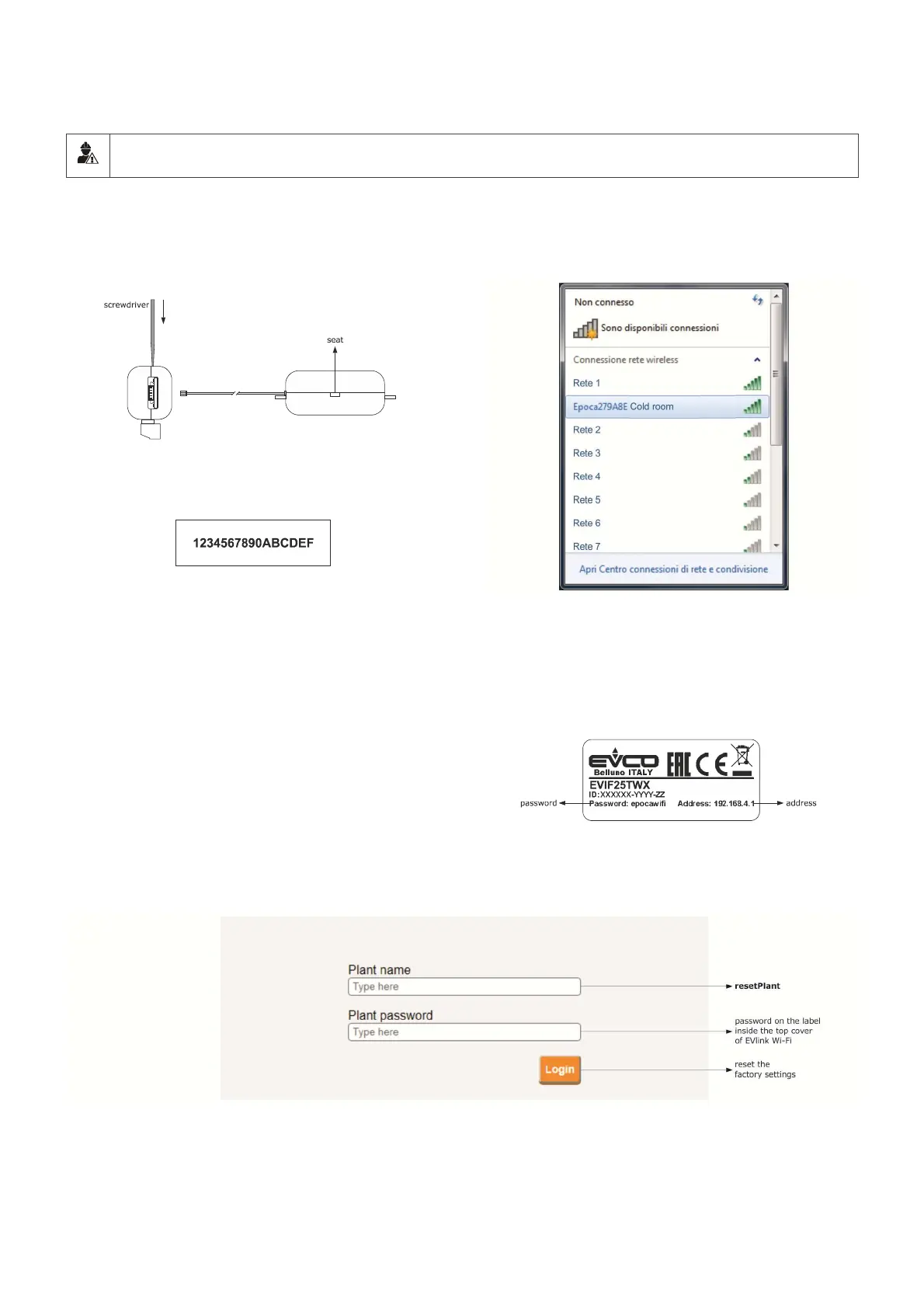
1. Disconnect the controller and any independent power supply to EVlink
Wi-Fi from the power source.
2. Remove the top cover of EVlink Wi-Fi by gently applying pressure
with a screwdriver in the slot.
3. Make a note of the password on the label inside the top cover of
EVlink Wi-Fi.
4. Click the top cover of EVlink Wi-Fi back into place.
5. Power up the controller and connect the independent EVlink Wi-Fi
power supply, if used, to the power source.
6. Scan the Wi-Fi networks using the multimedia device and identify a
network called Epoca followed by 6 alphanumeric characters and the
name of the device, for example Epoca279A8E Cold room.
7. Connect to the Epoca network.
In the Security key field enter the password found on the label of
the EVlink Wi-Fi (typically epocawifi).
8. Open the web browser on the multimedia device.
Enter the address found on the label of the EVlink Wi-Fi (typically
192.168.4.1) in the address bar.
9. The Login screen will be displayed.
Type in resetPlant in the Plant name field. Enter the password found on the label inside the top cover of EVlink Wi-Fi in the Plant password field.


 To Next Page