EVCO S.p.A. EVlink Wi-Fi | Installer manual ver. 1.1 | Code 144IF25TWXE114
page 8 of 18
5 FIRST-TIME USE
N.B.
- EVlink Wi-Fi uses an encrypted connection with TLS technology
and occupies the TCP 8883 port. Make sure this firewall port (both
the port of the user’s local network and the one managed by the
Internet service provider) is open for outgoing communications
(contact the IT manager)
- Ensure the user has a multimedia device (PC/laptop, tablet,
smartphone) with a web browser installed and that the device is
able to upload and download files. If the device has an iOS
operating system, files can only be uploaded and downloaded if
the user has an iCloud account and if access to this service has
previously been made with the device
- Ensure the Wi-Fi on the device is on
5.1 First-time use of EVlink Wi-Fi
1. Power up the controller and make sure the bLE parameter (enable
EVlink) is set to 1; see the controller instructions.
2. Disconnect the controller.
3. Carry out the installation of EVlink Wi-Fi as shown in the section
MEASUREMENTS AND INSTALLATION.
4. Connect EVlink Wi-Fi as shown in the section ELECTRICAL
CONNECTION.
5. Power up the controller and connect the independent EVlink Wi-Fi
power supply, if used, to the power source.
EVlink Wi-Fi will go into temporary set-up mode. During this mode:
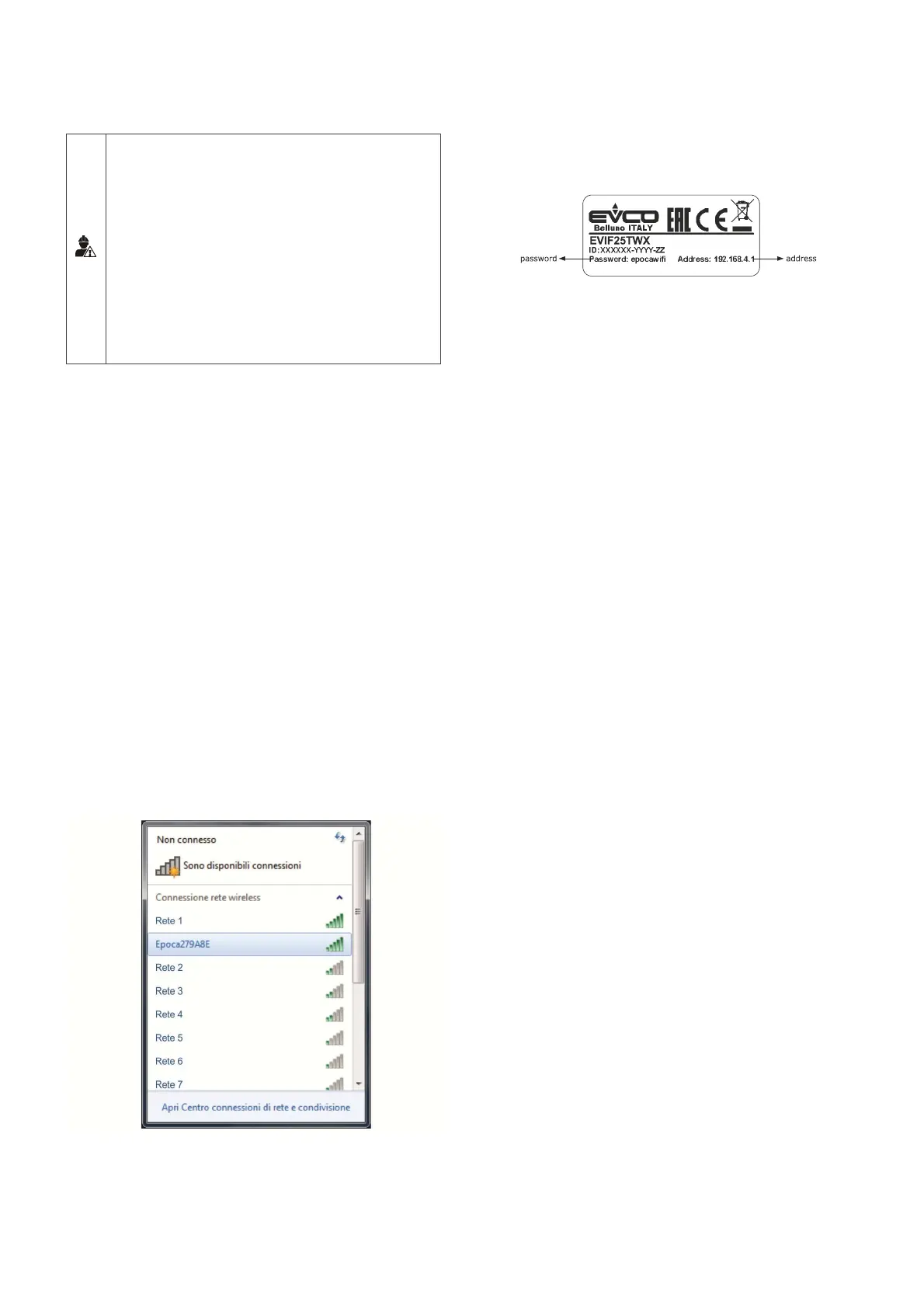
- EVlink Wi-Fi acts as both an access point (identifying a Wi-Fi
network called Epoca followed by 6 alphanumeric
characters, for example Epoca279A8E) and a data logger
for the connected controller
- there is no connection with the cloud server.
After 120 s (240 for the first-time use) in set-up mode, EVlink Wi-Fi
will automatically go into run mode if the control panel has not been
accessed (point 9 of this paragraph). During this mode:
- EVlink Wi-Fi acts as a data logger for the connected
controller
- there is no connection with the cloud server.
6. Scan the Wi-Fi networks using the multimedia device and identify a
network called Epoca followed by 6 alphanumeric characters.
If the scan detects more than one network called Epoca, make sure
only one EVlink Wi-Fi is being powered.
7. Connect to the Epoca network.
In the Security key field enter the password found on the label of
the EVlink Wi-Fi (typically epocawifi).
8. Open the web browser on the multimedia device.
Enter the address found on the label of the EVlink Wi-Fi (typically
192.168.4.1) in the address bar.


 To Next Page