5. Press and hold the button for 11 seconds until you hear a beep sound.
6. EVIPOWER will then undergo a reboot. Give it 1 minute to set up.
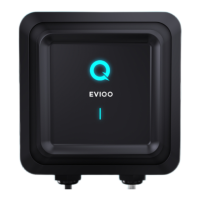
7. After the reboot, the signal indicator (small vertical line) must go flashing blue -
configuration mode.
8. Your phone must be very close to the EV charger, please allow the EVIQO app
10-60 seconds to find a new device. Once done, follow the next steps in the app
5. How to set the Schedules properly? I’ve got the “Conflict of
Schedules” notification.
To ensure proper functioning of the schedules, please adhere to the following
requirements:
Time Splitting: Ensure the Start and Stop times fall within the same calendar day
(24-hour period). For example, if you intend to set a schedule from 9:00 PM to
6:00 AM, create two separate schedules: Schedule 1 from 9:00 PM to 11:59 PM
and Schedule 2 from 12:00 AM to 6:00 AM. Schedule 2 will start automatically
after Schedule 1 finishes at 11:59 PM.
Avoid Overlaps: Regardless of the Schedule switcher (on/off), ensure there are
no time overlaps with other schedules or Delayed Start.
Days Conflict: If you have the same days chosen in multiple schedules with no
specific start/stop times set, it creates a conflict. For example, if Schedule 1 and
Schedule 2 both have Monday selected but no specific start/stop times set, it's a
schedule conflict.
Delayed Start: Make sure schedules don't overlap with the Delayed Start feature.
Complete Fields: A schedule is valid and can be switched on only if days, start,
and stop times are chosen. Please fill in all the required fields for a valid
schedule.
Conflicting values will not be saved: If you attempt to set a schedule that
overlaps with an existing one, your changes will not be saved. To set the new
schedule, you'll need to clear the days, start, and stop times of the existing
schedule that would otherwise overlap with it. Don't forget to press “Done” to save
the changes.
6. I set the Schedule but it didn’t start when it was supposed to. Why?
Please check the time zone in the EVIQO app. The charger picks the time zone
based on the IP address of the wifi router it’s connected to. Press “...” in the top
right corner of the main page. Then scroll down and choose the correct time zone.


 To Next Page