Network Camera
47
Trip-Zone
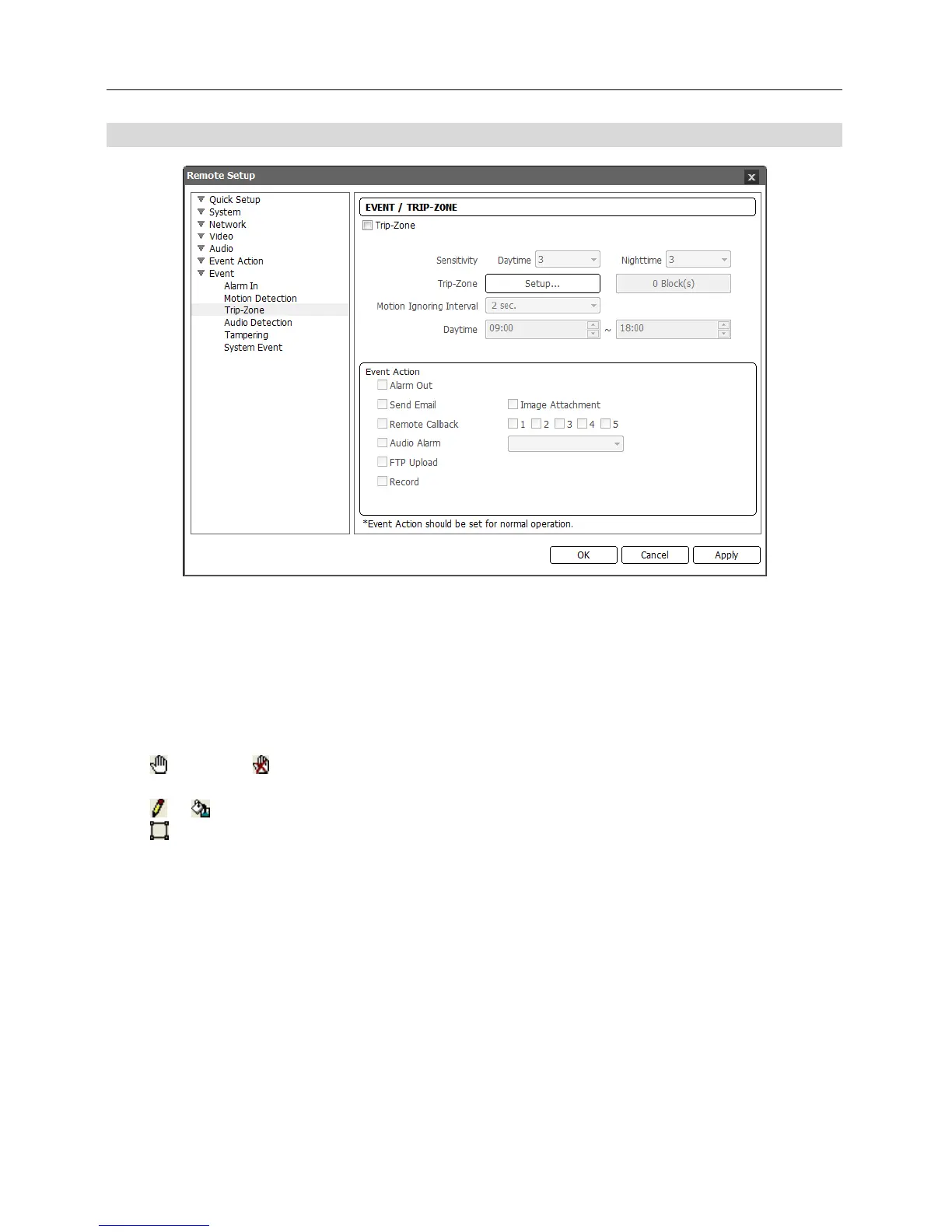
Check the Trip-Zone box to set up a trip-zone event. When the camera detects a moving to or
from the preset trip-zone, it considers the moving as an event.
Sensitivity: Set the moving sensitivity for daytime and nighttime independently. The higher
the number is, the more sensitive it is.
Trip-Zone: Click the Setup… button and a trip-zone setup screen appears. Define the area
(max. four) of the image that you want to set up a trip-zone by using the trip-zone icons.
−
(Select) or (Clear): Click to select or clear a block for motion detection. You can select
or clear the several blocks of an area using the mouse dragging.
−
or
(One or All block): Click to select or clear one or all blocks at a time.
−
(Area): Click to select or clear several blocks of an area.
− Trip Direction: Select the direction of the moving to be considered as an event. Selecting In
considers a moving as an event when the moving to the area is detected, and selecting Out
when the moving from the area is detected
.
Motion Ignoring Interval: Select the motion ignoring dwell time from the drop-down list. The
camera will not log or send notifications of motion events occurring during the preset interval
after a motion is detected. You can control excessive event logging and remote notifications
of motion detection events by adjusting the motion ignoring dwell intervals.
Daytime: Set up the daytime range. The camera will consider the remaining time range as the
nighttime.
Event Action: Check the box for each action the camera is to take when it detects a trip-zone event.
− Alarm Out: Check the box to trigger an alarm-output signal.
− Send Email: Check the box to send an email. Selecting Image Attachment attaches an event
detected image file (.JPG) to the email.



 To Next Page