+1.317.845.5710
+5255.56080817
+44.1438.310163
USA (Corporate Headquarters)
Mexico
Europe/Middle East/Asia
29
A Video Mask is used to block an area of a camera’s view so that it cannot be seen onscreen in live or recorded video.
This can be useful if you don’t want system users to see a combination safe or keypad that is in the camera’s field of view,
for example.
To create a video mask, complete the following steps:
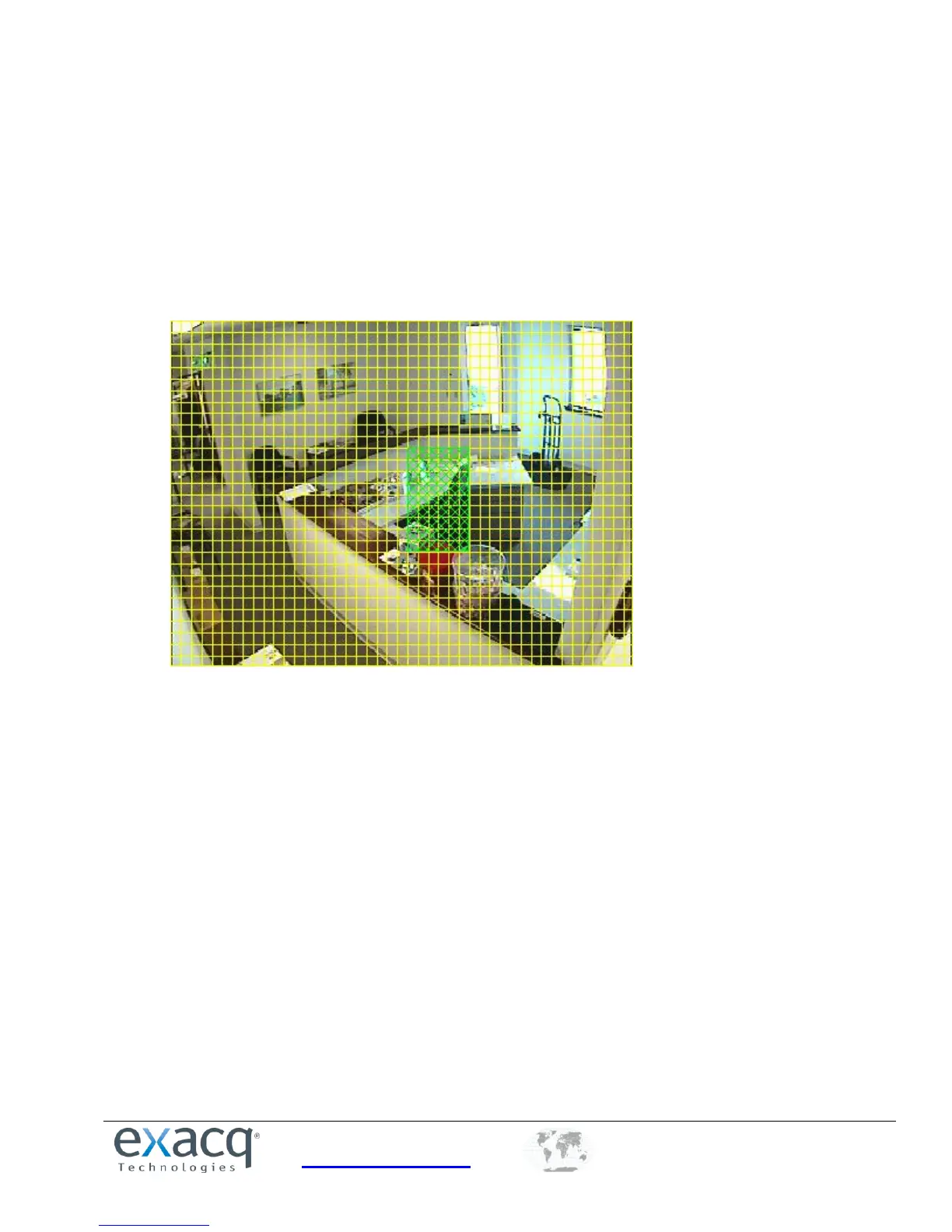
1. On the Camera Settings page, click Edit in the Video Mask section. This displays a yellow grid over the live video
from the camera.
2. Draw the mask directly in the grid by left-clicking while dragging the cursor over the area of the grid you want to
mask. A green rectangle indicates the masked area.
3. Click Apply. The yellow grid disappears and green rectangle is replaced by a solid gray rectangle. This area is now
masked from both live and recorded video. To clear the mask, click the Clear button.


 To Next Page