+1.317.845.5710
+5255.56080817
+44.1438.310163
USA (Corporate Headquarters)
Mexico
Europe/Middle East/Asia
55
Event Monitoring
NOTE: The Event Monitoring page is not available in exacqVision Start.
The Event Monitoring page allows you to configure your exacqVision Client to react to events that take place on
connected servers. First, you must create and define Event Monitoring Profiles, which are a set of actions (such as
displaying live video or triggering a sound) that are triggered by events (such as motion or triggered inputs). Each profile
can be activated and assigned to a specific video window on the Live Page.
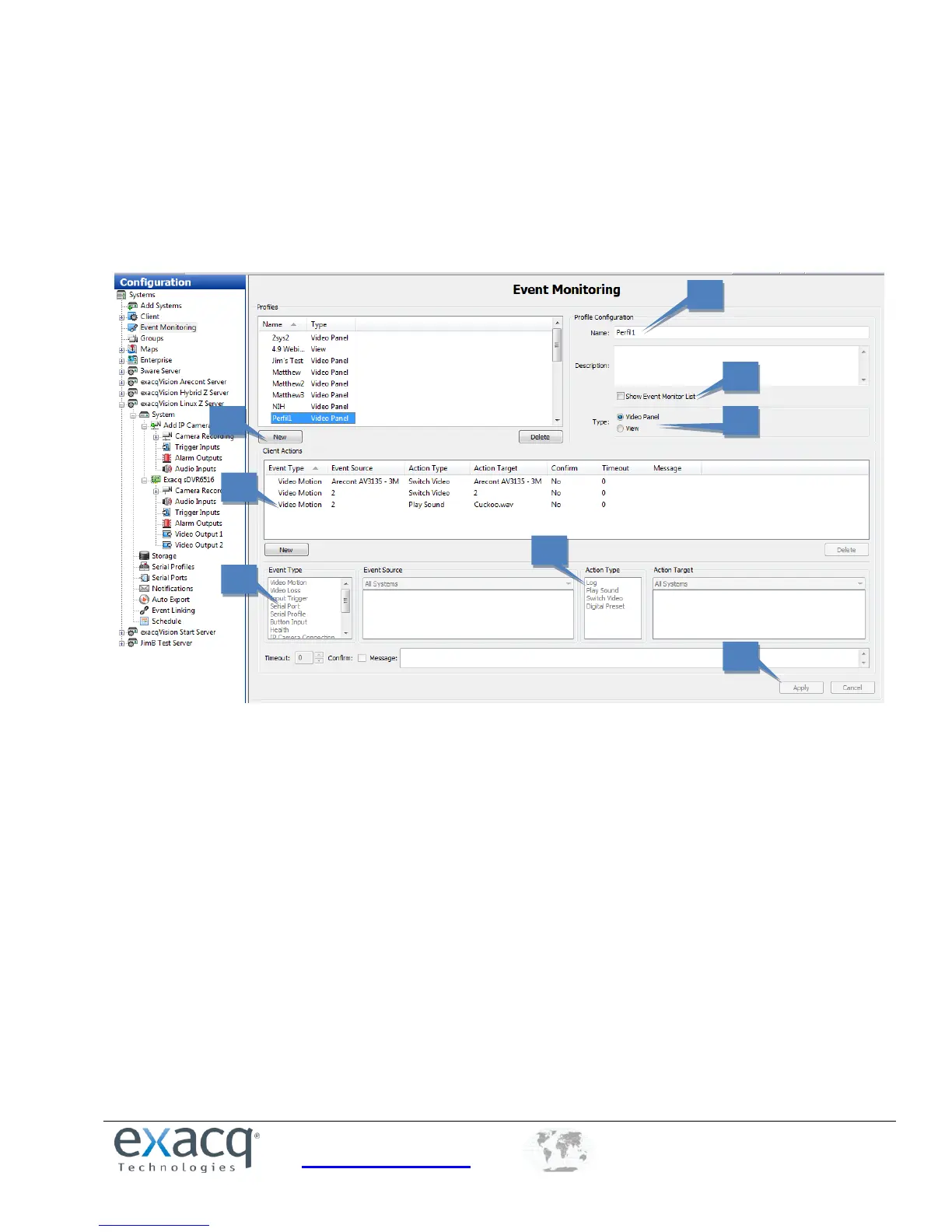
1. To create a new profile, click the New button in the Profiles section.
2. Enter a name and description for the profile.
3. Select Show Event Monitor List to automatically display a window on the Live Page when one or more monitored
events occur.
4. Select the type of profile you would like to create:
A Video Panel profile can display a single camera on the Live Page when a specific event type occurs.
A View profile displays a preconfigured view when a specific event type occurs.
5. Add an event to monitor. This works in a similar way as the Event Linking discussed in the “Event Linking” section
of this manual. Select an Event Type, and Event Source, an Action Type, and an Action Target. The options listed
in Event Source vary depending on which Event Type (such as triggers, serial ports, and serial profiles) is selected
and how it is configured. For more information, see the sections of Config (Setup) Page Overview chapter that
are related to the desired Event Type.


 To Next Page