05
06
SETUP
FSC881 QUICK START GUIDE FSC881 QUICK START GUIDE
SETUP
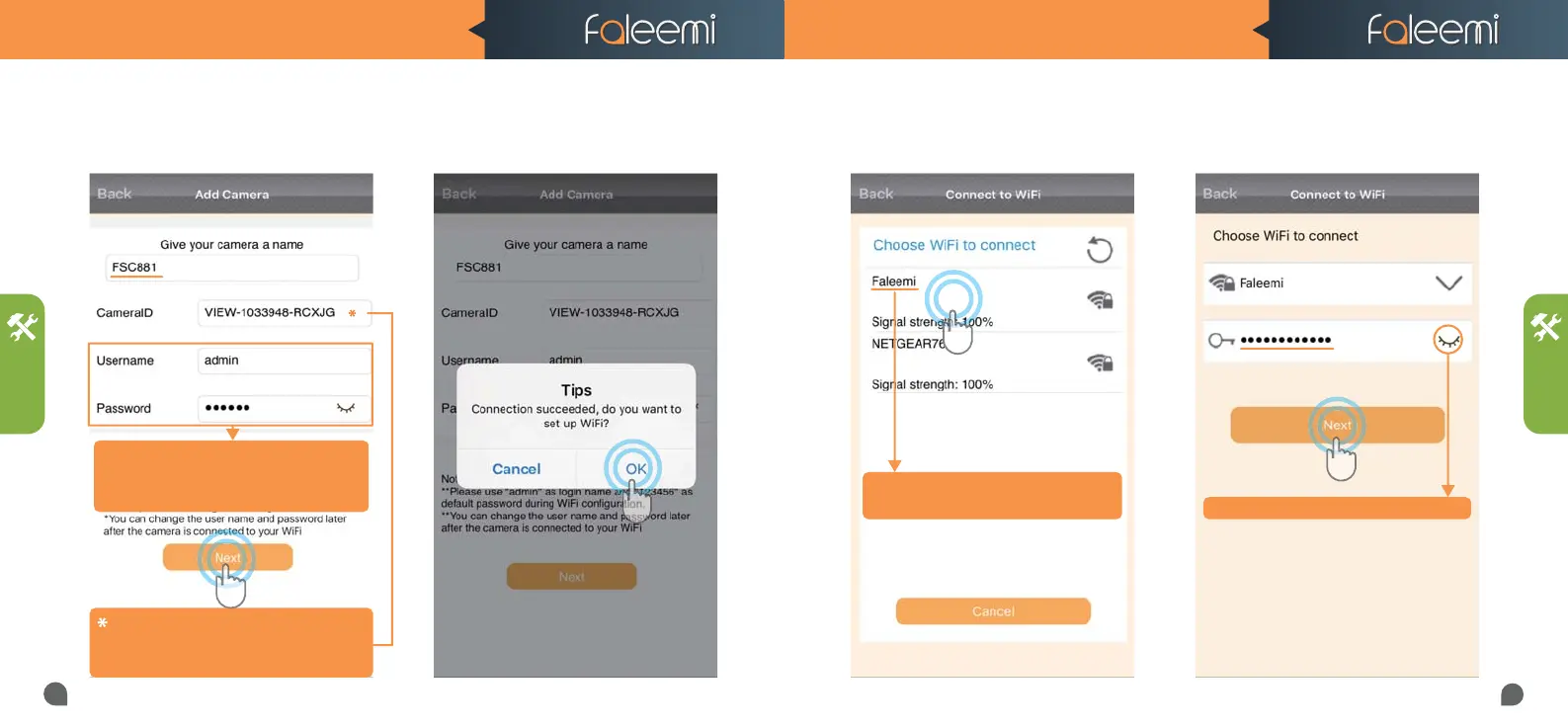
7. It says Connection succeeded, if you want
to use wired connection, please click on
[Cancel]; if you want to use wifi, please click
on [OK] to do the wifi connection.
8. Choose WiFi to connect 9. Please enter your wifi password, click on
[Next].
6.Type in the name you have selected for your
camera and click on [Next].
Click on it to show and check your password
Click on it to show and check your password
if you can't scan the QR code, please enter the
if you can't scan the QR code, please enter the
DID (something like VIEW-1234567-ABCDE) in
DID (something like VIEW-1234567-ABCDE) in
the label on the camera manually.
the label on the camera manually.
Please don't change the user name and password. You
Please don't change the user name and password. You
have to use the default ones here. But you can change
have to use the default ones here. But you can change
them after your camera is connected. Please refer to
them after your camera is connected. Please refer to
the instruction on page 17.
the instruction on page 17.
Please make sure the wifi you are going to
Please make sure the wifi you are going to
connect the camera to is the 2.4GHz WiFi.
connect the camera to is the 2.4GHz WiFi.


 To Next Page