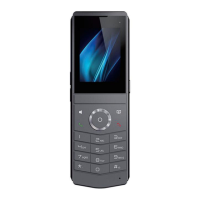
DECT W710P (W710D+W610D) User Manual
point, users can perform related operations, such as starting/stopping the line or making
a phone call. After completion, click the [Stop] button on the webpage. All network
packets during the device period are saved in files. Users can analyze data packets or
send them to technical support email
16.7 Get Log Information
Log information can help technicians analyze and locate problems.
Obtain log for W610D through Manager
Visit the W710D Manager webpage>>[Handset]>>[Diagnosis], select the online device,
click the Settings button, enable logging, and set the logging level to Debug. Perform the
operation of reproducing the problem. After reproducing the problem, click on Export Log
and save the log file. Users can analyze log information or send it to technical support
email.
Note:
When the system log level of the terminal is Debug, it will have a certain impact on the
performance of the terminal, such as shortened standby time, delayed response, etc.
After the problem is resolved, please set the log level to the default Error.
Obtain log information for W710D itself
Visit the W710D Manager webpage>>[System Tools]>>[Device Logs], click the [Start]
button, follow the steps of the problem until it appears, then click the [Stop] button, and
[Save] to analyze locally or send the logs to technical personnel to locate the problem.
16.8 W610D USB/USB drive upgrade
When there are some abnormal problems with the device, you can try to upgrade and
recover the software through USB under the guidance of technical support personnel.
Please obtain the steps and tools for upgrading USB/USB drives from technical support



 To Next Page