31
Details
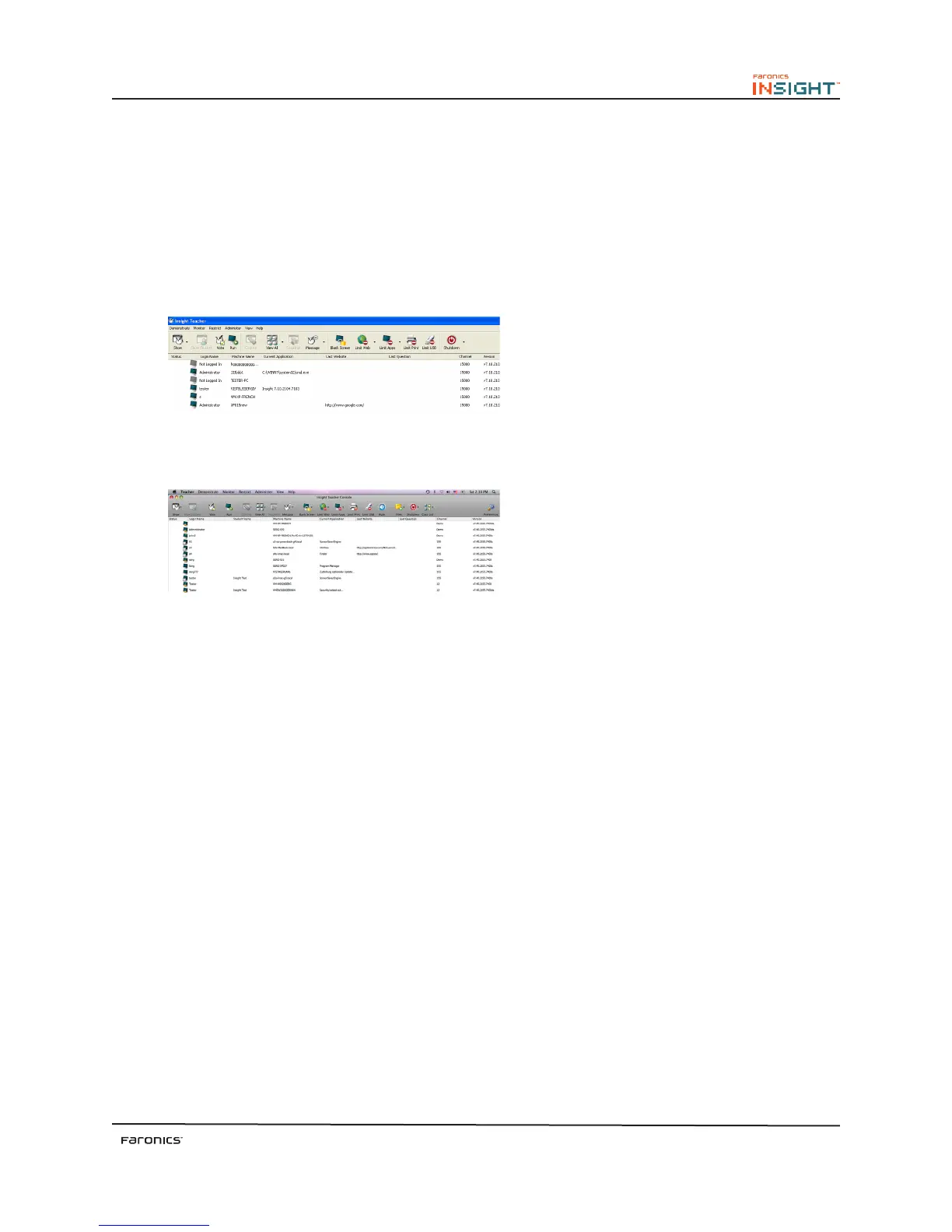
Displays student workstations in a list view with column headings. e workstations can be sorted by
clicking on any heading. Right-clicking a workstation in details view displays a list of menu options to
control that workstation.
e student name is displayed instead of the login name, if the student name is available in the Active
Directory.
e computers running Insight Mac are indicated by a Mac icon. Click the computers running Insight
Mac. e features unavailable on Insight Mac are grayed out as shown below.
Details View (Windows)
Details View (Mac)
Status Window
Configure the console display options by adding the status window. is window logs all teacher
actions providing the time and date when each action occurred.
Select All
is menu command allows the teacher to select each workstation logged on to Insight.
Refresh
e list of students is a static list. is command refreshes the list and discovers any new students that
have entered the class.
Load/Save Prole
Available under the View menu, Profiles save key teacher settings so they can easily be loaded at a
later time. e following settings are saved in a profile: Class lists, umbnail layouts, Web Limiting
URLs and button state, Application Limiting programs and button state, Limit Task Manager/Activity
Monitor on Student, Limit Dotted Decimal Browsing, Limit Print button state, Limit USB button state,
Mute button state, and Blank screens messages.



 To Next Page