35
Limit Student Web Browsing
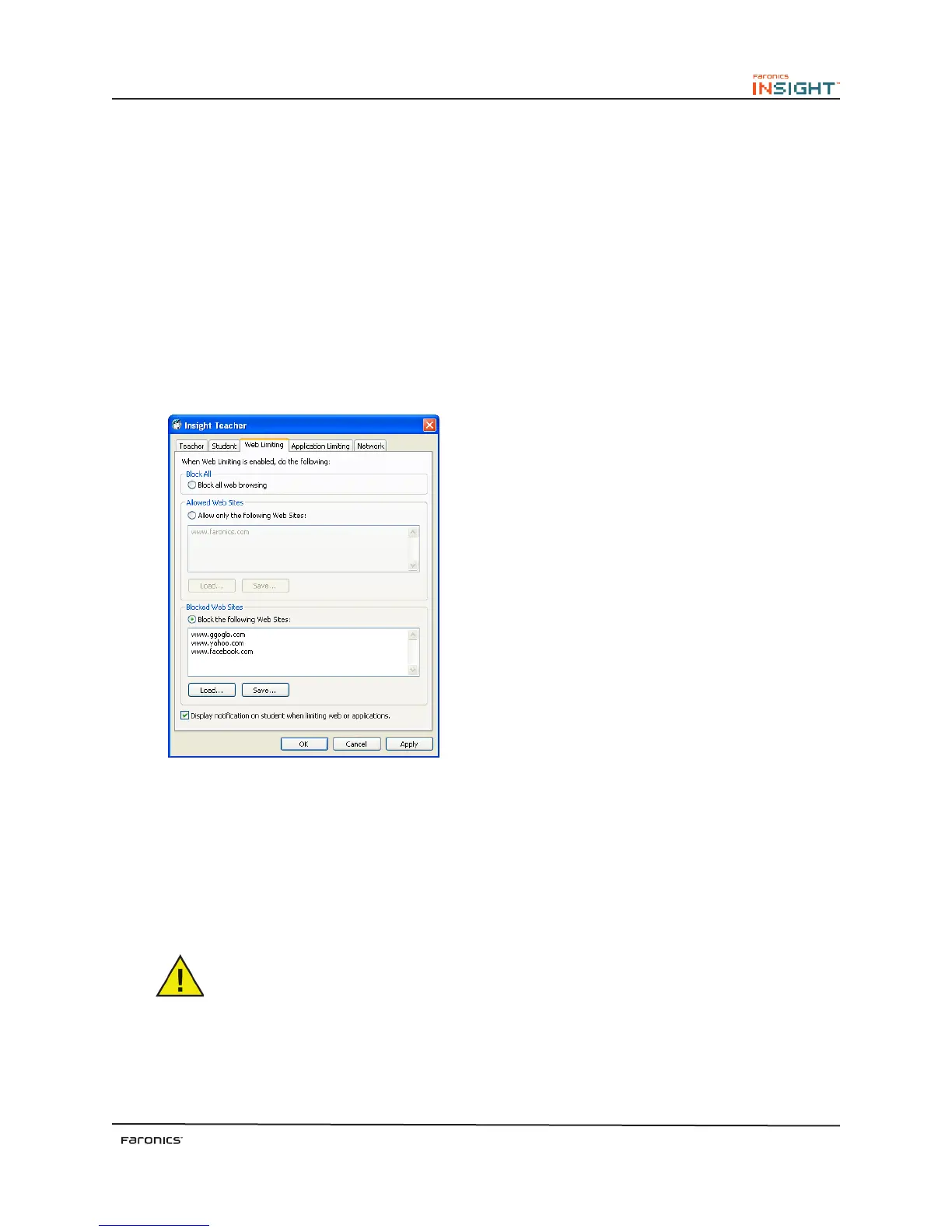
Temporarily disable all or selected student access to the Internet. Selecting Block all web browsing
prevents students from accessing any Web site through any browser. is option also temporarily
disables e-mail clients and popular instant messengers. Choosing to Allow or block the following web
sites allows the teacher to specify lists of Web sites the students are allowed to, or prohibited from
visiting. is feature only supports Internet Explorer and will not function on other browsers.
is option must be configured in the Options dialog (available from the Limit Web drop-down menu)
and then turned on by clicking the Limit Web button or Restrict menu item. While the Internet is
disabled, an icon on both the teacher and the student computer indicates that the web is disabled.
Configure whether or not the students should see the web limiting warning. e warning is a pop up
dialog.
Some students were using dotted decimal browsing to get around the web limiting feature. If this
option is selected, students cannot browse the web using dotted decimals. (i.e. http://70.235.50.6).
Limit Web Enhancements
In previous versions, if a student was browsing the web when a teacher clicked limit web, they could
continue to look at any page they had currently loaded. Now, Insight will immediately redirect stu-
dents to a Limiting page, letting them know they cannot browse to that particular website.
Unlimited Internet History
Insight now prevents students from deleting their Internet Explorer browsing history and returns and
all browsing history on that computer.
Insight does not prevent the private browsing feature for Internet Explorer 8.



 To Next Page