36
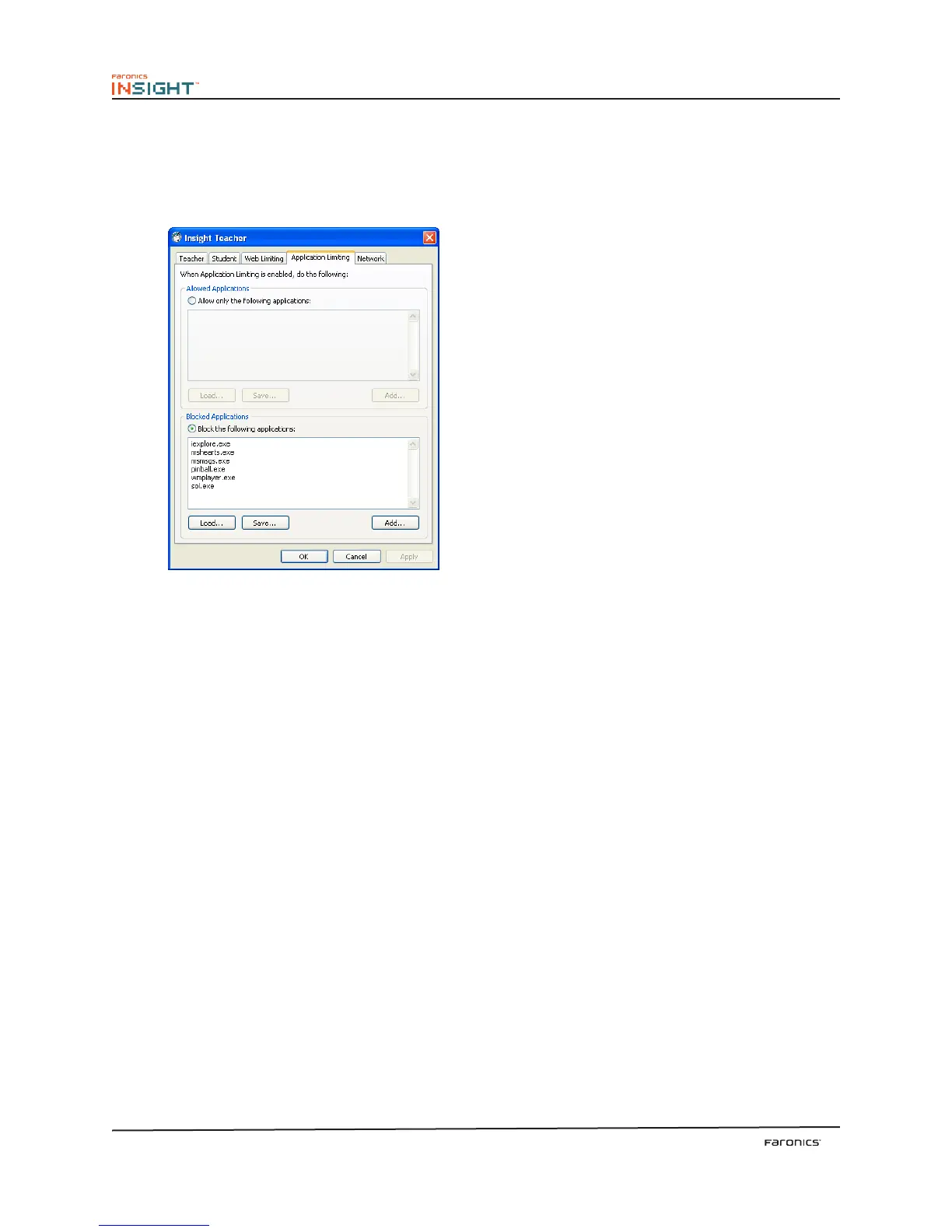
Limit Student Applications
Temporarily disable all or selected student access to specified soware applications. is must be
configured in the Options dialog (available from the Limit Apps drop-down menu) and then turned on
by clicking the Limit Applications button or through the Restrict menu.
Teachers can save and load allowed or blocked application lists.
Limit Printing
Limit access to any printers connected to student workstations. Selecting this toolbar command
displays the disabled printer icon in the student machine’s taskbar and the same icon in the status
column in the teacher console.
Limit USB
Limit access to any USB flash drives connected to student workstations. Selecting this toolbar com-
mand displays the disabled USB icon in the student machine’s taskbar and the same icon in the status
column in the teacher console. is will not affect keyboard or mouse devices.
Shutdown, Logoff, Restart
From the console, shutdown, logoff or restart selected student machines.
Class List
If no class lists have been saved, open the Administer menu followed by One to One and select Save
Current Class List.
When the One to One feature is installed, the class list toolbar button allows teachers to compare a
saved list of students against the students being monitored in the current Insight session.
is saved list can be opened to identify students that have le, or have joined the Insight classroom.
Absent students (students that were in the saved list but not present during the current Insight session)
can be removed from the saved list.
New students (students present in the current Insight session but not in the saved list) can be added
to the saved list.



 To Next Page