16
www.feiyu-tech.cn
Connect Camera with Wi-Fi
(1) Power on the gimbal.
(2)
Turn on Bluetooth and Feiyu ON App, APP automatically connects to gimbal with the stron-
gest signal of Bluetooth. The Bluetooth icon on display will be lighted after successfully
connected.
(3)
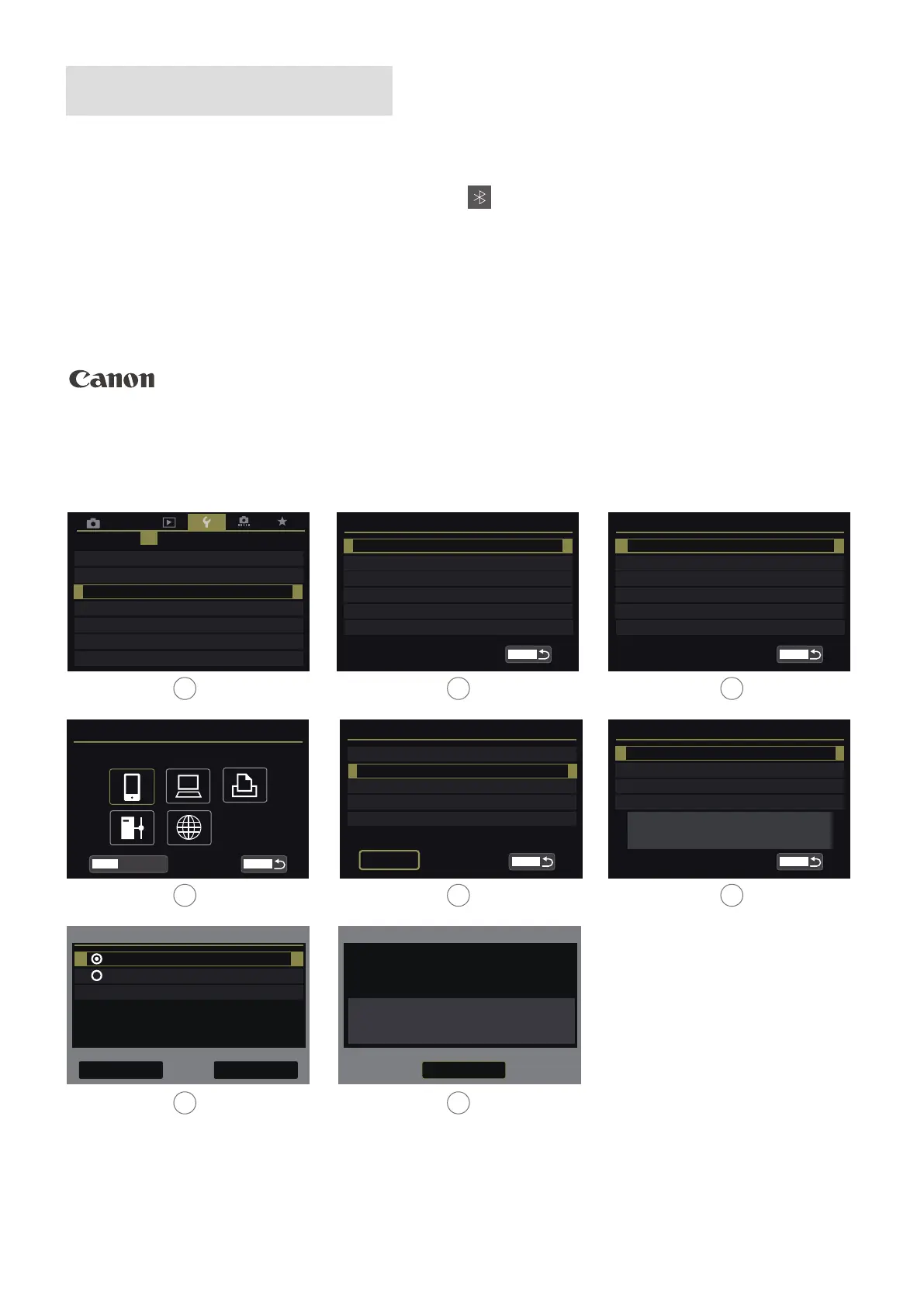
How to Obtain camera’s Wi-Fi name and password.
Communication settings
FTP transfer settings
MENU
Built-in wireless settings
AF
1 2 3 54
SET UP4
HDMI frame rate AUTO
GPS settings
Communication settings
Built-in wireless settings
Wi-Fi function
Send images to smartphone
Nickname
Clear settings
MENU
Wi-Fi/NFC Enable
E0S5D4
Wi-Fi function
Connect to smartphone
MENUINFO.
View info
Review/change settings
Change settings name
Viewable imgs
Confirm set.
MENU
Change set.
Viewable imgs
All images
Connection method
Select a network
Connect the camera directly to
the device
Easy connection
Cancel
OK
Waiting to connect
将相机直接连接到
设备
Connect device to camera using
network settings below and then
start Cannon app/software
Cancel
SSID
Encryption key
12345678
xxxxxx-xxx_Canonxx
SET1Choose set
Connect to smartphone
Delete settings
Connect
MENU
Review/change settings
Steps for different brand cameras:
Tap "MENU" button , finding "communication setting" , find "Built-in wireless setting" - "Wi/Fi
function" - "connect to smart phone" - "review/change setting" - "change set" -"easy connec-
tion", click "OK" get Wi-Fi name and password.
1 2 3
4 5 6
7 8


 To Next Page