18
www.feiyu-tech.cn
After the first successful connection to the camera Wi-Fi, gimal will remember the cam-
era's Wi-Fi and password. To connect the previous camera again, simply open the cam-
era's Wi-Fi connection interface and the gimbal will automatically establish the connec-
tion. When the camera icon of the gimbal on touch screen lights up, the camera can
be controlled.
In the APP interface, selected wrong camera Wi-Fi name, the Wi-Fi password input error
(not distinguishing between upper and lower case letters), and the gimbal Wi-Fi is occu-
pied, which may fail to connect and control the camera.
Please confirm the Wi-Fi name and password are entered correctly. If the connection is
failed again, it is recommended to disconnect the Wi-Fi connection and reconnect again.
Waiting for 5~10 seconds, After the connection is suc-
cessful, the camera interface will display corresponding
tips and changes.(Canon camera is needed to tap "con-
firm"), And automatically return to the main shooting
interface, the camera icon on gimbal's touching
screen light up at same time, connection is done. You
can exit APP after connected.
Connect camera Wi-Fi again
Fail to connect Camera
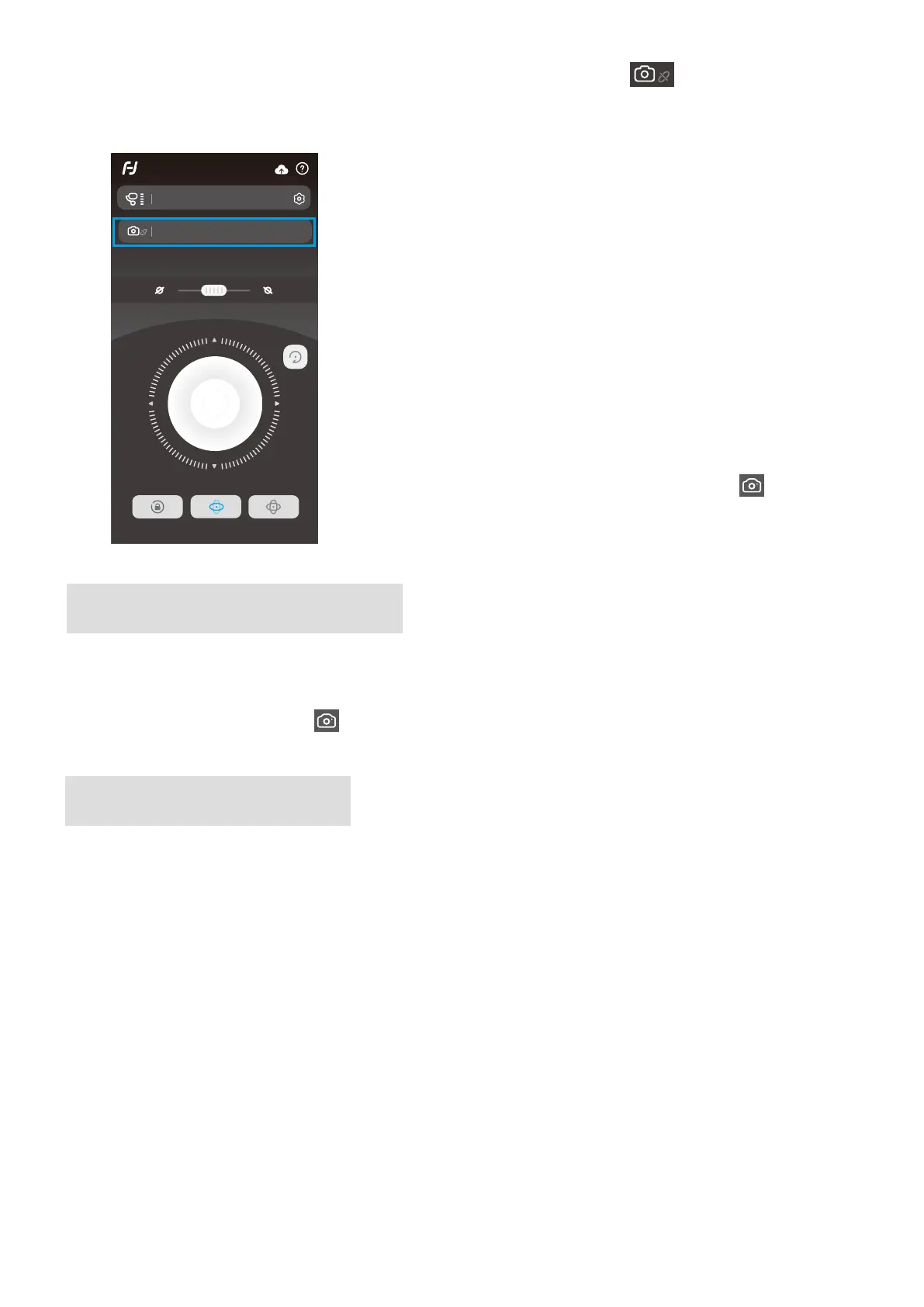
(4) Switch on Feiyu ON App , select the camera connection icon in the virtual
joystick interface, select corresponding camera brand and camera you used, choose
right camera Wi-Fi name and input password.
Remote Control
FY_G6Max_xx
Connect Camera


 To Next Page