50
Set Parental Lock
You can set the program ratings levels that can be viewed. Use the to select an option and press .
Never Lock means you won’t need your PIN to watch. Always Lock means you’ll always need your PIN to watch content
at the set level. Time Lock lets you lock content between set times - such as MA+ programs between 6am and 9pm,
when children may be watching.
App Locking
In the Apps settings you can Lock individual apps so you always need your PIN to launch them. Or you can choose Allow
to launch an app without a PIN.
Change your Parental PIN
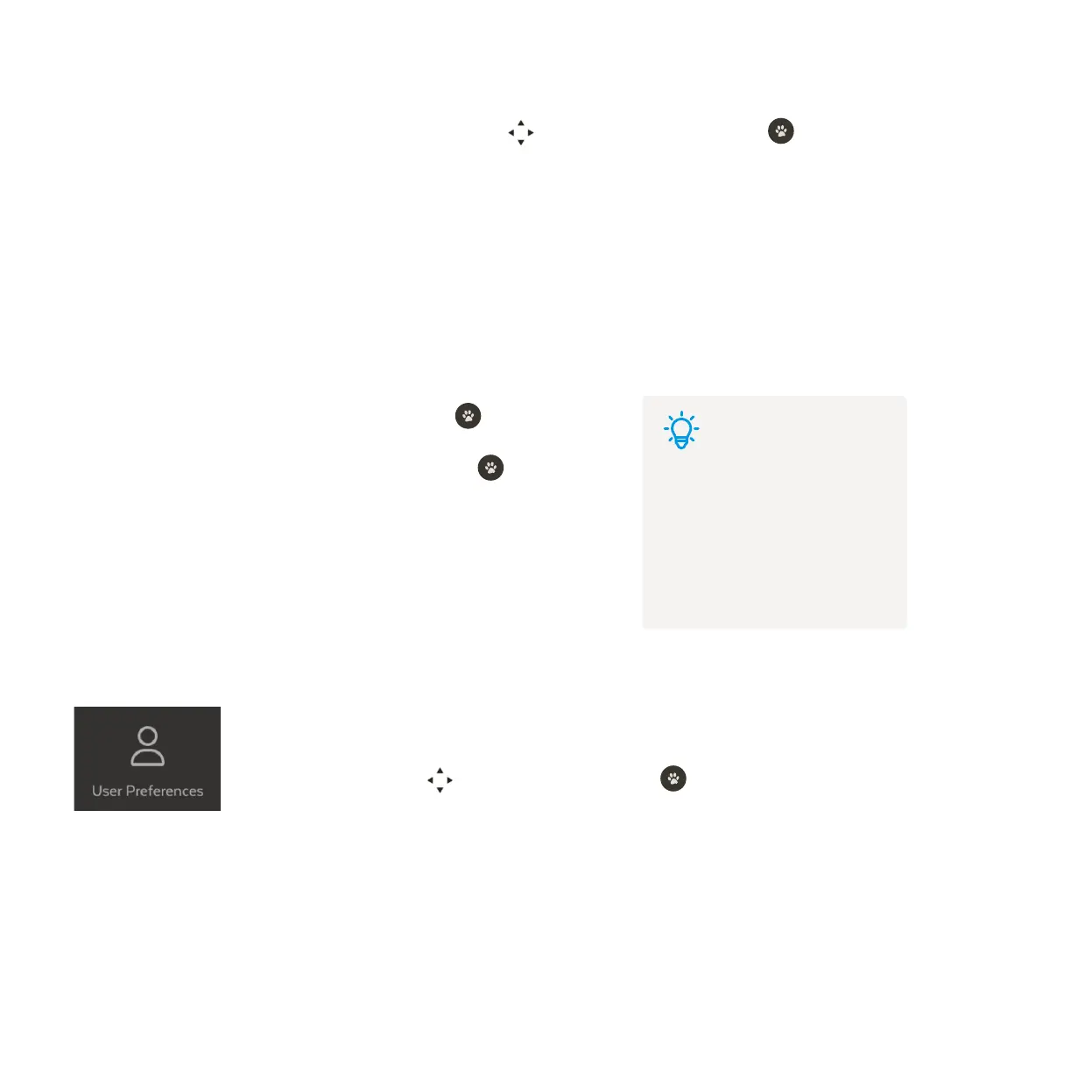
User Preferences
Select PIN Change in User Preferences and press .
Enter and confirm your new four digit PIN and press . You’ll
receive a confirmation if the PIN was updated successfully.
1
2
Tips
The same PIN is used across all
Fetch boxes on your account
and also phones and tablets on
which you’re using the Fetch
Mobi App.
In the User Preferences, you can change recording options and change your PIN. Also find
the Activation Code (also called Fetch ID) for your Fetch Mighty, or set up your TV Guide
viewing options. Use to select an option and press .


 To Next Page