31
APP
After downloading and installing the APP, register the FIMI user account and
log in. Click to enter the flight interface, or you can
use it without logging in.
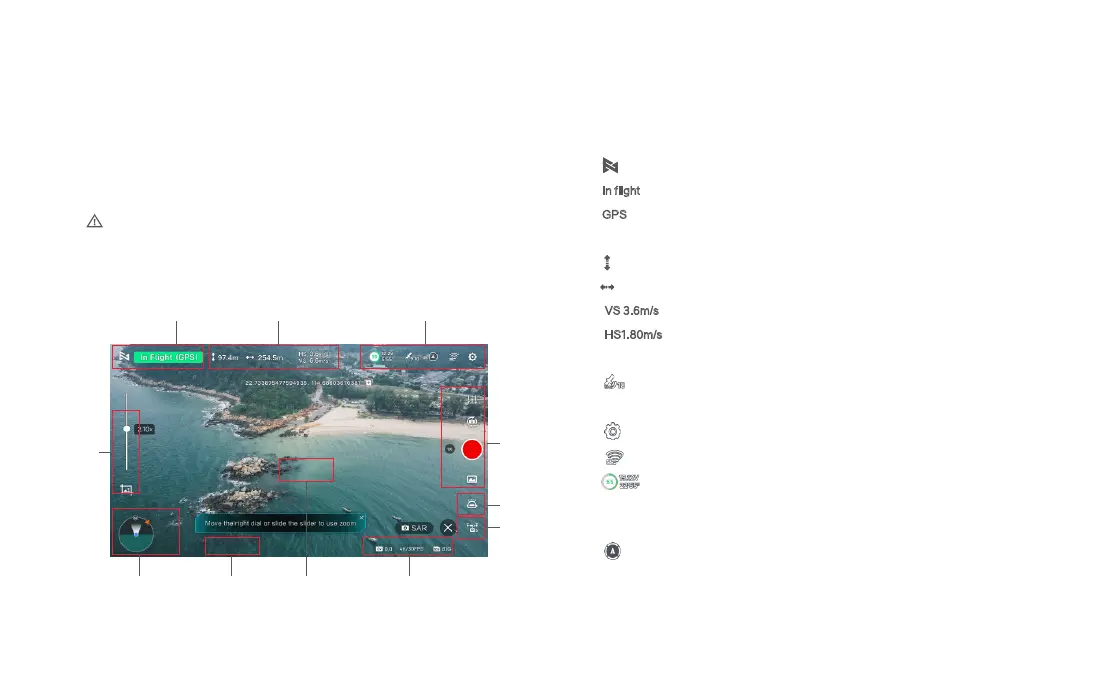
Image Interface
1. Real-time Flight Parameters
: Tap to return to the home screen.
In flight
: Current flight status
GPS
: Current flight mode,including GPS,VPU,ATTI
2. Drone Status
97.4m: Vertical flight altitude from the home point
254.5m: Horizontal distance from the home point
VS 3.6m/s
: Vertical speed
HS1.80m/s
: Horizontal speed
3. Signal Status and General Settings
: Show GPS signal status, 0-6 indicates poor with red; 7-12 indicates good with yellow;
13 and above indicate excellent with white.
: Tap to enter flight control settings
: Show the RC signal strength, tap to enter RC setting
: The numerical value inside the circle represents the battery power
percentage. The adjacent values indicate the voltage and remaining
flight time. Click to access battery settings.
: Displays the status of the obstacle avoidance function, click to enter the
obstacle avoidance settings.
• Some features, such as flight logs, will not be available without logging in.
1
4 65 7
9
8
2 3
11
10



 To Next Page