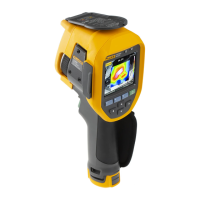
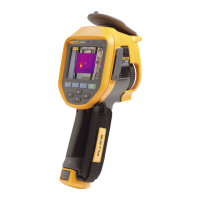
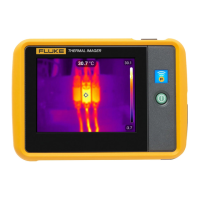
TiS10, TiS20, TiS40, TiS45, TiS50, TiS55, TiS60, TiS65
Users Manual
26
Display Graphics Presentation
The options for how you view the on-screen graphics are
in the Display menu. These options are Display All, Details
and Scale, Scale Only, and Image Only.
1. Push 2.
2. Push W/X to highlight Image.
3. Push 1 or Z to view the menu.
4. Push W/X to highlight Display.
5. Push 1 or Z to view the menu.
6. Push W/X to highlight an option.
7. Push:
• 1 to set the change and go back to the live
view.
• 2 or Y to set the change and go back to the
previous menu.
• 3 to cancel the change and go back to the live
view.
Note
Features that have ON/OFF controls must be
turned on and turned off with those controls.
Logo
A Fluke logo shows on the display and captured images.
You can choose to turn on or turn off the logo:
1. Go to Image > Logo.
2. Push W/X to highlight on or off.
3. Push to set.
With SmartView software you can upload a custom logo to
the Imager from your PC through the USB connection.



 To Next Page