Need help?
Do you have a question about the FlySky SM001 and is the answer not in the manual?
Provides an overview of the simulator's features, compatibility, and operational benefits.
Instructions on how to connect and disconnect the USB cable to power the simulator on and off.
Explains the function and communication status indicated by the red D1 and green D2 LEDs.
Details how to switch between the two available stick modes (left-hand/right-hand throttle).
Step-by-step guide on how to swap the gimbal assemblies for throttle stick configuration.
Explains how to use the trim buttons to adjust aileron, elevator, throttle, and rudder values.
Instructions for calibrating the simulator's four main channels (Throttle, Rudder, Aileron, Elevator).
Procedure to reset all trims to their neutral positions.
Guide on how to select different compatible simulator software using the simulator's controls.
Declaration of conformity with essential requirements of Directive 2014/30/EU.
FCC compliance statement regarding digital device interference and radiated energy.
Guidance on proper disposal of old electrical appliances and batteries.
Statement of compliance with UK Radio Equipment, Electrical Equipment, and EMC Regulations.
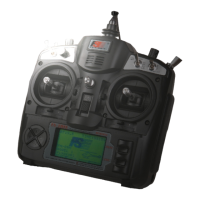
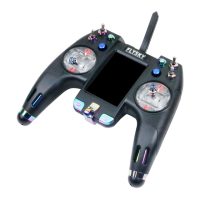
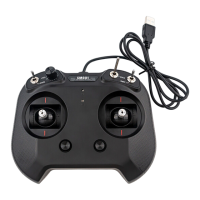
This document outlines the features and operational guidelines for the SM001 simulator, a versatile tool designed to enhance the flying experience for enthusiasts of various remote-controlled models. The simulator is available in both 6-channel and 8-channel editions, offering compatibility with a wide range of simulation software, including FMS, XTR5.0, PhoenixRC, and G7, among others. It is also compatible with common operating systems such as 32-bit or 64-bit XP, WIN10, and similar platforms. The SM001 is adaptable to a diverse array of models, including fixed-wing aircraft, helicopters, gliders, 3D special aircraft, and racing drones, making it a comprehensive solution for virtual flight training.
One of the primary functions of the SM001 simulator is to provide a realistic and immersive control experience. It boasts good control precision of the sticks, allowing users to accurately simulate real control model operations and related function settings. This capability is particularly beneficial for practicing difficult maneuvers and familiarizing oneself with the intricacies of model control in a safe, virtual environment. By using this simulator, users can gain valuable experience and confidence before operating their physical models, ultimately leading to a more enjoyable and successful flying experience.
The SM001 simulator is designed with user convenience in mind, offering several key usage features. Powering the simulator on and off is straightforward: simply connect the USB cable to a PC or laptop to activate it, and unplug the cable to power it down. The simulator incorporates two LED indicators, D1 (red) and D2 (green), which provide crucial feedback on its status. The D1 LED indicates the communication status, with rapid flashing signifying an abnormal USB function, slow flashing indicating a normal USB function with a normal PPM signal, and a solid light indicating a normal USB function with an abnormal PPM signal. The D2 LED, on the other hand, communicates the function status, with rapid flashing for stick calibration, specific flash patterns for gimbal assembly swapping states (right-hand or left-hand throttle) and simulator software switching states (Reflex XTR, G3-G4.5, APD, PhoenixRC), a solid light for normal operation, a single rapid flash when trim reaches the neutral position, and rapid flashing for 3 seconds when trims are reset to neutral.
A notable feature of the SM001 is its support for two stick modes, allowing users to customize the control layout according to their preferences. By default, the simulator is set to Mode 1 (left-hand throttle), where the throttle is located on the left gimbal assembly and is non-self-centering. Users can switch between modes by pressing and holding the Middle button of both trim buttons (Five-way Button) while powering on the simulator. Once in stick switching mode, pressing the Middle button of the left trim button cyclically changes the throttle mode, with different LED states corresponding to different modes. Exiting this mode is achieved by pressing the Middle button of the right trim button. It is important to note that if switching to Mode 2 and desiring to keep the throttle stick non-self-centering, gimbal assembly swapping is required.
Gimbal assembly swapping is another advanced usage feature that provides flexibility for users. If the simulator's stick mode has been switched to Mode 2 and a non-self-centering throttle stick is desired, users can follow a detailed procedure to swap the gimbal assemblies. This involves unscrewing specific screws, carefully prying apart the front and back covers, removing marked screws, switching the gimbals to the opposite side while ensuring they are rotated 180 degrees, tightening the screws, and finally reattaching the front and back covers. During this process, it is crucial not to unplug any cables. The manual also clarifies that if only the gimbal assemblies are swapped without changing the stick mode, the trim buttons retain their factory settings. For users who wish to have both left and right gimbals self-centering, additional accessories may need to be purchased from a local dealer, as the simulator typically includes only one self-centering gimbal by default.
The SM001 also offers comprehensive trim adjustment capabilities. The up, down, left, and right buttons on both the left and right trims can be used to fine-tune the trim values for aileron, elevation, throttle, and rudder. Each trim step adjusts the value by 5 microseconds within a range of -120 to 120 microseconds. The D2 LED provides visual feedback, flashing quickly once when a trim value is adjusted to the neutral position. The default trim settings are configured for left-hand throttle mode, where the left trim's up/down buttons control throttle and left/right buttons control rudder, while the right trim's up/down buttons control elevation and left/right buttons control aileron. When the stick mode is switched to right-hand throttle with swapped gimbal assemblies, the trim functions adapt accordingly.
Maintenance features include stick calibration and trim reset. To calibrate the four channels (Throttle, Rudder, Aileron, and Elevator), users must hold both sticks at the bottom left corner and power on the simulator simultaneously to enter calibration mode, indicated by rapid flashing of the D2 LED. Users then move both sticks to their maximum and minimum travel points in all directions. After returning the sticks to their neutral positions, pressing the Middle button of either trim button exits the calibration. A successful calibration is indicated by a solid D2 LED, while a rapid flash signifies a failed calibration. For resetting trims to their neutral position, users can press and hold the Middle button of the left trim button (Five-way Button) while powering on the simulator. A successful reset is confirmed by the D2 LED flashing rapidly for 3 seconds.
Furthermore, the SM001 simulator allows users to switch between compatible simulation software. This is achieved by holding the left stick at the bottom left corner and powering on the simulator, which enters the software switching mode. The D2 LED's state will vary depending on the selected software. Users can cyclically switch between software options by pressing the Middle button of the left trim button and exit the switching mode by pressing the Middle button of the right trim button. It is important to note that the product does not include a CD, and simulation software must be downloaded from the internet, with some potentially requiring payment. Reference links for popular simulation software like PhoenixRC, Reflex XTR, and Aerofly are provided to assist users.
In summary, the SM001 simulator is a robust and adaptable device designed to provide a realistic and customizable virtual flight training experience. Its compatibility with various software and models, precise control mechanisms, flexible stick modes, and user-friendly maintenance features make it an invaluable tool for both novice and experienced RC enthusiasts looking to hone their skills and enjoy the thrill of flying in a simulated environment.
 General
| Modulation | GFSK |
|---|---|
| Code Type | Digital |
| Type | Surface |
| Frequency | 2.4GHz |
| Model Type | Surface |
| RF Power | <20dBm |
| Antenna Length | 26mm |
| Band | 2.4GHz ISM |

 To Next Page