4
SM001
4
2. Operation Guide
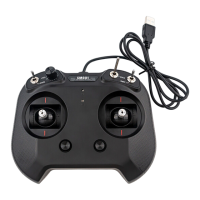
Connect the USB cable of the simulator to the USB port of PC or laptop to power on the simulator. To power it o,
unplug the USB cable.
2.1 Turning On/O the Simulator
2.2 Simulator LED Introduction
2.3 Changing Stick Mode
The red D1 LED indicates the communication status of the simulator. The green D2 LED indicates the function status
of the simulator. The details are as follows:
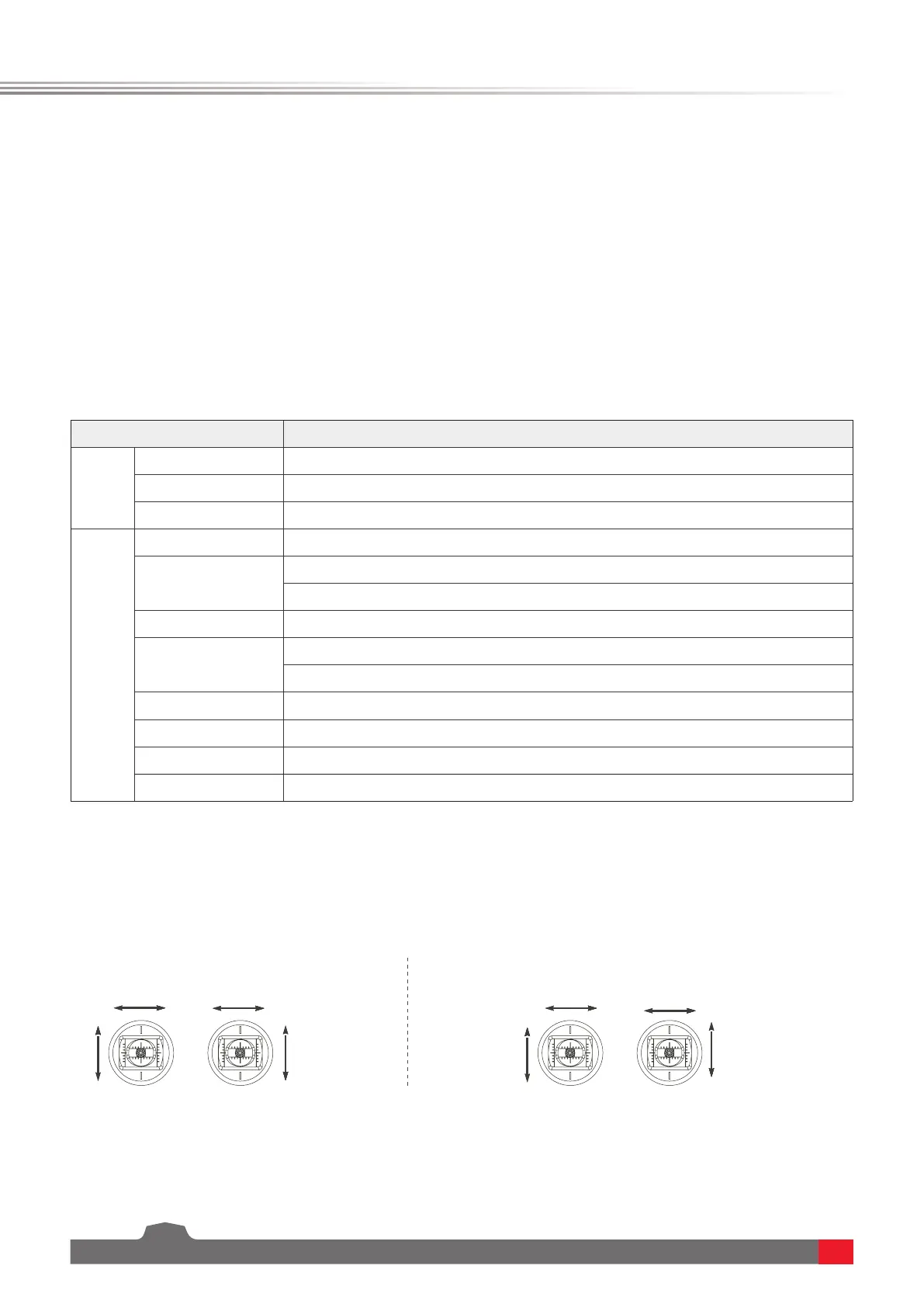
This simulator supports two stick modes. By default, the factory setting is the mode1(Left-hand throttle), namely,
the throttle is at the left gimbal assembly with non-self-centering. The two modes are as follows:
LED Status Simulator Status
D1 LED
Flash Rapidly USB function is abnormal.
Flash Slow USB function is normal. PPM signal is normal.
Solid On USB function is normal. PPM signal is abnormal.
D2 LED
Flash Rapidly Stick calibration
One-ash-one-o
Gimbal assembly swapping state: Throttle is at the right gimbal (Right-hand throttle).
Simulator software switching state: Reex XTR
Two-ash-one-o G3-G4.5
Three-ash-one-o
Gimbal assemblyswapping state: Throttle is at the left gimbal(Left-hand throttle).
Simulator software switching state: APD
Four-ash-one-o PhoenixRC
Solid On Normal
Flash Once Rapidly The trim reaches the neutral position.
Flash Rapidly For 3S Reset the trims to neutral position.
Mode1:
Mode2:
Elevator
Elevator
Throttle
Throttle
Aileron
Aileron
Rudder
Rudder
You can choose the stick mode according to your operating habits. To switch the stick mode, follow the steps below:
1. Press and hold the Middle button of the two trim buttons (Five-way Button) of the simulator and turn on the


 To Next Page