focusrite.com Tell the world 15
Using Auto Gain
Vocaster One’s Auto Gain feature allows
you to get a good recording level
without guesswork.
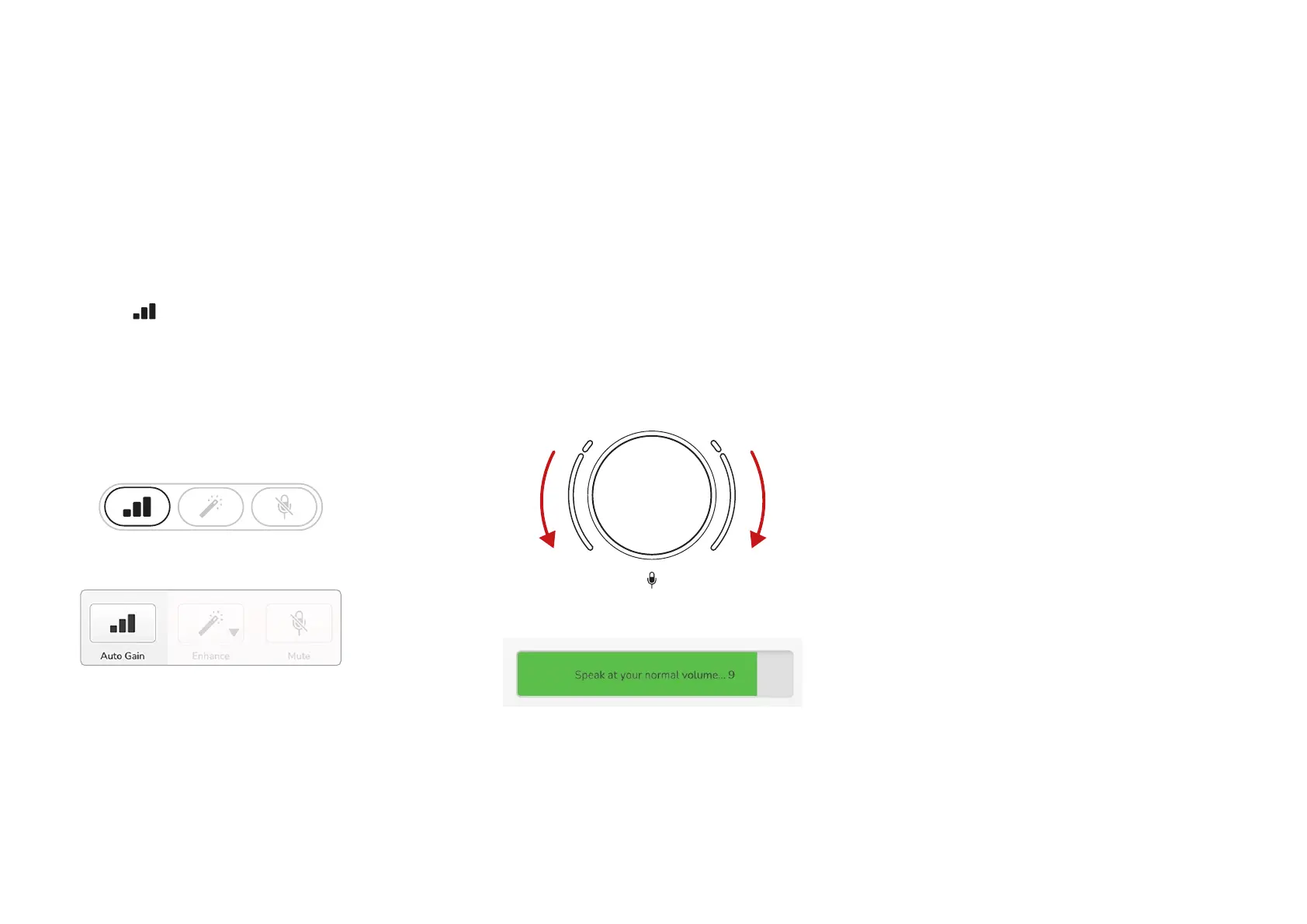
Press the button to activate Auto
Gain or, if you have Vocaster Hub open
on your computer, by clicking on the
on-screen Auto Gain icon.
The Auto Gain button will pulse amber.
Vocaster One
Vocaster Hub
Speak into the microphone for ten
seconds, using a normal speaking voice
you will use for the recording itself.
The halos acts as a count down timer,
starting fully white, then moving
towards the bottom. Vocaster Hub also
shows a progress bar.
Halo countdown on Vocaster
Vocaster Hub countdown
After ten seconds, Auto Gain sets the
input level for the microphone and
you’re ready to record.
Auto Gain didn’t set my input level
If the halos ash amber the signal is too
loud or too quiet so Auto Gain couldn’t
set the correct level and sets it to the
minimum or maximum level.
If the halos ash red Auto Gain couldn’t
set a usable level. This could be due to
a Mic Level that was too low:
• Test a different microphone or
cable.
• Make sure 48V is on, if you’re
using a condenser microphone.
• Make sure you switch on your
microphone (if it has an on/off
switch).
EXAMPLES OF USE


 To Next Page