21
Utility menu
Right-clicking in most areas of the RedNet units’ virtual front panels opens a pop-up menu with the
following options:
• Upgrade Firmware... – select this option when you have downloaded a firmware update
from the Focusrite website. A standard Open window opens, allowing you to navigate to the
saved firmware update file. Select the filename to initiate the upgrade procedure. Once a
firmware upgrade has commenced, a progress bar will appear. It is very important that you do
not interrupt the upgrade process, either by shutting down the computer or powering down a
unit, or you risk permanent damage to the unit.
•
Get Info – opens a window providing system information, including firmware and software
versions.
•
Reset Routing – this is effectively an “undo” command for any custom routings which have
been set up using the Dante Controller. The Audio routings are restored to the default one-to-
one mapping determined by the units’ layout in the RedNet Control window.
• Edit Routing... - clicking this option launches Audinate Dante Controller, or, if Dante
Controller is already running, opens its window on top of RedNet Control. See “Using Dante
Controller” on page 22.
•
Unroute All – selecting this option deselects all inputs and outputs on every RedNet unit
on the network; consequently all on-screen virtual front panels will move into the AVAILABLE
area.
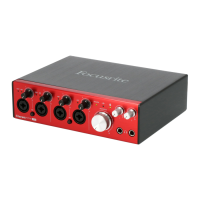
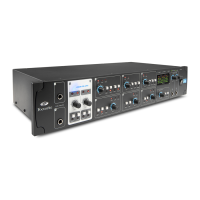
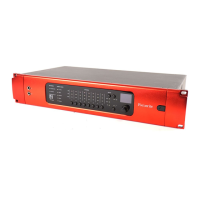
Per-unit virtual front panels
Please see the individual RedNet interface User Guides for information regarding the on-screen
features and facilities which are specific to each unit.




 To Next Page