FoMaKo Focus Your Streaming www.fomako.net
Quick Start
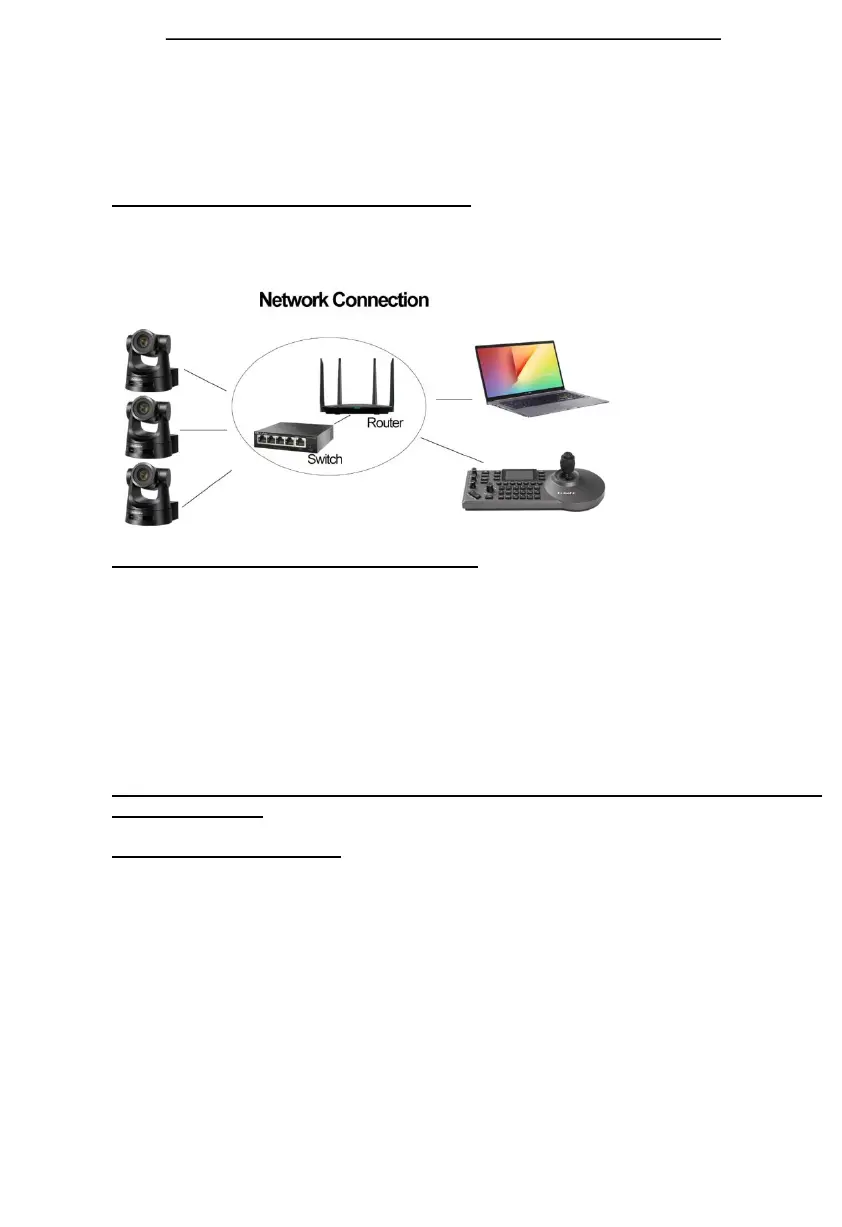
Add Controller&Cameras to Your Network
Please do the connections as the following. You’d better have a router in your network,then router will
assign IP addresses for the controller and cameras automatic. If you don’t have router in your network,
controller&cameras can’t get IP address from your network.
About cameras and controller’s IP address
The first three parts of IP address must be the same for controller and cameras.
For example:
192.168.1.100 and 192.168.1.150 , the first three parts are the same. You can add the
camera to controller.
192.168.1.100 and 192.168.12.110, the first three parts are not the same.You can’t add
the camera to the controller.
You have to change camera or controller’s ip address , to make the first three parts
become the same.
FoMaKo cameras and controller are optimized, normally, you don’t need change ip
address for them.
Add Cameras to Controller
Method one: By controller’s search function
Please note: Some brands cameras don’t support search function.
Let’s use FoMaKo camera for example.
(1) Press “search” button on controller, it will show cameras' ip address on screen;
(2) Press “Enter” -> “Add to Shortcut Keys” , you can assign the cameras to
CAM1~CAM7 shortcut keys,
For example, you assigned the first camera to CAM 1, press “CAM 1” button,
now ,you can control the first camera.
(3) Add cameras one by one, you can assign 7 cameras to 7 shortcut keys.
Method Two: by camera’s IP address
(1) Press “Setting” -> Device Management ->Add a new Device:input the camera’s IP
address, Protocol: VISCA Over IP, Save
(2) Go to Settings -> Hot Key -> CAM 1-> Select from List->choose the camera’s ip


 To Next Page