FoMaKo Focus Your Streaming www.fomako.net
Edit shortcut
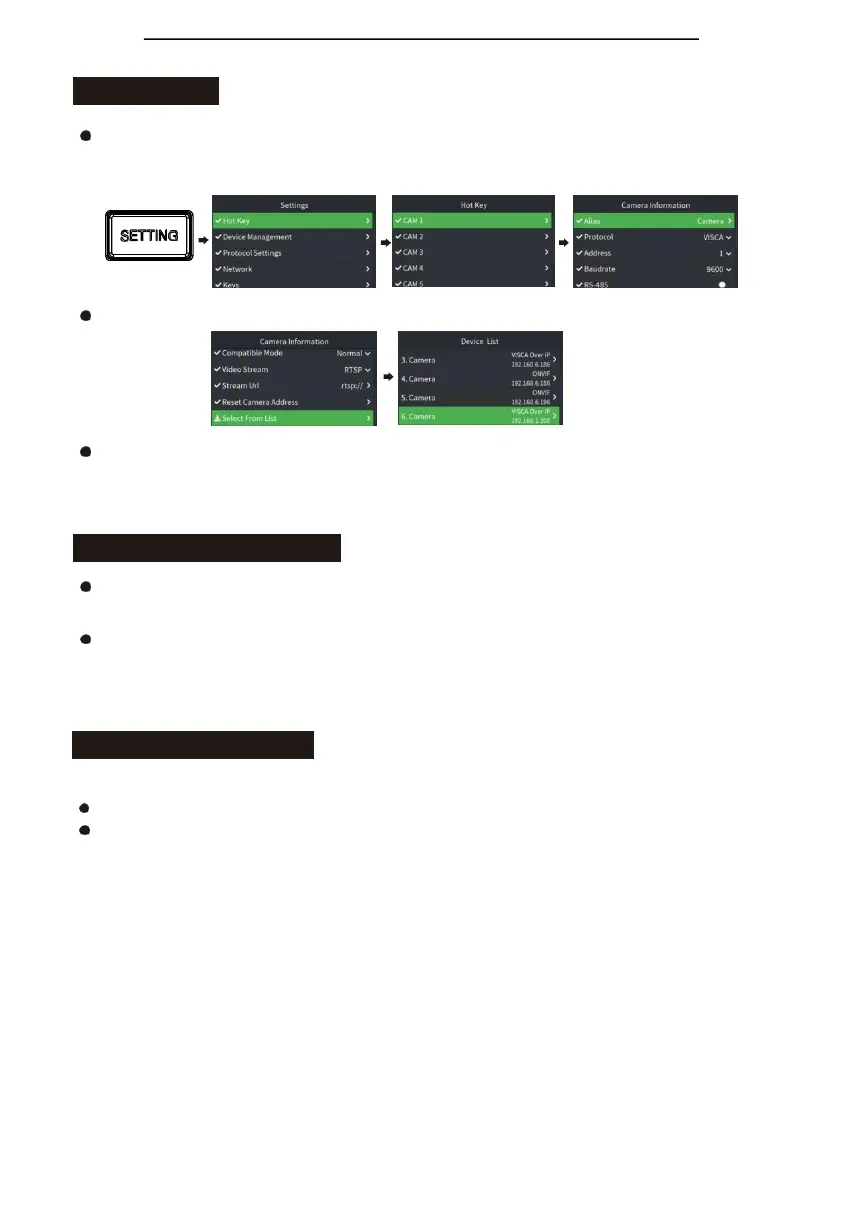
Click "SETTING" to enter the menu, select the "Shortcut Key" column, you can edit 7 shortcut
keys, take the shortcut key CAM1 as an example, you can manually modify the device
parameters;
You can select the "Select from List" column to select a device from the "Device List";
On the main page, when you have selected the shortcut key, press and hold for three seconds
to quickly enter the shortcut key device editing, which is equivalent to the shortcut key device
information editing in the menu.
Interact with the camera
Click "CAM LIST" to open the device list, and then select the device through the joystick or
"FOCUS" knob;
Press the shortcut key "CAM1~CAM7" to select camera to be controlled;
(When it’s VISCA protocol, there are multiple cameras, in protocol for VISCA shortcut
editing, click "Reset Camera Address" to assign the address).
Camera menu control
1.
Set camera OSD menu
Press the "CAM MENU" button to send a command to open the camera OSD menu; Use the
joystick to navigate the menu;
a.
Move the joystick up and down to browse the menu options;
b.Move left and right to adjust the value;
c.Press the top button of the joystick to send the "ENTER" command.
2.
Manual movement
- Horizontal, vertical and zoom can be executed simultaneously;
- Joystick can be used to move horizontally and vertically in any direction;
- The joystick can quickly return the gimbal and lens to the initial position through the top button;
- PTZ Speed: "+, -" knob can adjust the rocker switch ("ZOOM" TELE WIDE) to control the zoom speed
of the camera;
- Rotate the rocker to adjust Zoom In/Out.


 To Next Page