11
Configuration
3
Conguring an IP address
After you have connected the FortiExtender network interfaces, the device automatically
attempts to obtain an IP address from a DHCP server. If you do not use DHCP, you can
configure a static IP address.
To configure a static IP address:
1. Use a network cable to connect the FortiExtender WAN/POE port to the Ethernet port
of your laptop.
2. Configure the laptop to be on the same subnet as FortiExtender by changing the
laptop IP address to 192.168.1.1 and the netmask to 255.255.255.0.
3. Open the laptop web browser to the default FortiExtender web UI address
http://192.168.1.2.
4. In both the username and password fields, type admin and press Enter.
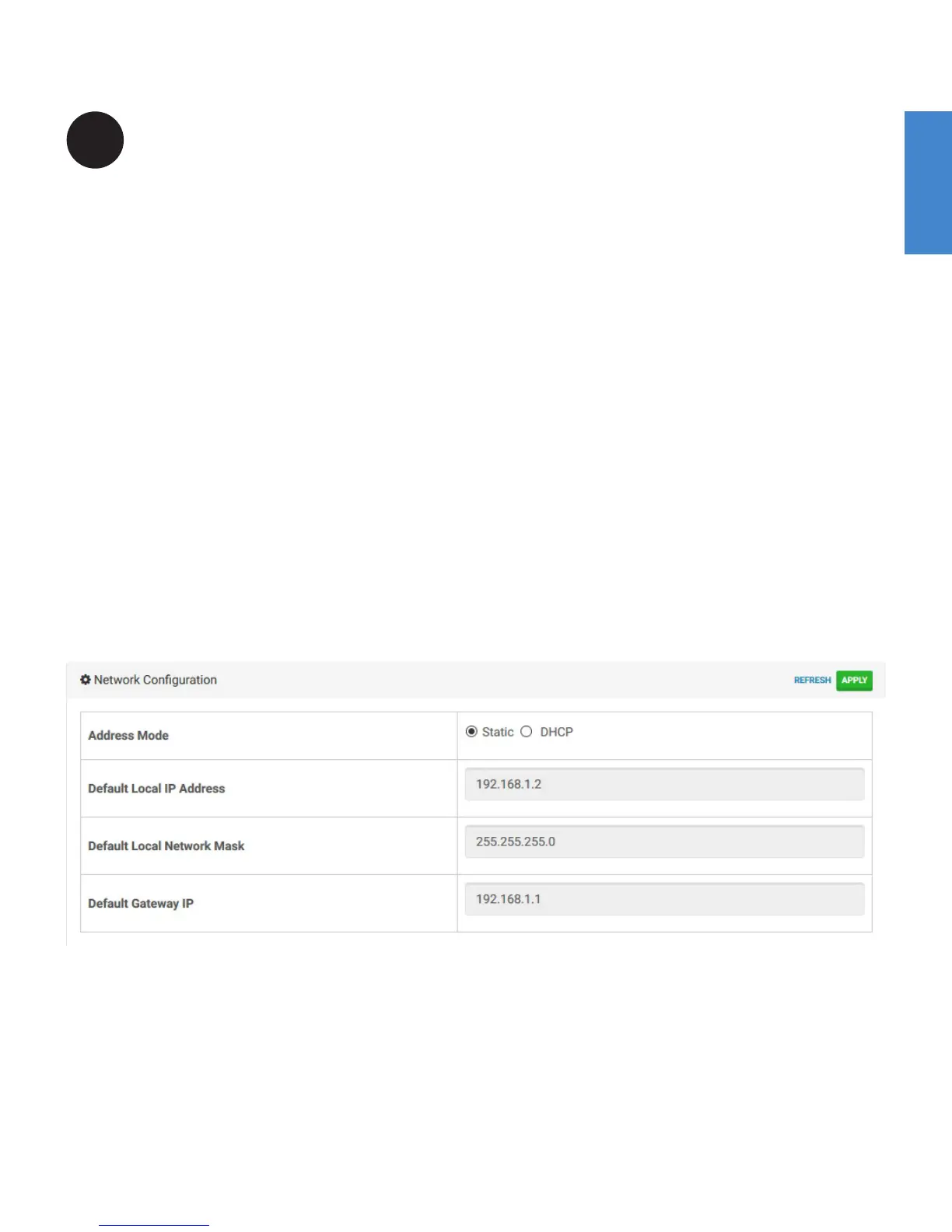
5. Go to Network Configuration.
6. For address mode, select Static.
7. Specify the IP address, netmask, and gateway; and then click APPLY.


 To Next Page