13
Updating SIM rmware (FEX-40D)
The firmware installed in the factory supports AT&T and Verizon 3G/4G LTE SIM cards.
If you have a SIM card for a different ISP, you can use the FortiExtender CLI or web UI to
update the firmware. Check the Fortinet Customer Service & Support website to see if a
firmware package is available for your ISP’s SIM card.
Before you begin:
You must download the appropriate firmware to your laptop. Depending on the package
you download and the instructions from your ISP, you might need to install a firmware file,
a carrier provisioning file (PRI), or both.
To install and boot the new firmware:
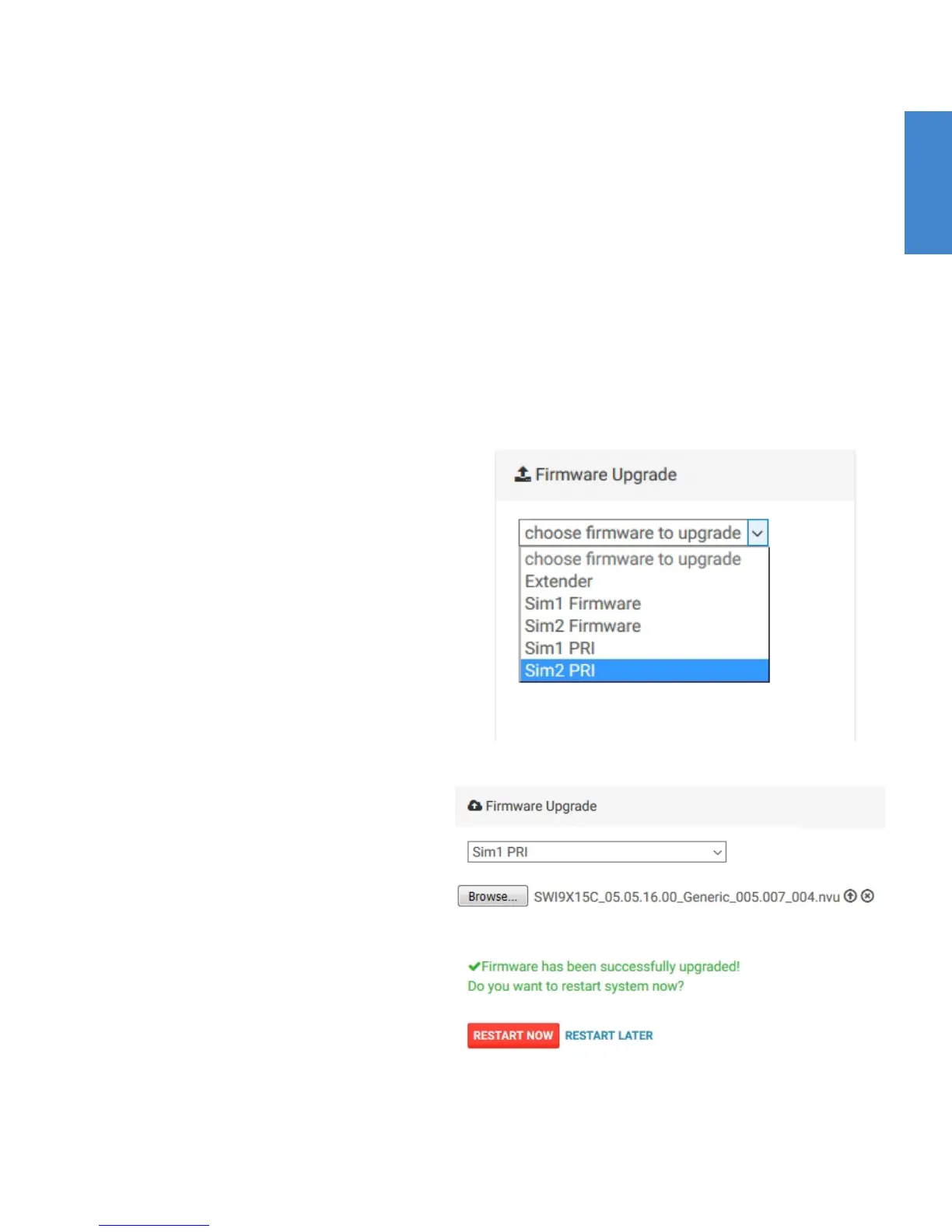
1. Go to Firmware Upgrade.
2. Select SIM1 Firmware or SIM2
Firmware to update the firmware for
respective slot.
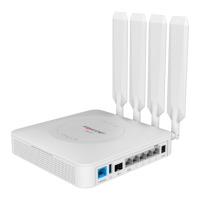
3. Use the controls to browse, select,
and upload the firmware file.
When you click the upload icon (up
arrow), the file is uploaded and the
upgrade is initiated. A green success
message is displayed when the
process is complete.
4. Select SIM1 PRI or SIM2 PRI to
upload the carrier provisioning file for
the respective slot.
5. Click RESTART NOW to boot the
newly installed firmware.


 To Next Page