12
Updating FortiExtender rmware
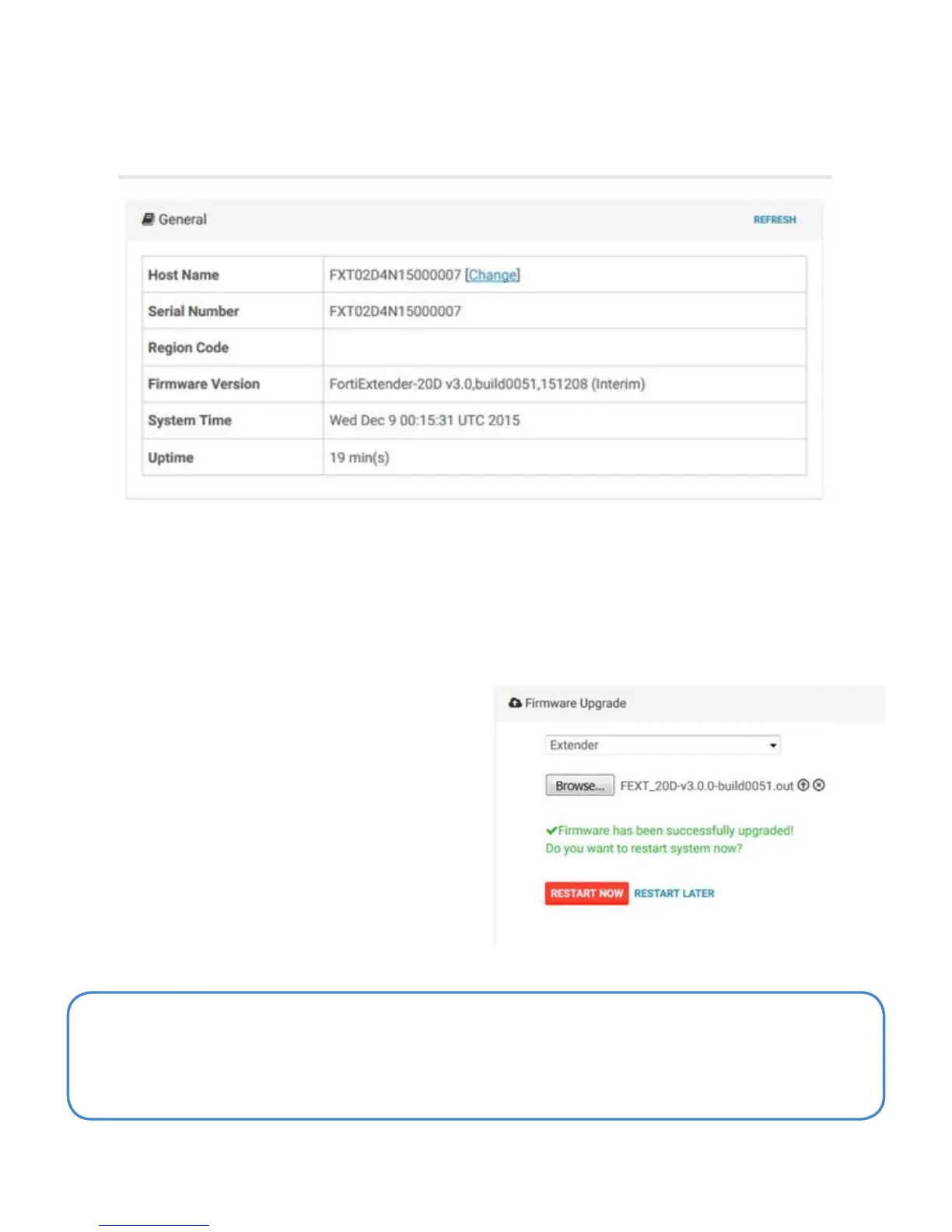
You can find the version of the installed firmware on the FortiExtender web UI home page.
Note: You can also use the CLI to upgrade FortiExtender firmware, or you can
upgrade a FortiGate-managed FortiExtender unit from the FortiGate management
web UI. For details, see the FortiExtender release notes.
Fortinet periodically updates FortiExtender firmware. Check the Fortinet Customer Service
& Support website at https://support.fortinet.com to see if updates are available. If the
support site firmware download page shows a newer version than the one displayed on
the FortiExtender web UI home page, read the release notes and download the firmware.
To install and boot the new firmware:
1. Go to Firmware Upgrade.
2. Select Extender.
3. Use the controls to browse, select, and
upload the firmware file.
When you click the upload icon (up arrow),
the file is uploaded and the upgrade is
initiated. A green success message is
displayed when the process is complete.
4. Click RESTART NOW to boot the newly
installed firmware.


 To Next Page