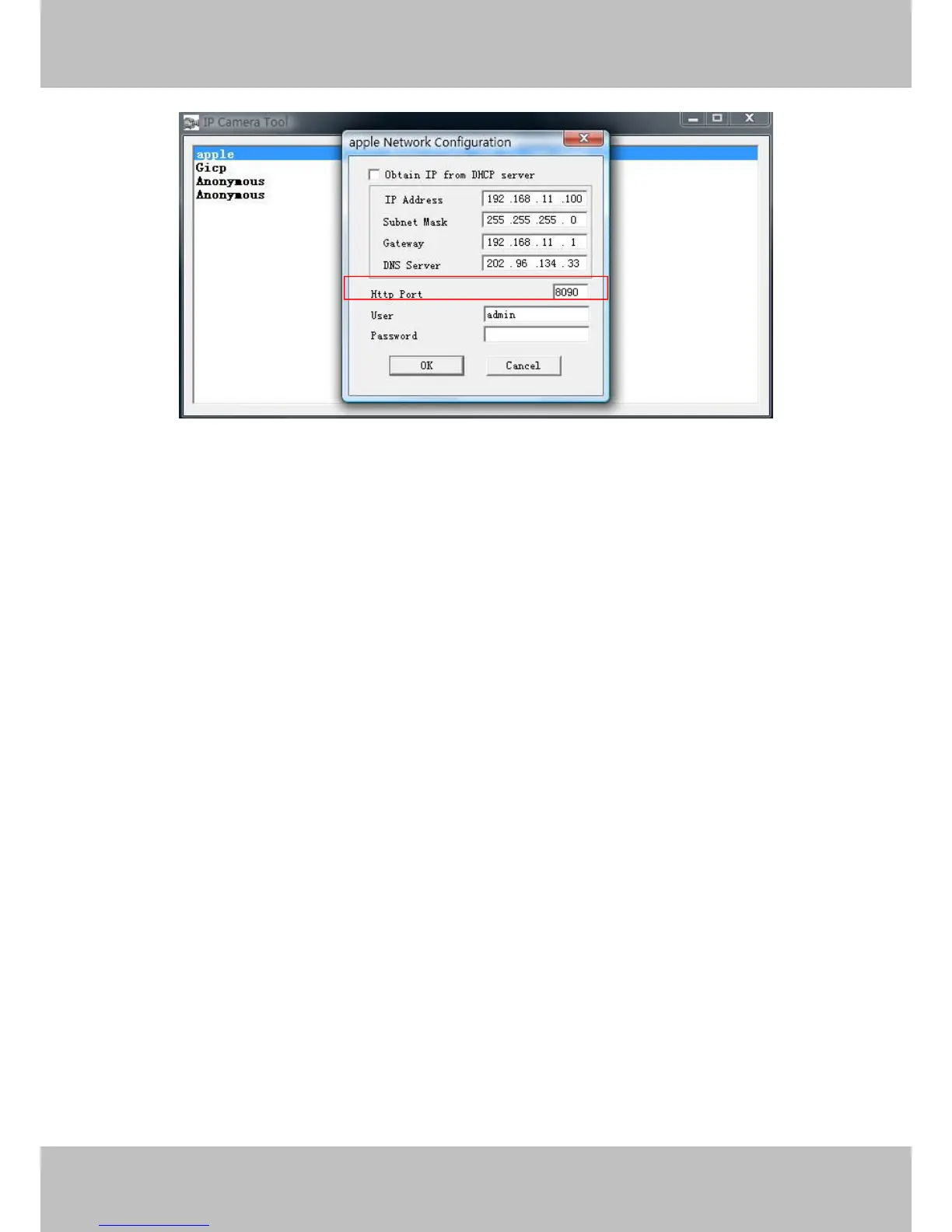
Figure 4.2
NOTE: Make sure that your firewall or anti-virus software does not block the camera or ActiveX.
If you cannot see live video, try shutting down the firewall or anti-virus software and try again.
4.1.4 Can’t access IP camera on internet
Possible reasons why camera is not accessible on the internet:
1) ActiveX controller is not installed correctly
2) The port which the camera uses is blocked by a Firewall or Anti-virus software. Try
changing to another port number. (Figure 4.2)
3) Port forwarding is not successful (Figure 3.30)
Double check these settings and make sure they are correct.
4.1.5 IP Camera Tool could not find camera’s IP
Verify that the network cable is securely fastened to the camera.
Make sure that DHCP is enabled on your router, do not enable MAC address filter.
Make sure that the firewall or anti-virus software does not block the camera. You can add the
camera as a trusted site on your firewall or anti-virus software.
4.1.6 UPnP always failed
UPnP only contains port forwarding in our recent software. Sometimes, it may be fail to do port


 To Next Page