EasyManua.ls Logo

Foscam FI8910E - Basic Network Settings

Foscam FI8910E
75 pages
Print Icon
To Next Page IconTo Next Page
To Previous Page IconTo Previous Page
Loading...
26
w
w
w
w
w
w
w
w
.
.
f
f
o
o
s
s
c
c
a
a
m
m
.
.
c
c
o
o
m
m
S
S
h
h
e
e
n
n
z
z
h
h
e
e
n
n
F
F
o
o
s
s
c
c
a
a
m
m
I
I
n
n
t
t
e
e
l
l
l
l
i
i
g
g
e
e
n
n
t
t
T
T
e
e
c
c
h
h
n
n
o
o
l
l
o
o
g
g
y
y
C
C
o
o
.
.
,
,
L
L
i
i
m
m
i
i
t
t
e
e
d
d
T
T
e
e
l
l
:
:
8
8
6
6
7
7
5
5
5
5
2
2
6
6
7
7
4
4
5
5
6
6
6
6
8
8
F
F
a
a
x
x
:
:
8
8
6
6
7
7
5
5
5
5
2
2
6
6
7
7
4
4
5
5
1
1
6
6
8
8
26
3
3
.
.
6
6
Basic Network Settings
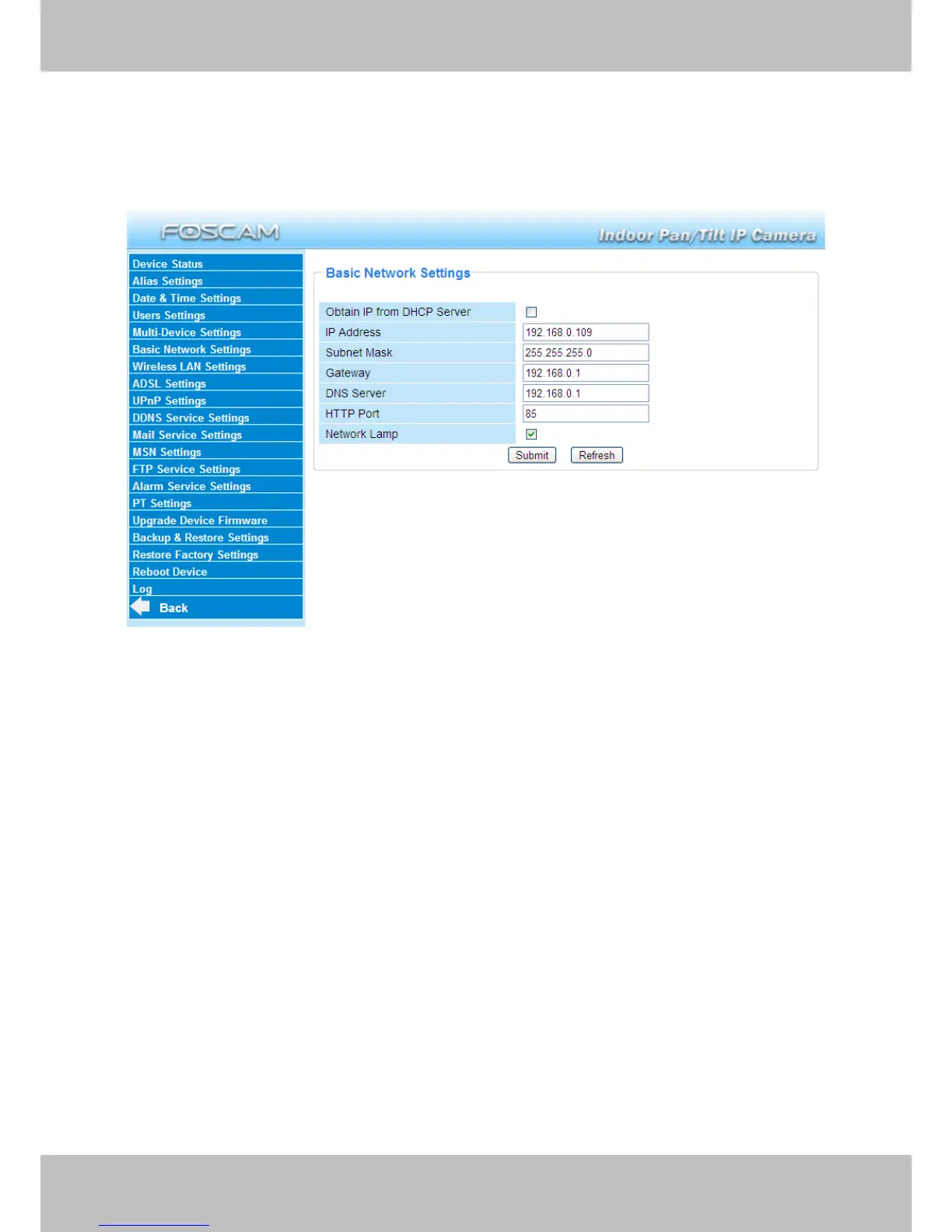
If you want to set a static IP for the camera, select Basic Network Settings. Keep the camera in
the same subnet of your router or computer.
Figure 3.14
Changing settings here is the same as using the IP Camera Tool. (Figure 3.17/3.18)
It is recommended that you use the subnet mask, gateway and DNS server from your locally
attached PC. If you dont know the subnet mask, gateway and DNS server, you can check your
computers local area connection as follows:
Control PanelNetwork ConnectionsLocal Area Connections Choose
SupportDetails.


Related product manuals