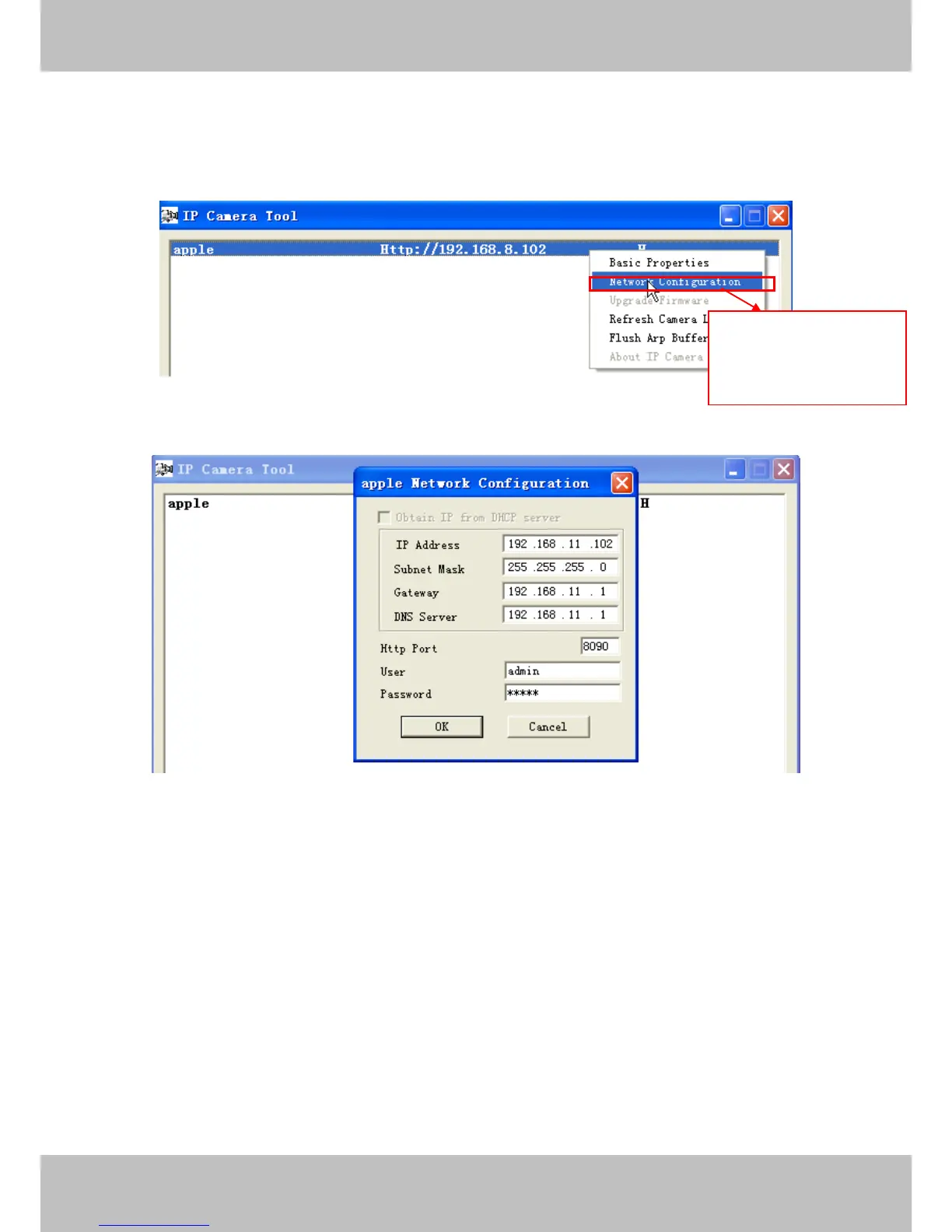
Another way to change the camera’s LAN IP and HTTP Port no.
Open the IP Camera Tool, select the camera you want to change the port no, right click on the IP
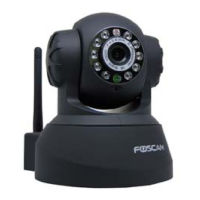
address link, and goes to Option ”Network Configuration”, it pops up another dialogue showed as
the following screen
Figure 3.17
Figure 3.18
IP Address: Fill in the IP address assigned and make sure it is in the same subnet as your
computer or router. (I.e. the first three sections are the same)
Subnet Mask: The default subnet mask of the equipment in our LAN is: 255.255.255.0.You can
find the subnet mask in the basic information of your router or the locally-attached of your PC.
Gateway: Make sure it is in the same subnet with PC’s IP address. The gateway is your router’s
LAN IP.
DNS Server: IP address of your ISP network provider. You can find the DNS server in your
router or check the locally-attached address of your computer. Your PC contains your PC’s IP
address, gateway and DNS server. Normally, there are two DNS servers. Here you can also set
the DNS server the same with gateway.



 To Next Page